Display Name
You can set the column display name that you want to use.Header Font Style
You can set font styles that you want to use for headers.Font Style
You can set font styles that you want to use for text in cells.Function
You can choose the column function you want to apply to the column data if available. The following functions are available depending on the data type of the target column.Character
- Uppercase
- Lowercase
- Titlecase
- Extract Alphabets
- Extract Numbers
- Extract First Word
- Remove Spaces
- Remove Repeated Spaces
- Remove Alphabets
- Remove Numbers
Number Formatting
You can set Number Formatting for numeric columns. The following formatting options are available.- Type
- Number: Format as simple numbers. This is the default type.
- Currency: Format as currency. If you set a currency symbol, it will be added at the beginning of each number.
- Percentage: Format as percentages. ”%” sign will be added at the end of each number.
- Digit: Number of decimal digits.
- Symbol: Current symbol. It will be added to it will be added at the beginning of each number if the “Currency” type is selected.
Date Formatting
You can set the date formatting for Date and POSIXct columns at the “Formatting” section.Time Zone
You can set which time zone to apply for the POSIXct column data.Text Wrap
You can enable the Text Wrap option to allow showing the text in multiple lines.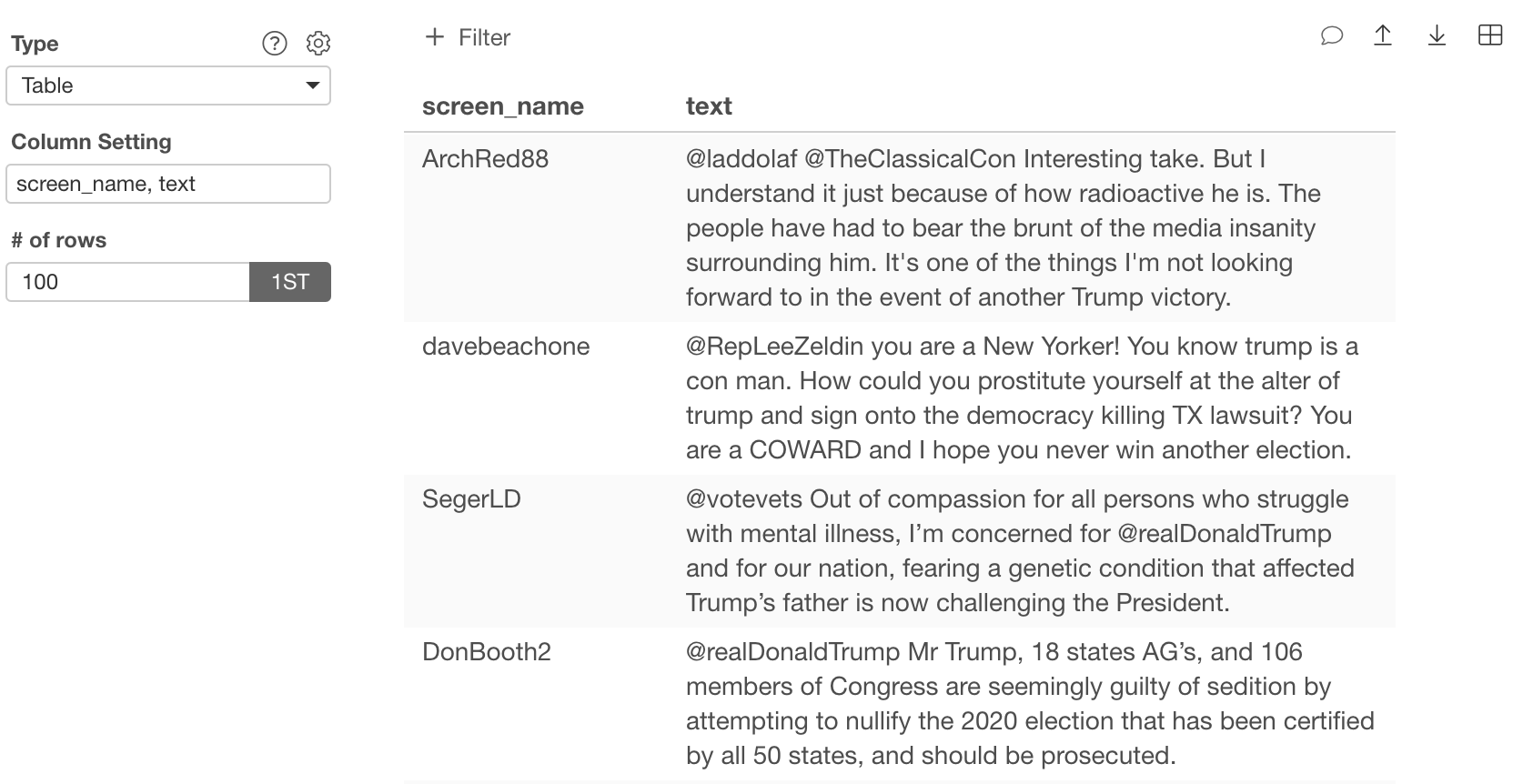
Sort
You can set the sort order of the column. You can set either “Descending” or “Ascending”. You can set the sort order in multiple columns. In this case, the sort happens in the priority order. In the case of Summarize Table, there will be no priority option. If you set a sorting option in one place, the sorting option you set in another place will be reset.URL
You can set a URL Link on the column. You can dynamically construct the link with the associated column values by referencing the column name by${}. Once you define a URL Link, the column value will be clickable and if a user clicks the value, it opens up the URL in an external browser.
For example, if you have a “Country” column in your table, you can set the URL http://exploratory.io/?q=${Country}. Then, the table output will look like this.
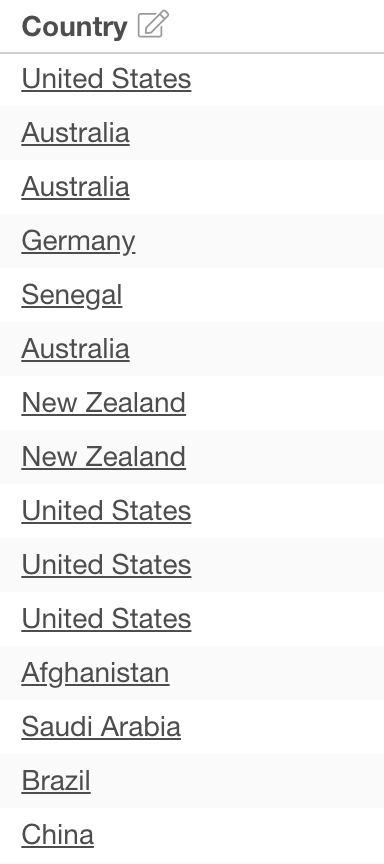
https://exploratory.io/?q=Germany
If you have $, {, { or \ in the column name, you need to add a \ letter before each letter like the following.
$ -> \${ -> \{} -> \}\ -> \\
US$ Sales, the URL should look like http://exploratory.io/?q=${US\$ Sales}.
If you want to use values as a URL parameter, check the “Apply URL encoding for the column value.” checkbox.
Column Width (px)
You can set column width. The unit is a pixel.Apply All Columns
If you check the “Apply All Columns” option, you can apply the column width setting to all the columns.Color Assignment
You can set a Color Assignment on each column.Color Bars
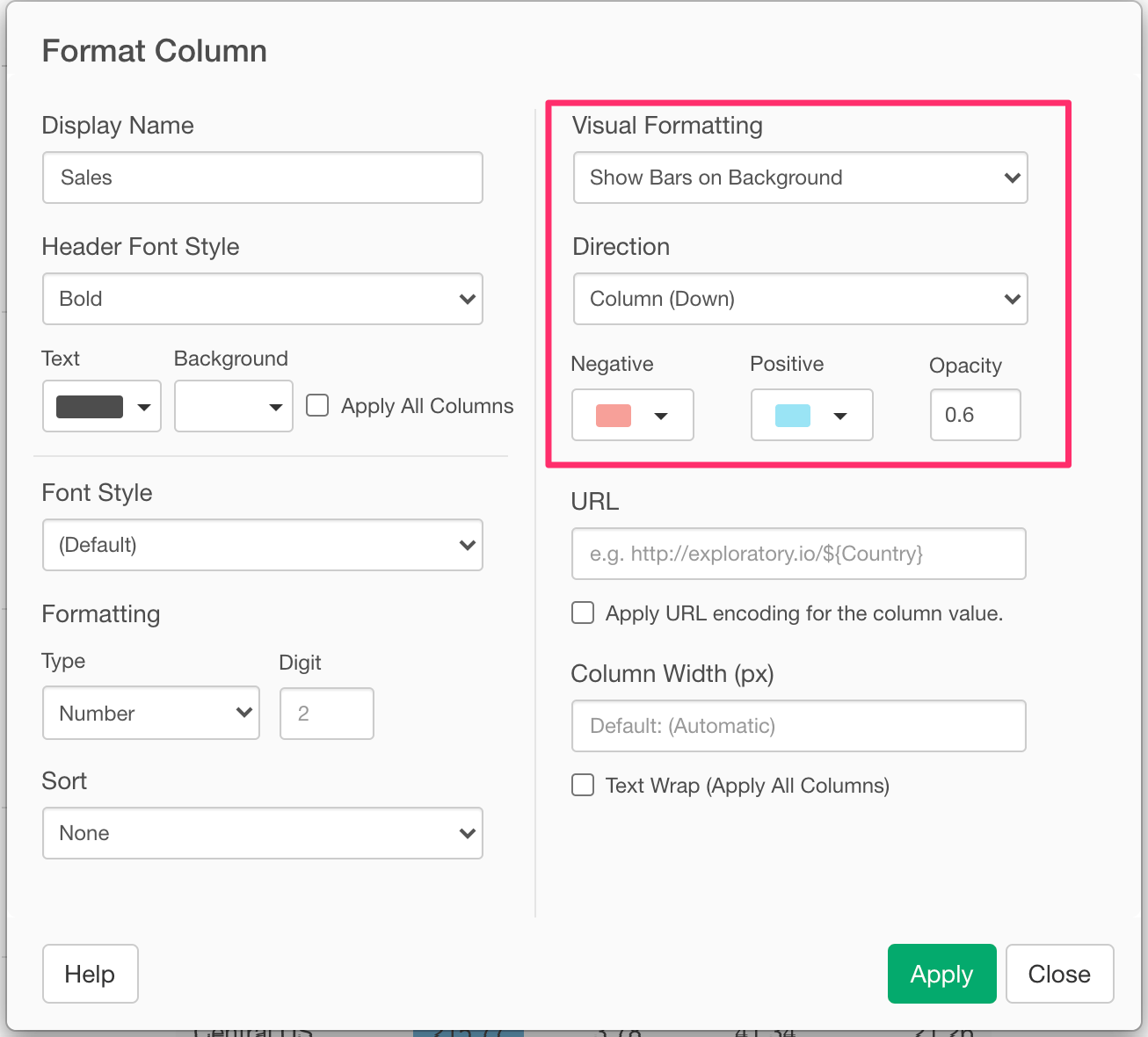
You can show inline bars in the column value cells. The bar length is depending on the column value. You can choose colors for positive values and negative values.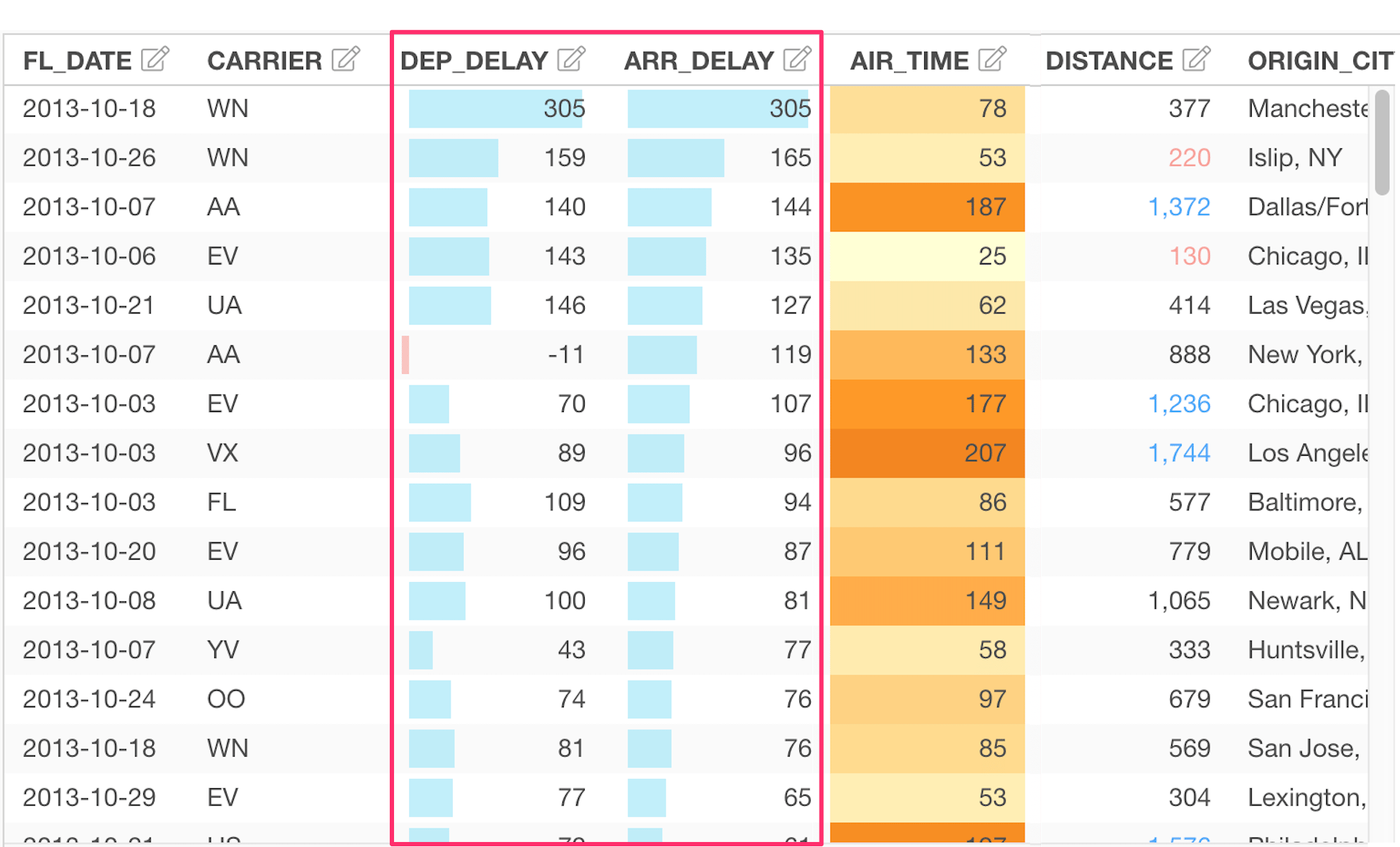
Background / Text
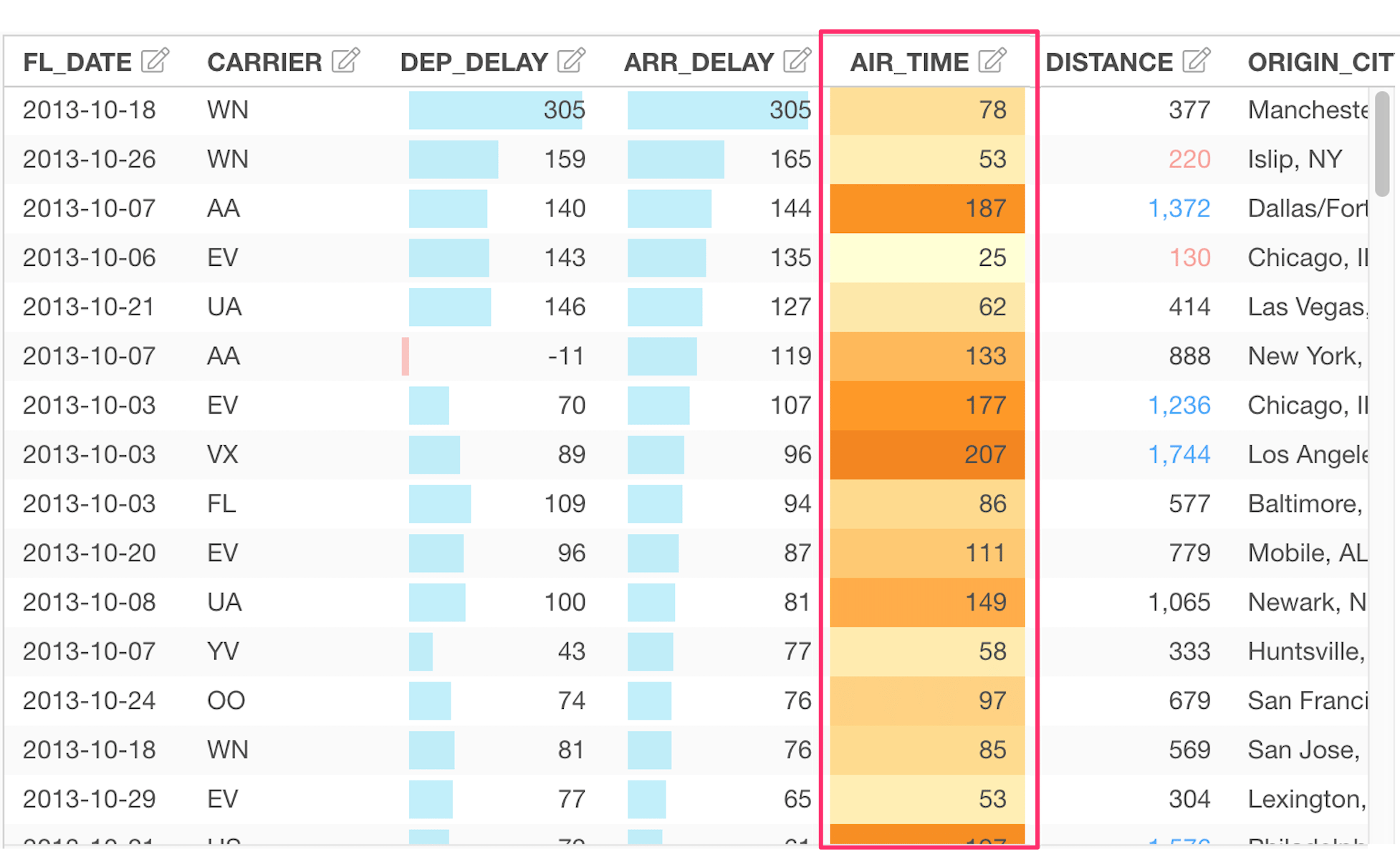
You can apply color encoding to the column values. You can choose a color palette to apply from the list. You can apply colors to either the value text or background color.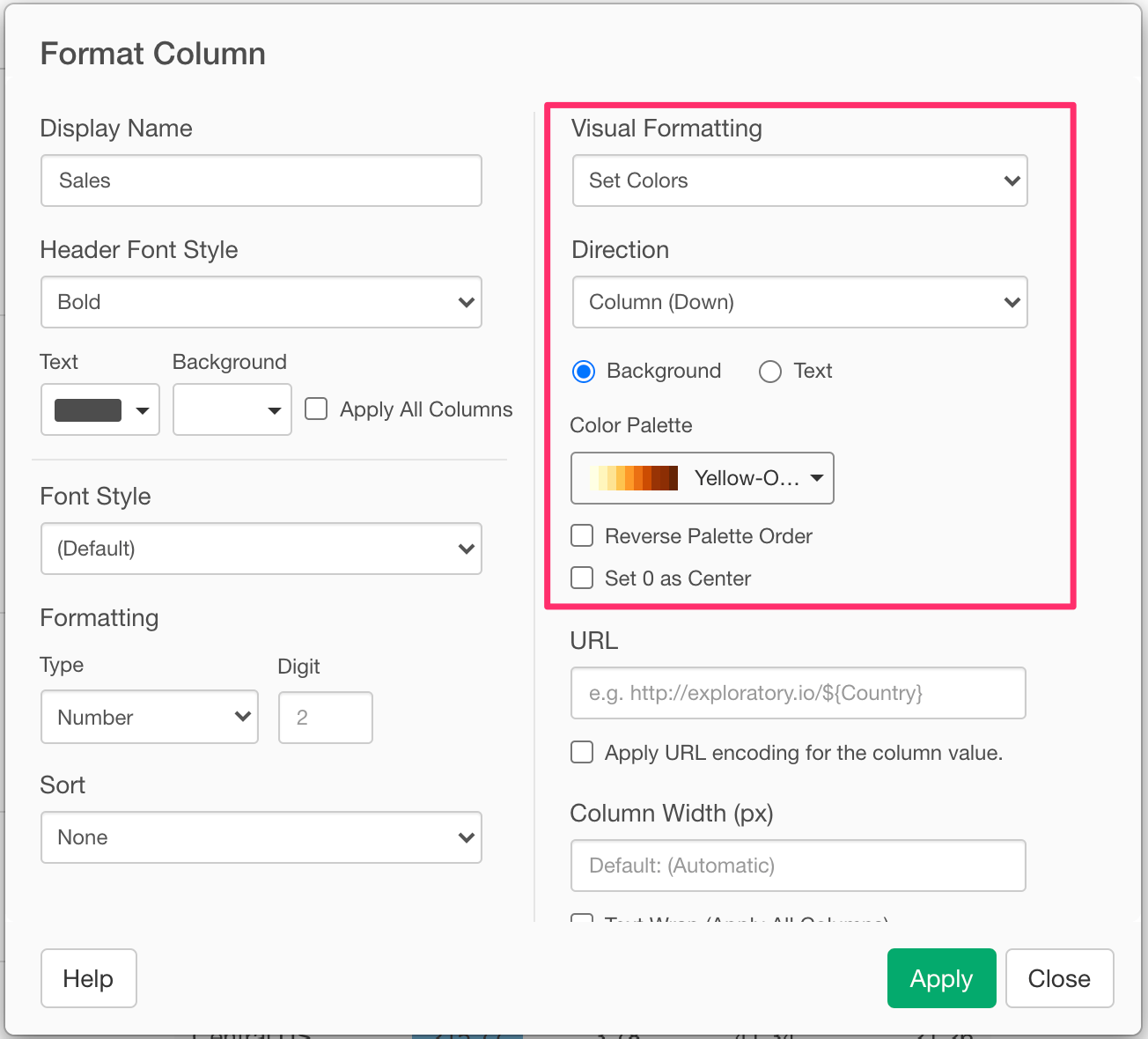
With Conditions
You can apply a specific color only for the values that meet the condition. You can choose an operator and enter the value to construct a condition, and you can choose a color to apply from the list. You can apply colors to either the value text, background color or inline bars. You can create multiple conditions by clicking the ”+” icon. The conditions are evaluated from the top to bottom. You can remove unnecessary conditions by clicking the “x” icon.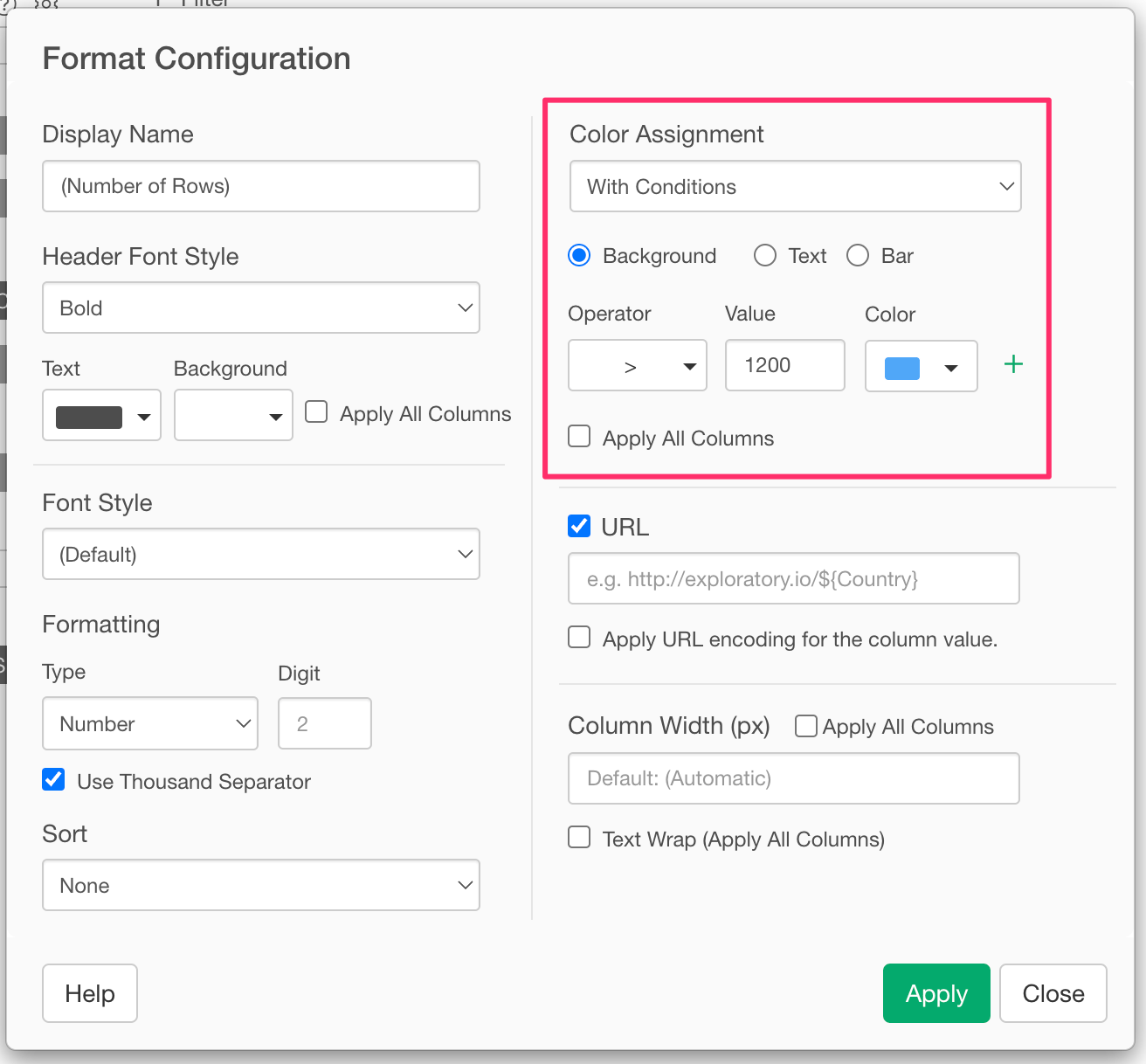
- equal to
- not equal to
- is in
- is not in
- less than
- less than or equal to
- greater than
- greater than or equal to
- between
- not between
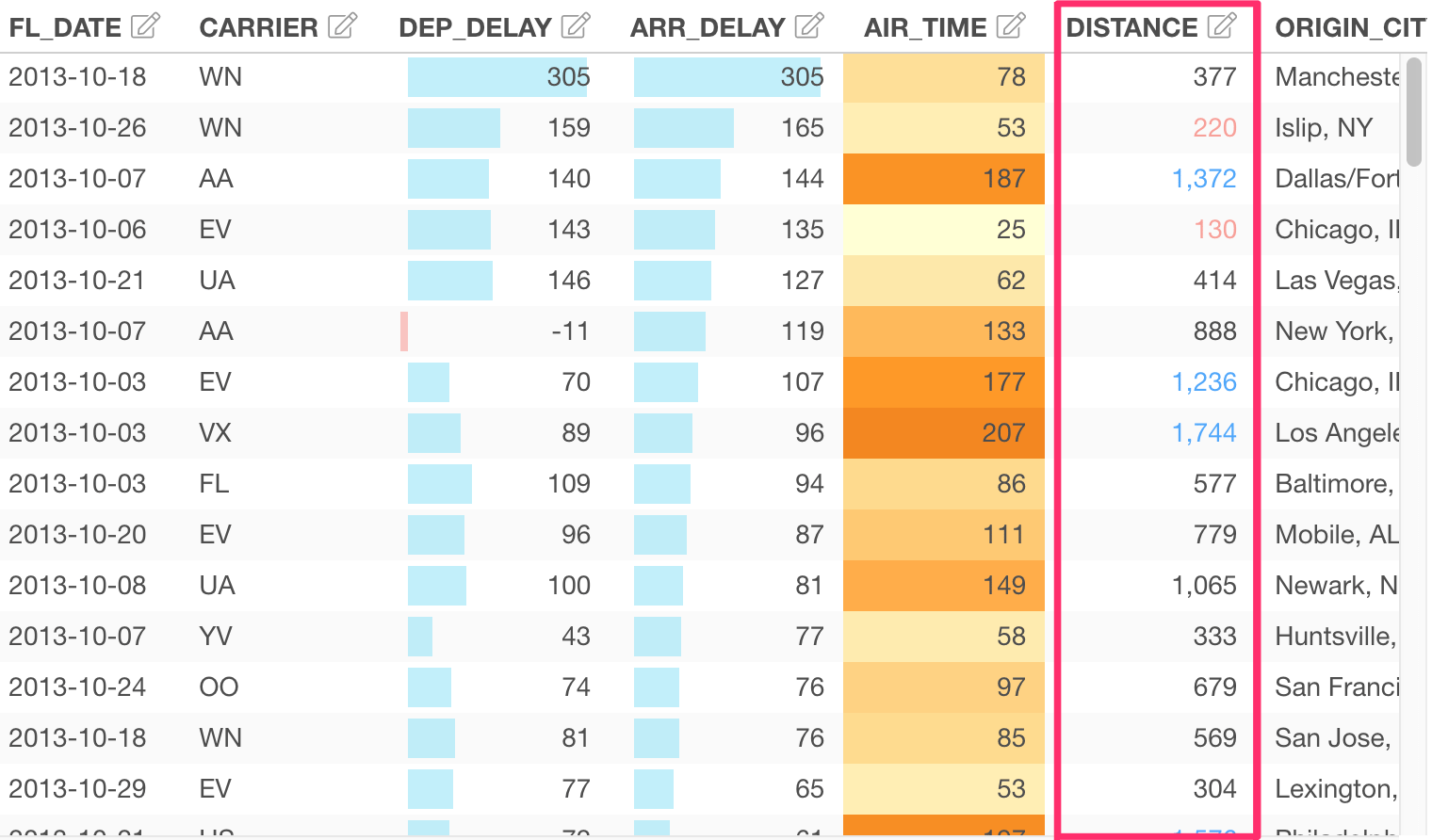
Apply All Columns
You can check the “Apply All Columns” checkbox to apply the same color formatting for all the other columns including row headers and row totals. It doesn’t apply the color formatting to the columns that already have their own Color Assignment. If you check this checkbox in multiple columns, the setting on the 1st column will be effective.Direction
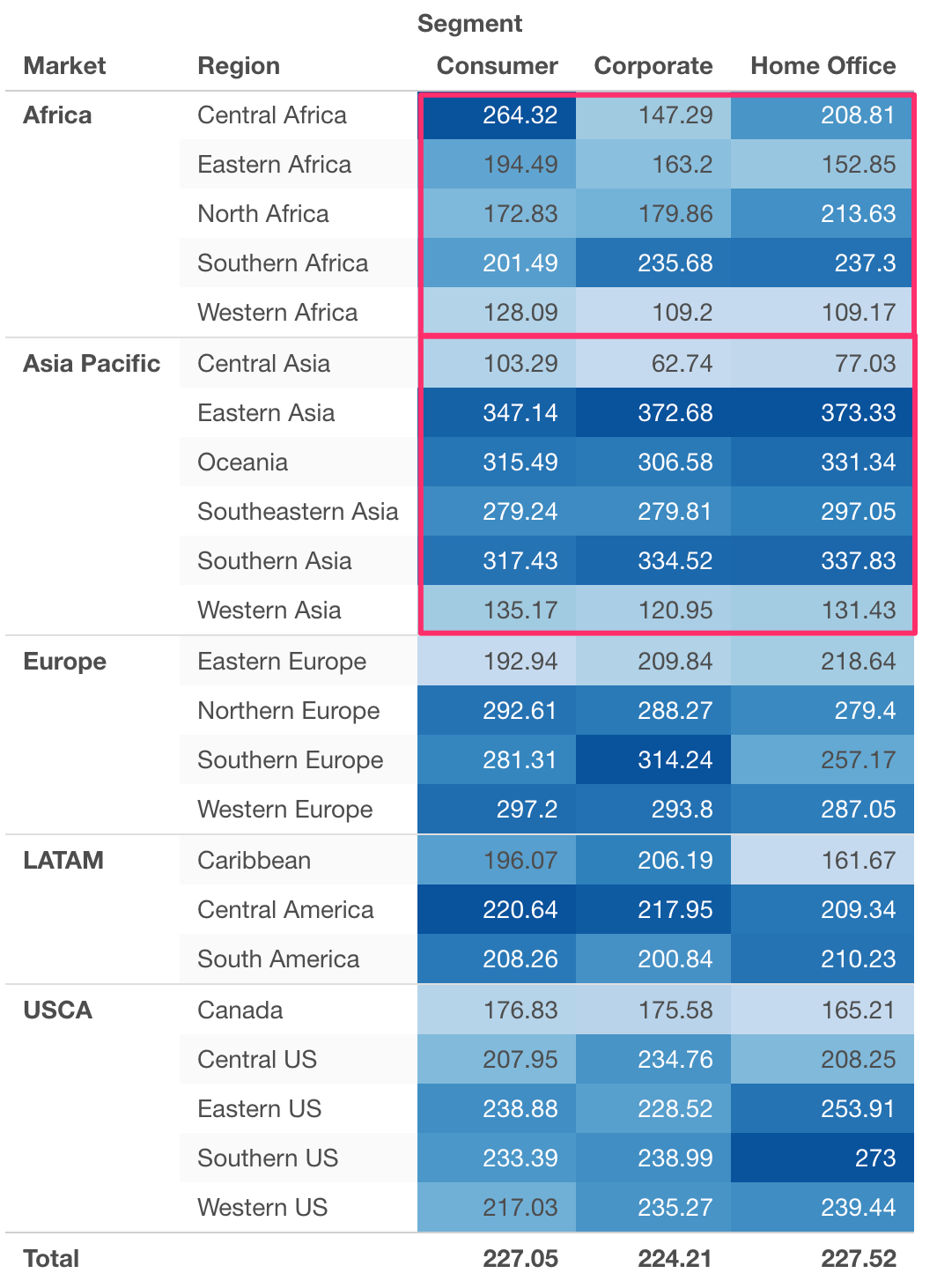
For “Color Bars” and “Background / Text” color formattings, you can choose how you group the Values for the color formatting at the Direction option. The following Direction types are available.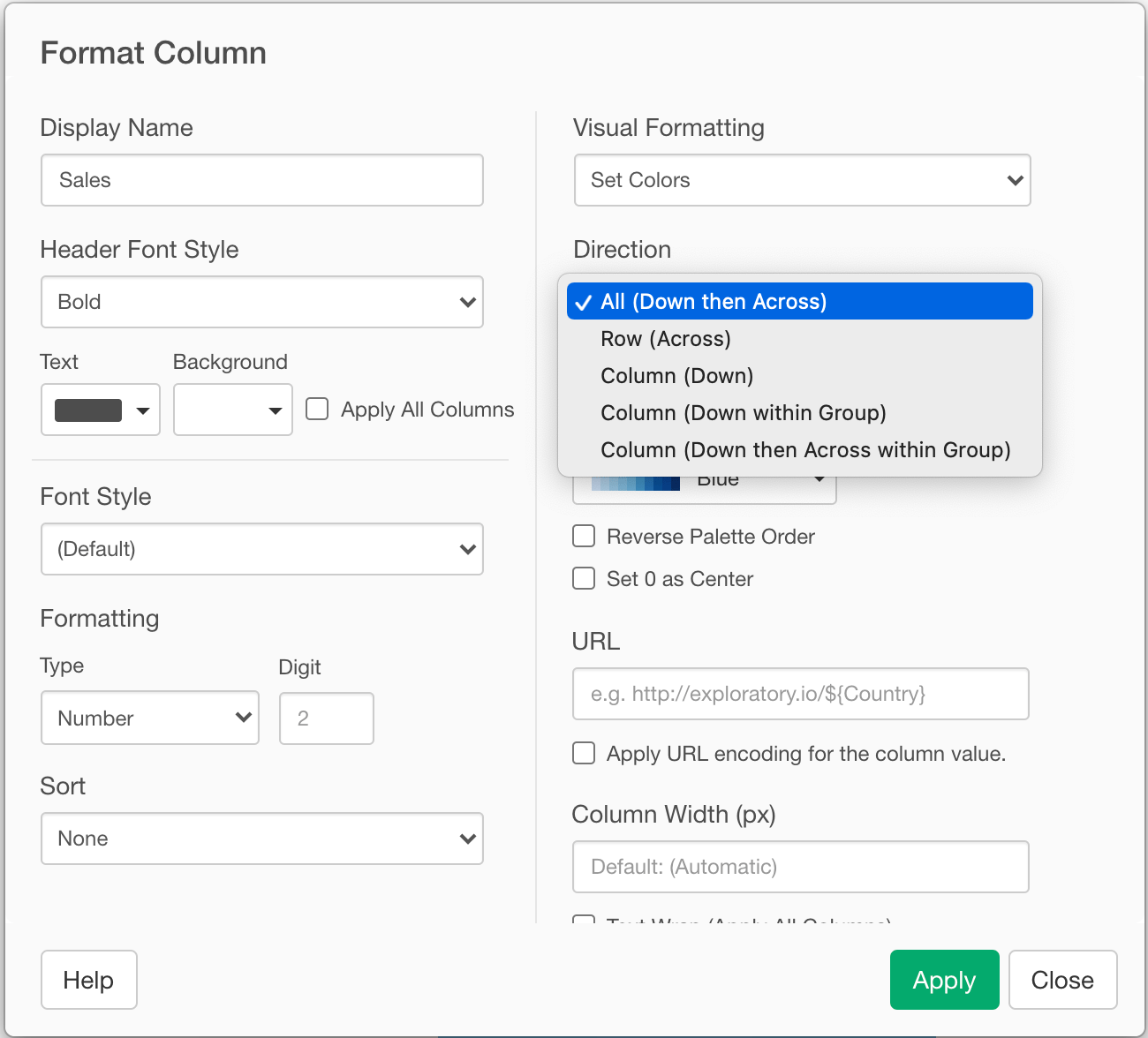
All (Down then Across)
It formats Value cells for the entire pivot table.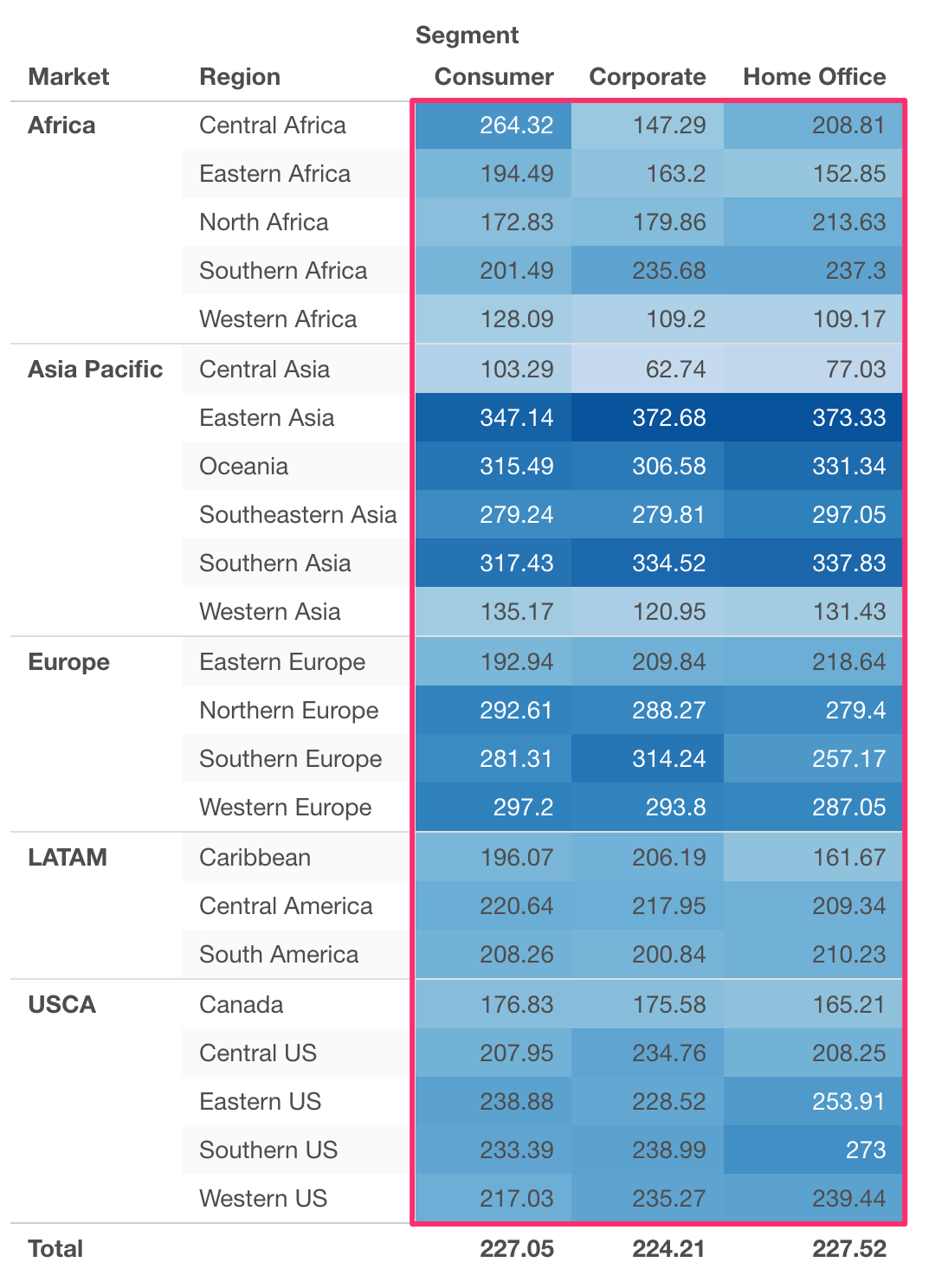
Row (Across)
It formats Value cells for each row.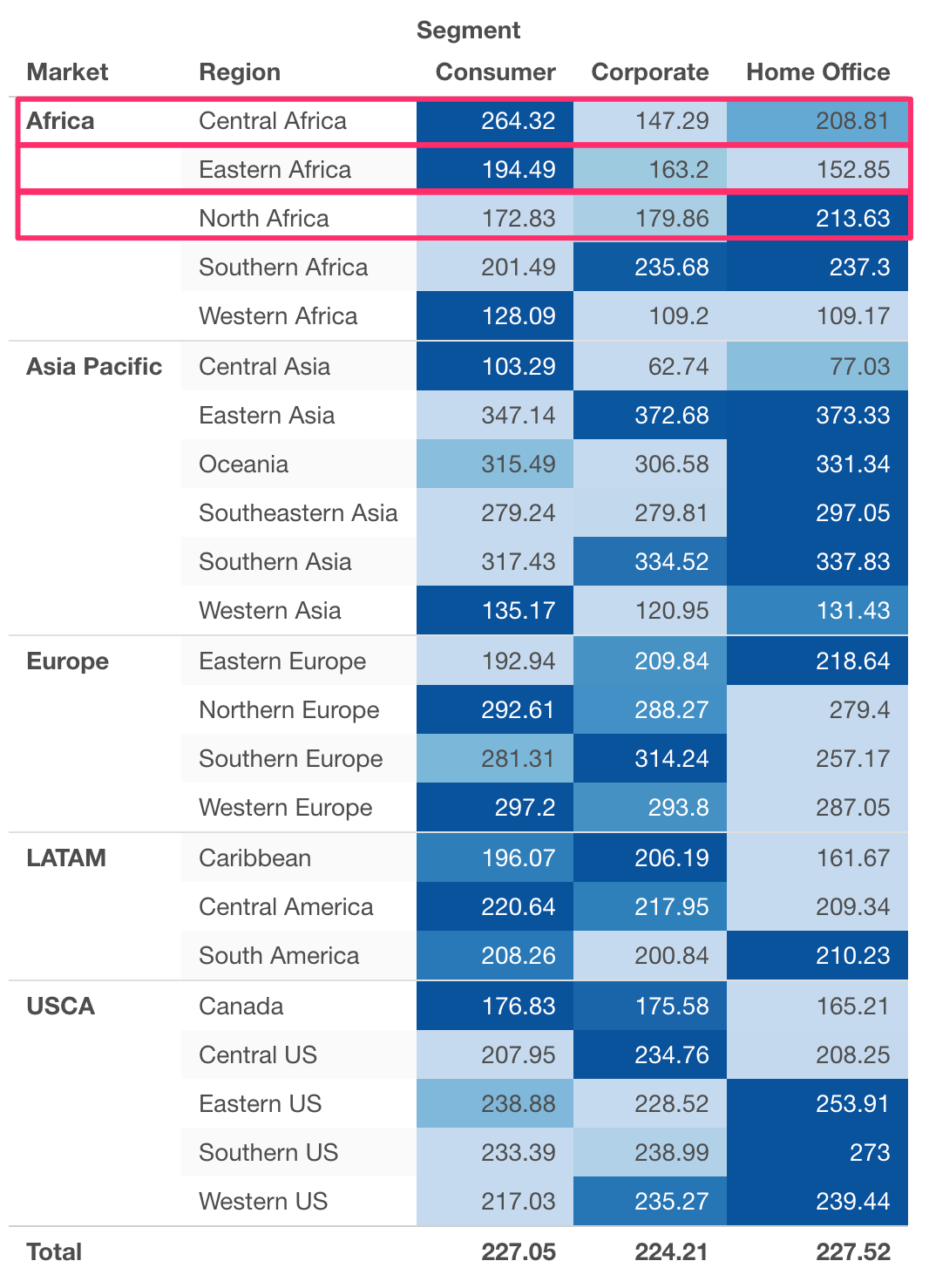
Column (Down)
It formats Value cells for each column.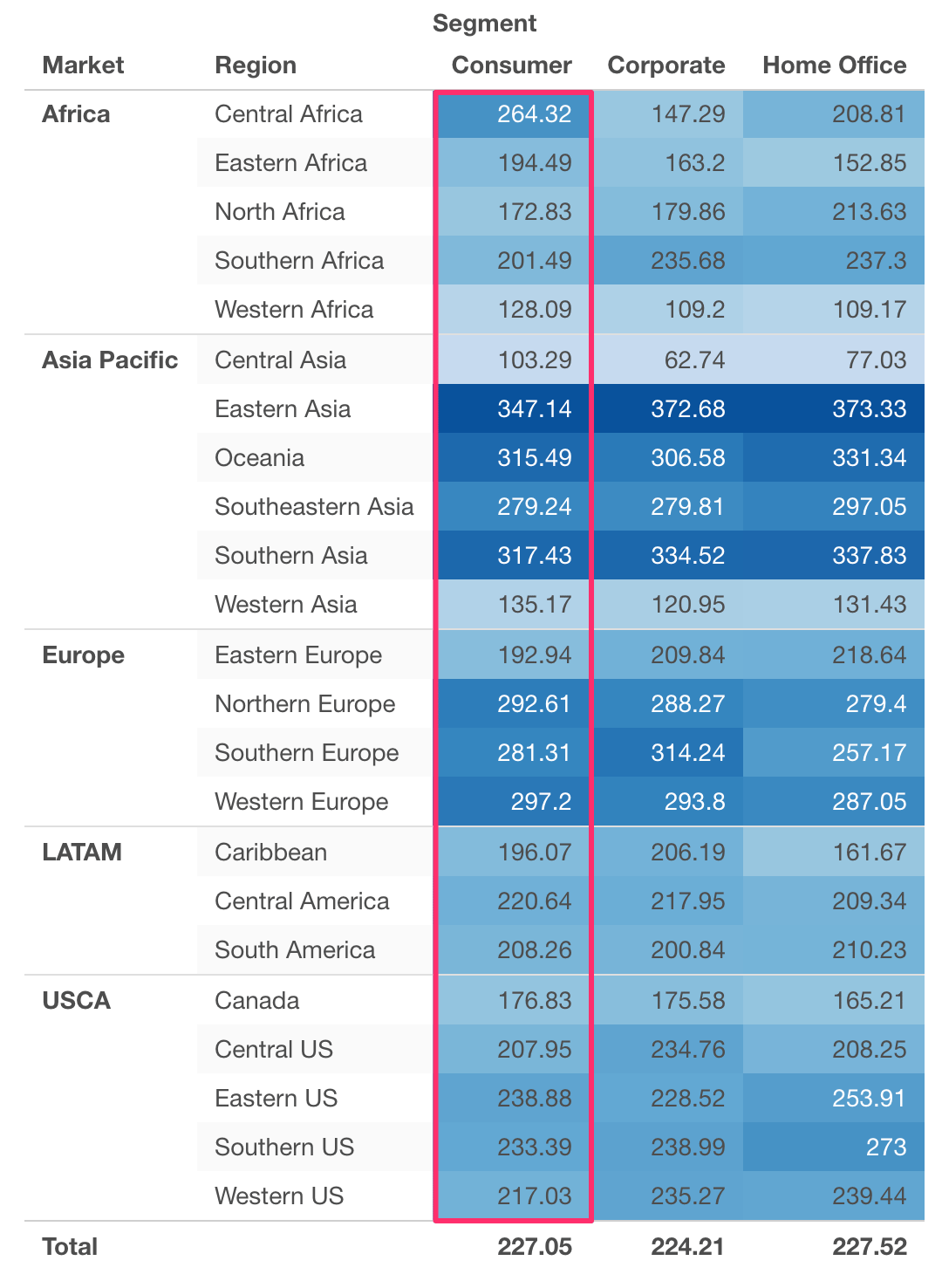
Column (Down within Group)
It formats Value cells for each column within each row group, which means the 2nd Row Header group from the right.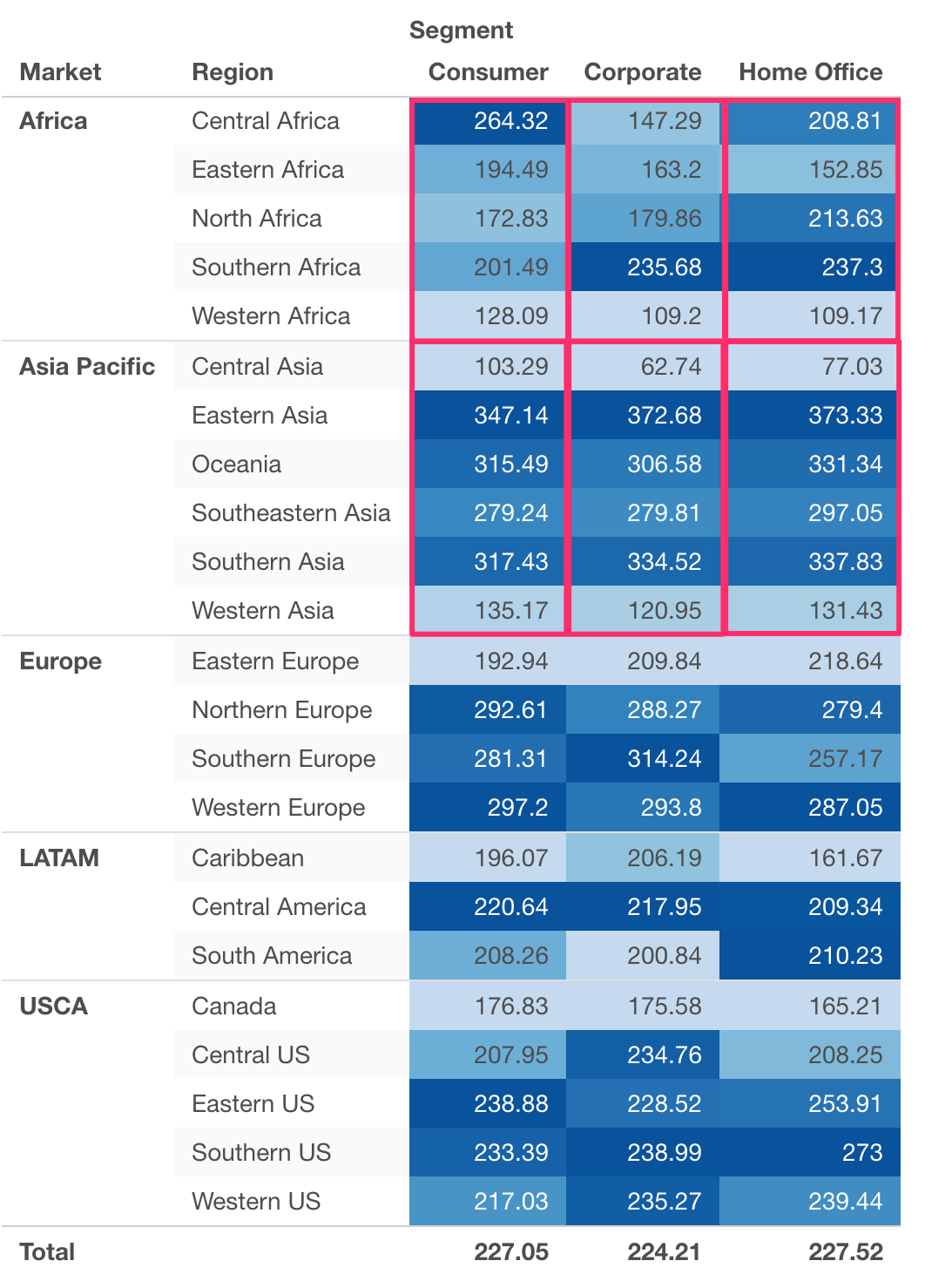
Column (Down then Across within Group)
It formats Value cells for each row group, which means the 2nd Row Header group from the right.