1. Install ODBC Drivers and Set Up Data Source Name (DSN)
First, install ODBC Drivers and set up Data Source Name (DSN) for the database you want to connect Exploratory to. Following are instructions to create ODBC DSN for some of the types of databases we verified that they work.- Snowflake (for Mac/Windows)
- Oracle (for Windows)
- Oracle (for Mac)
- Oracle (Japanese) (for Windows)
- Oracle (Japanese) (for Mac)
- Microsoft SQL Server (for Windows)
- Microsoft SQL Server (for Mac)
2. Create a Connection to use
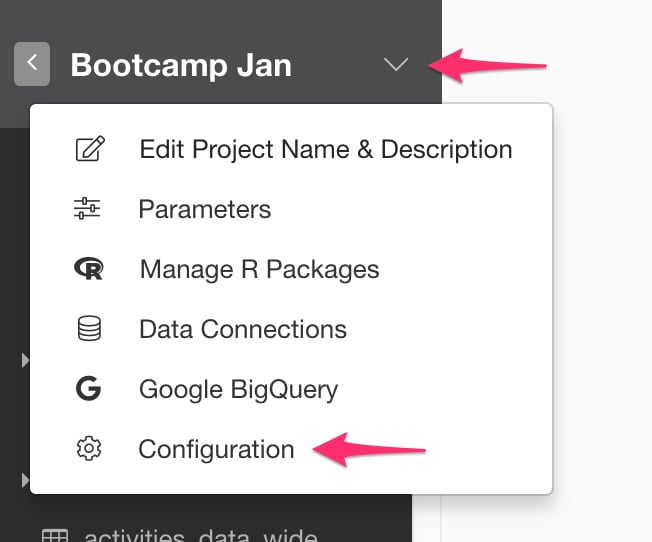
Select the “Data Connection” menu from the menu right next to the project name.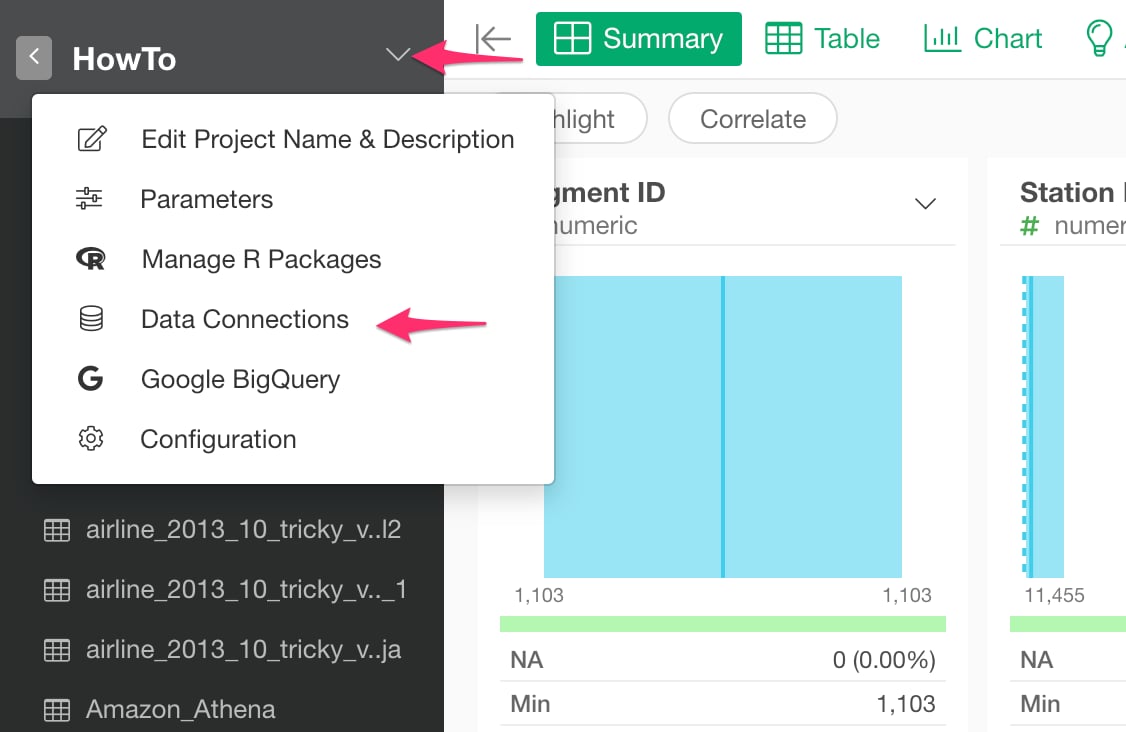
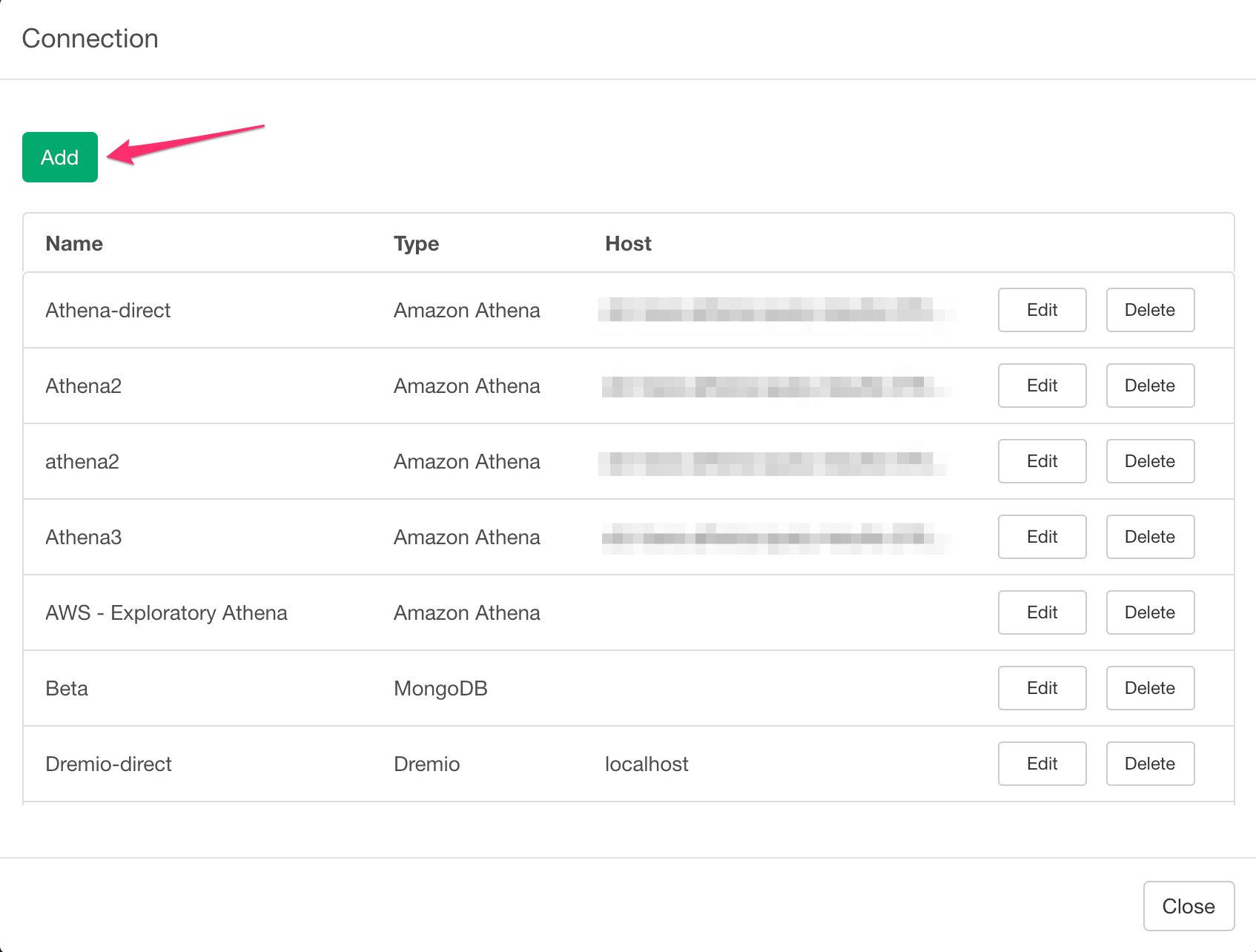
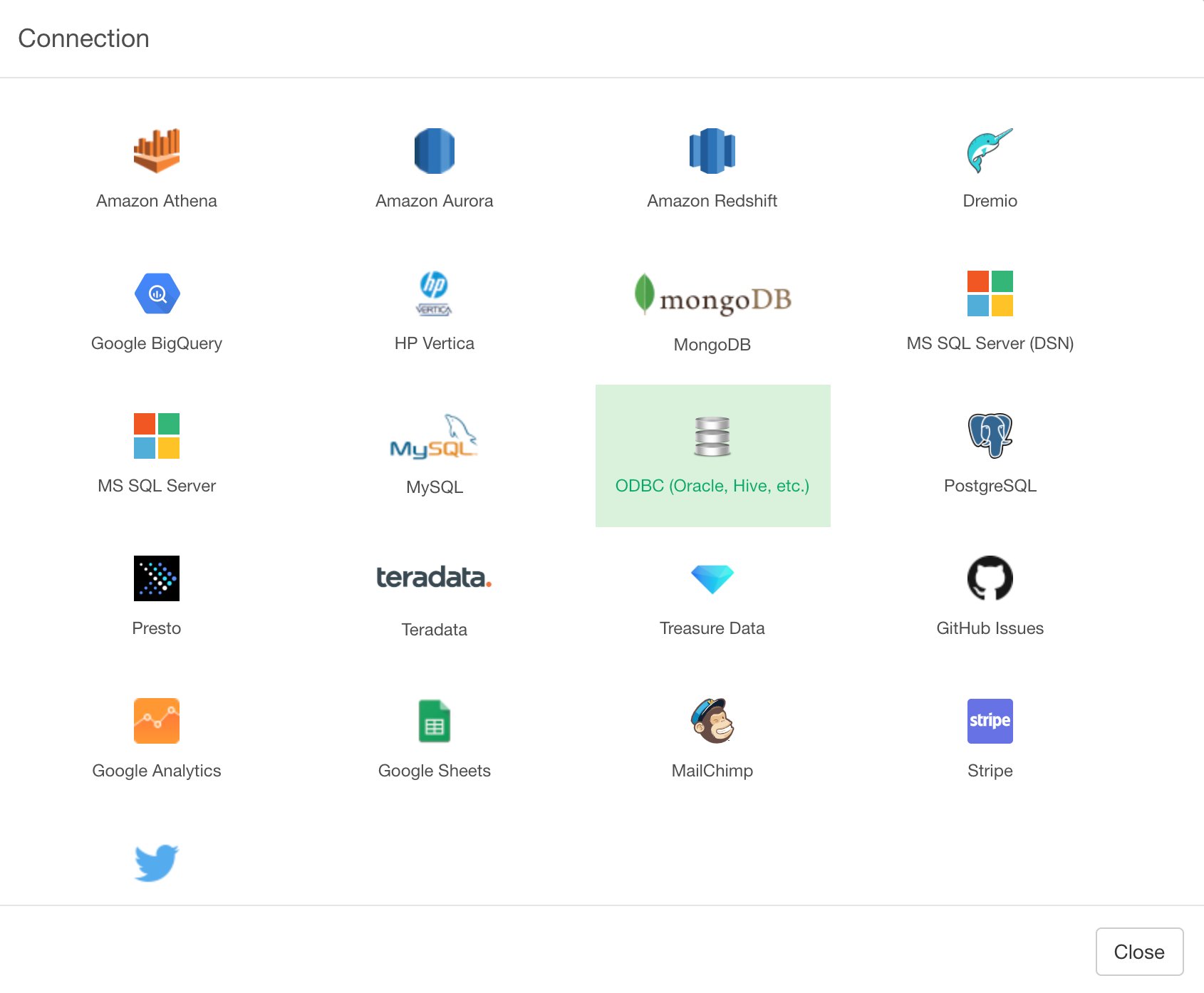
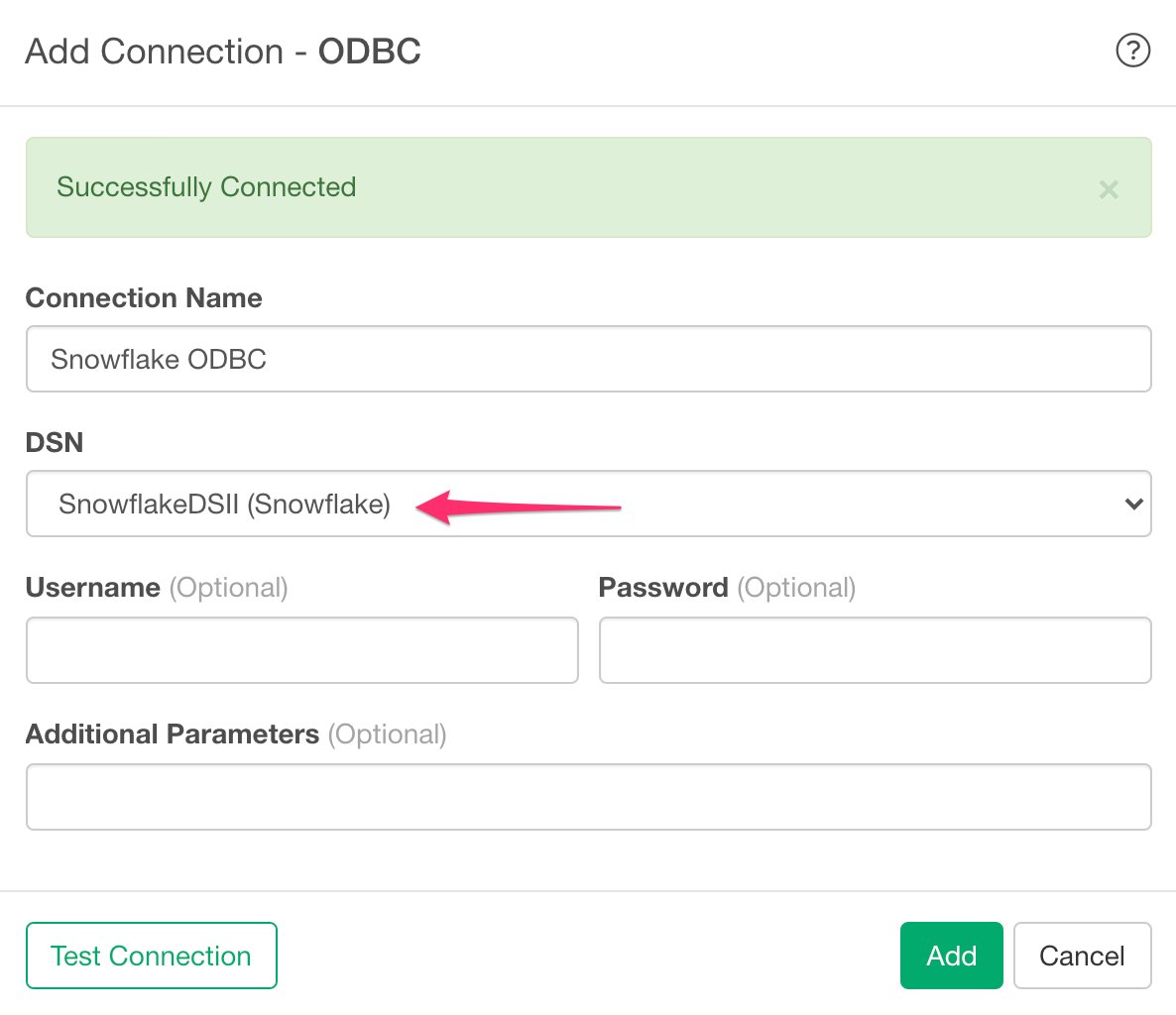
3. Open ODBC Import dialog
Click ’+’ button next to ‘Data Frames’ and select ‘Database Data’.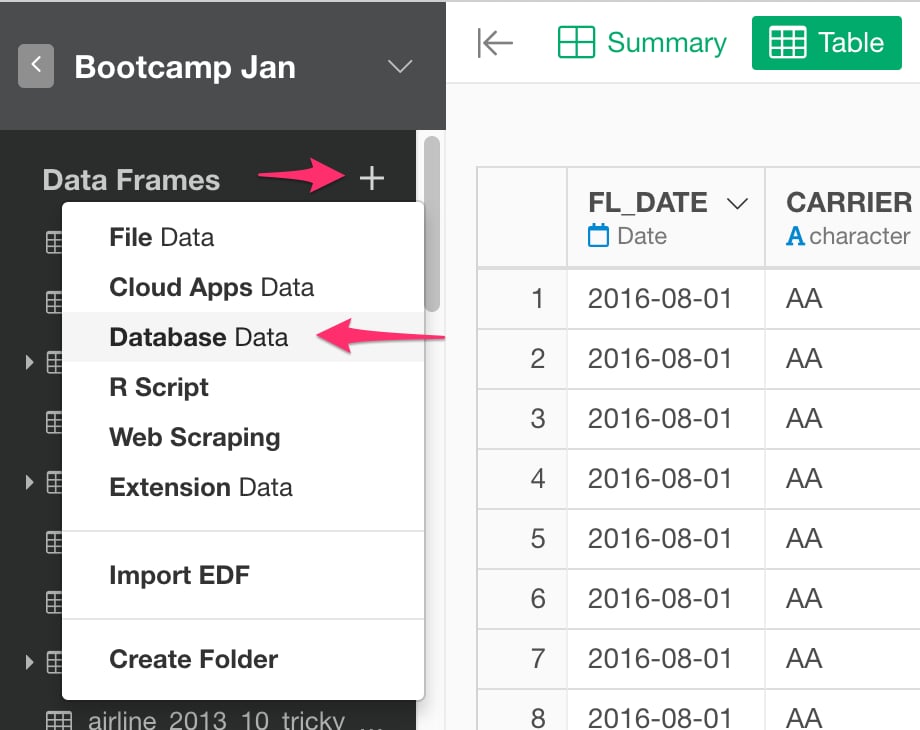
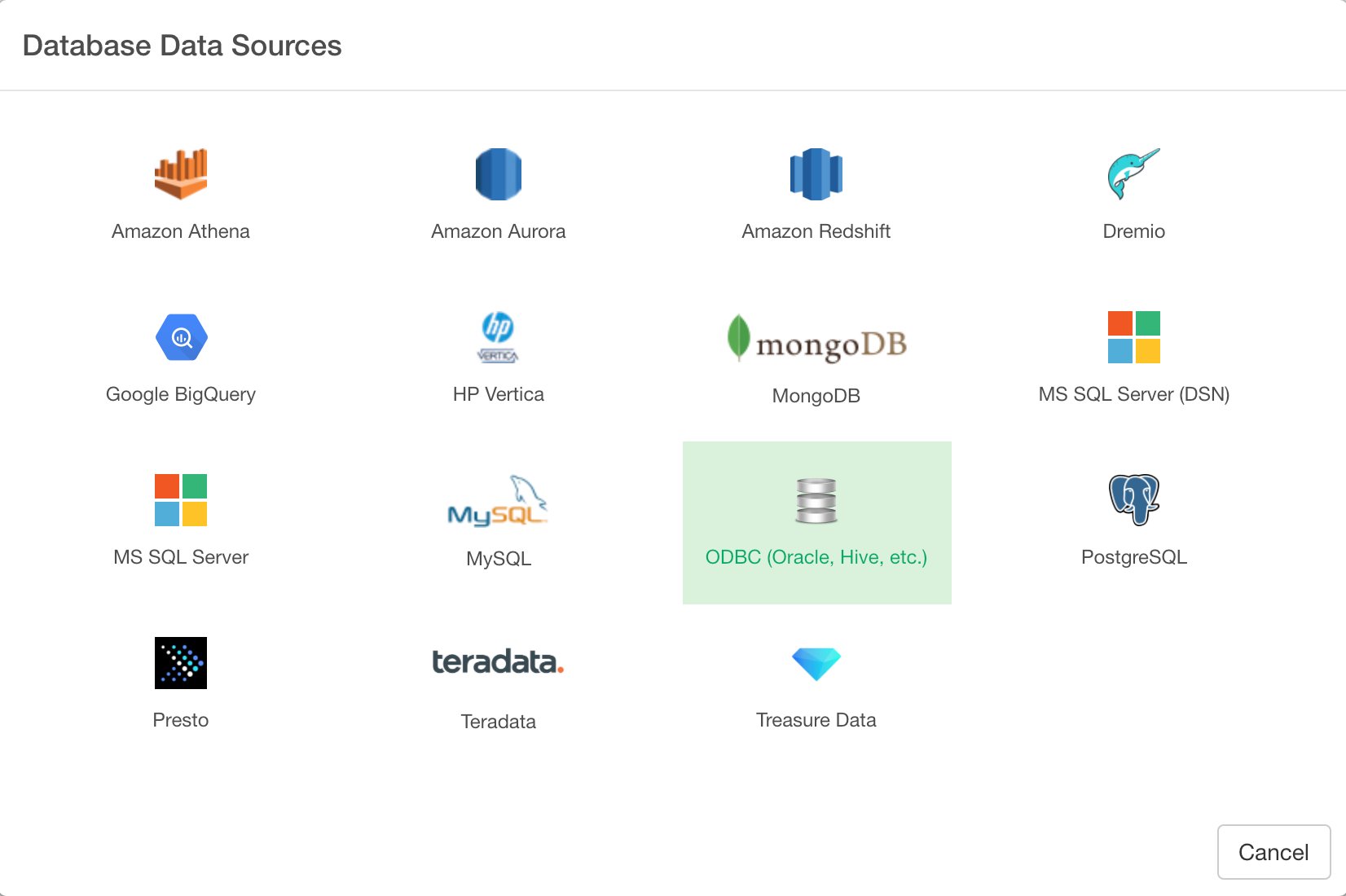
4. Preview and Import
Click Preview button to see the data from your ODBC database connection.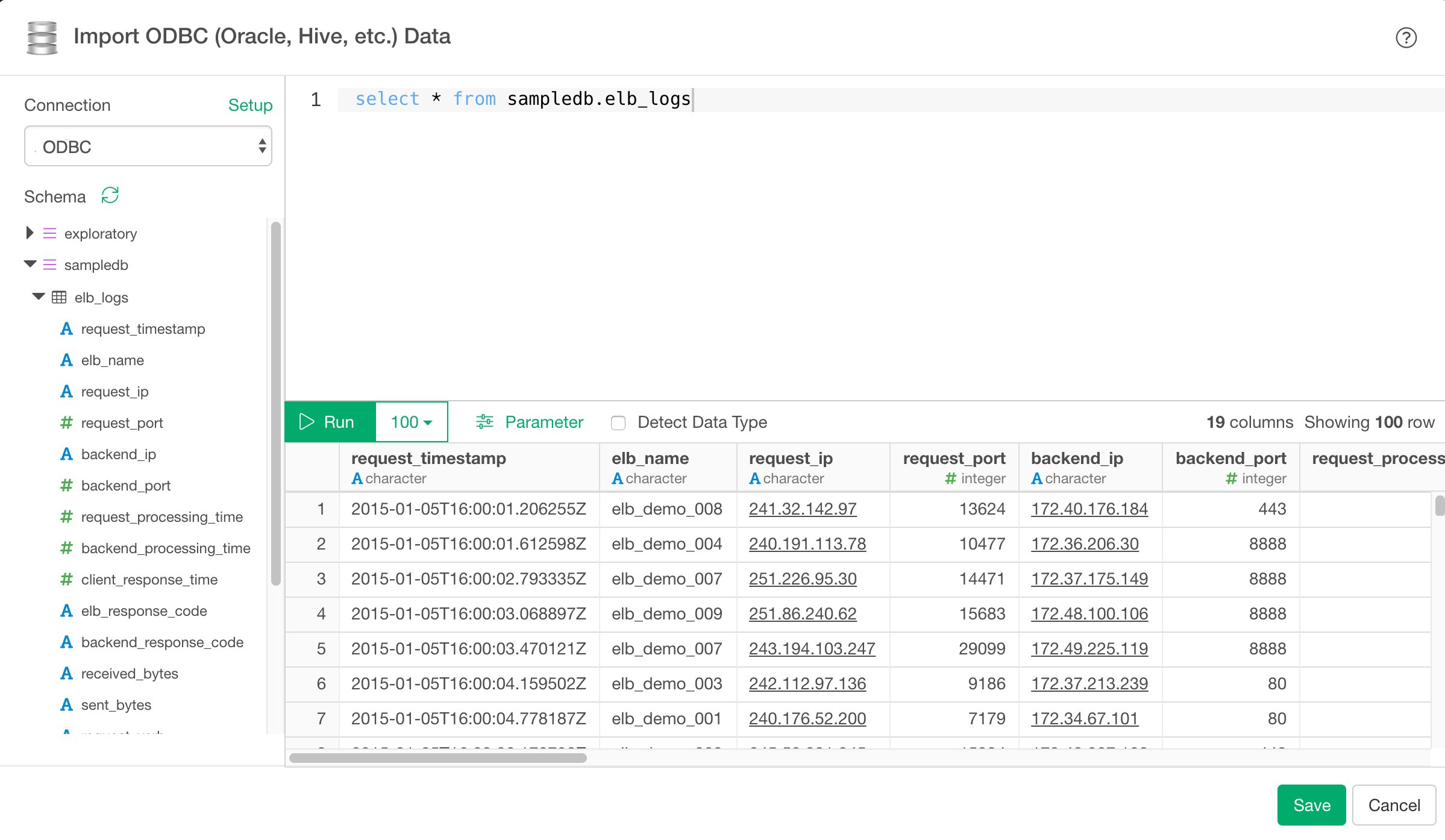
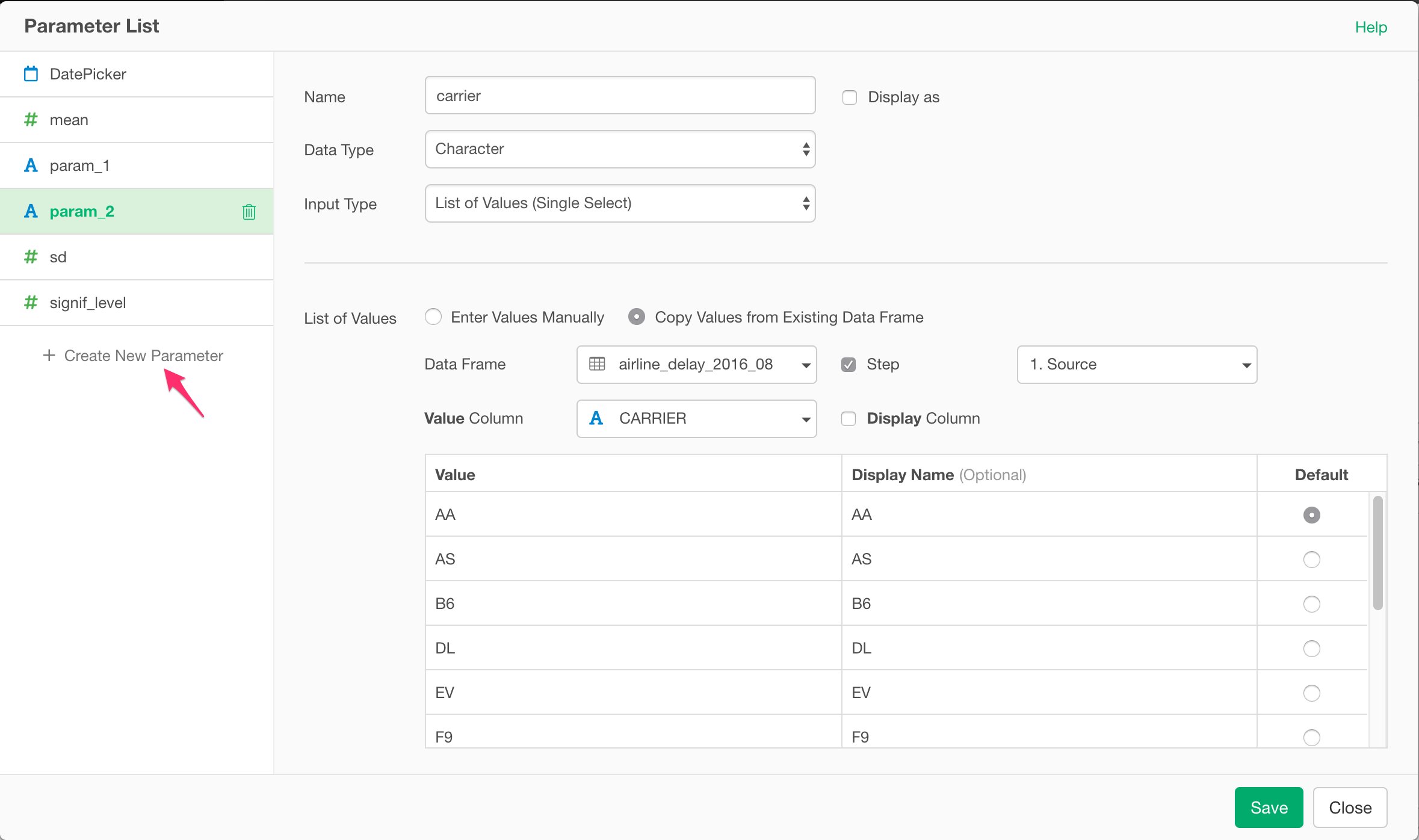
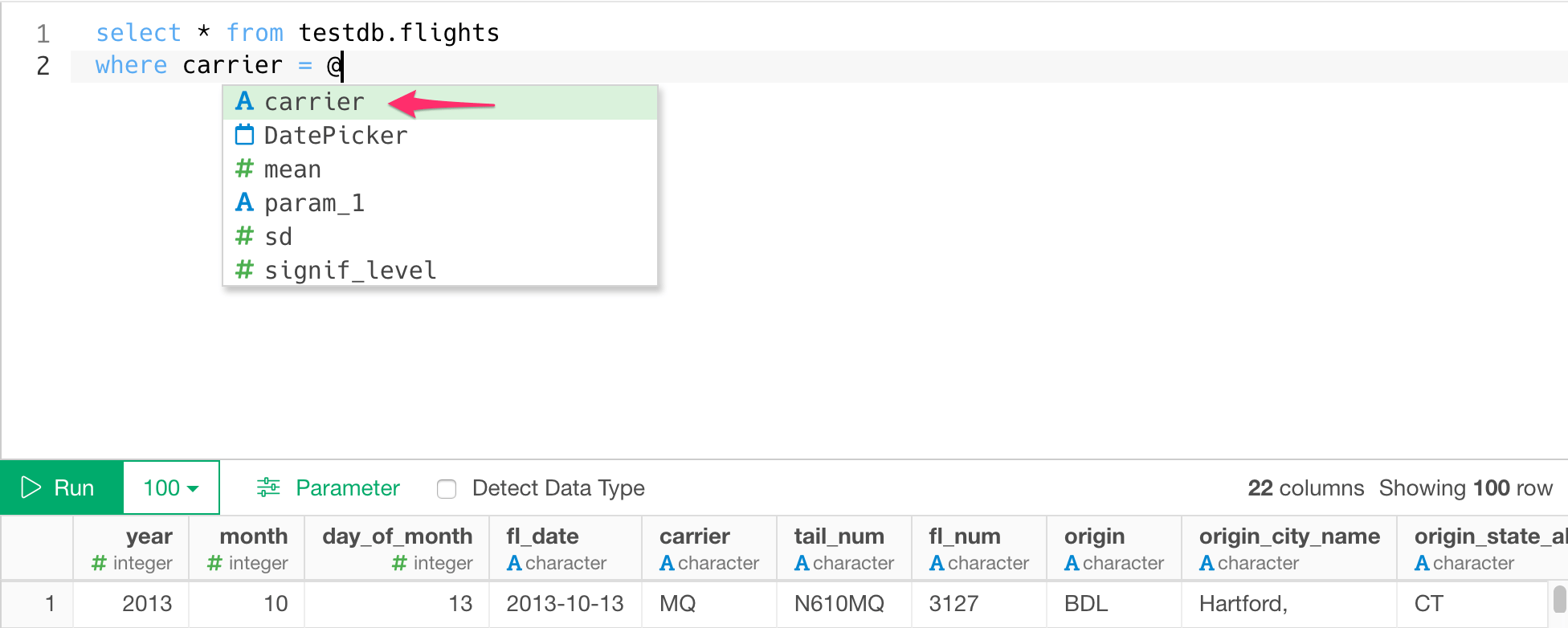
5. Using Parameters in SQL
First, click a parameter link on the SQL Data Import Dialog.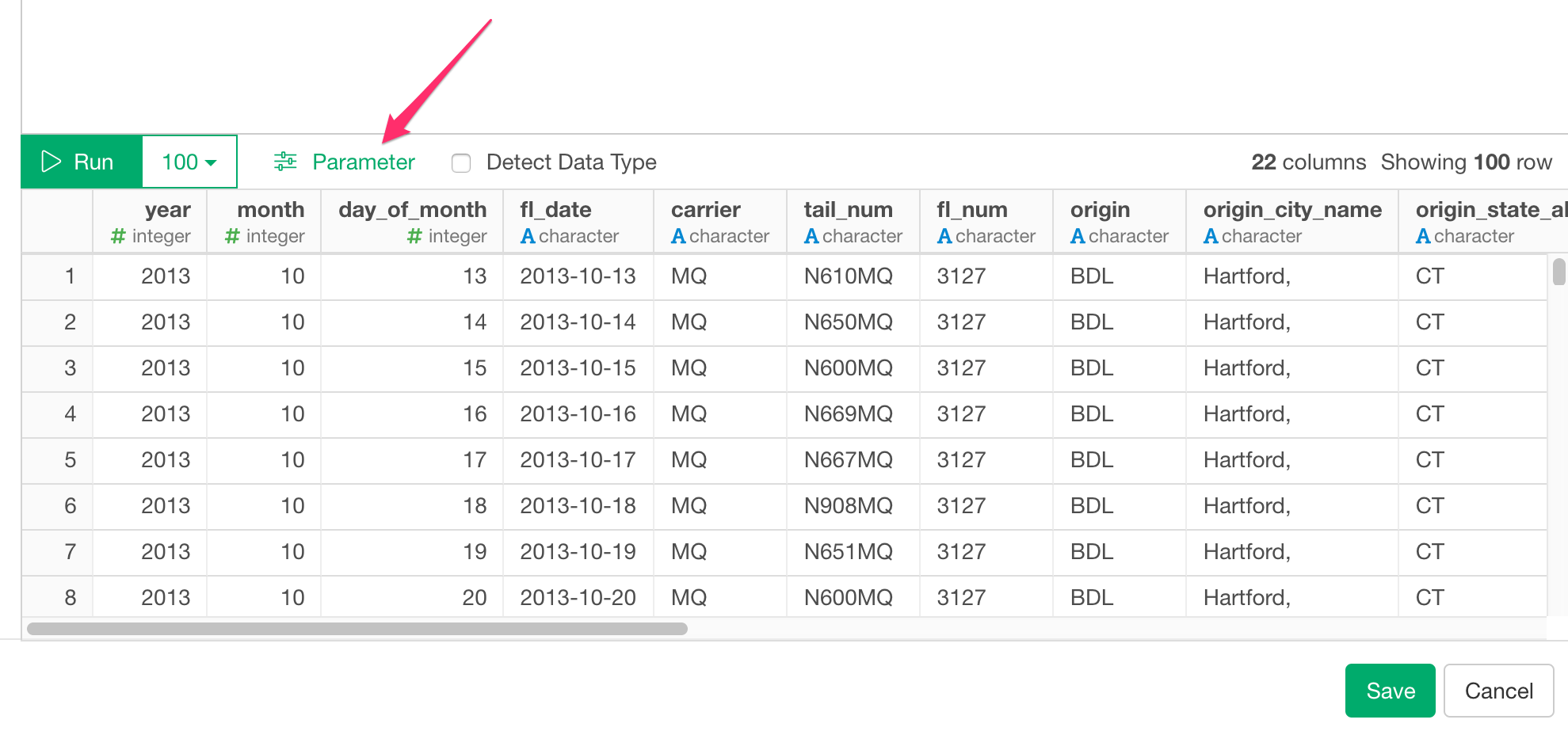
6. Number of rows
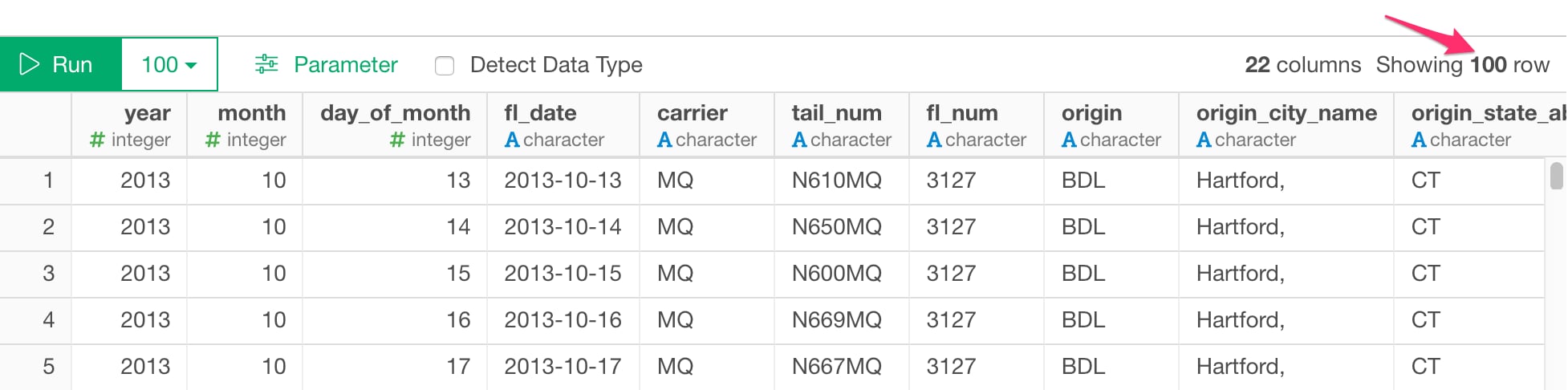
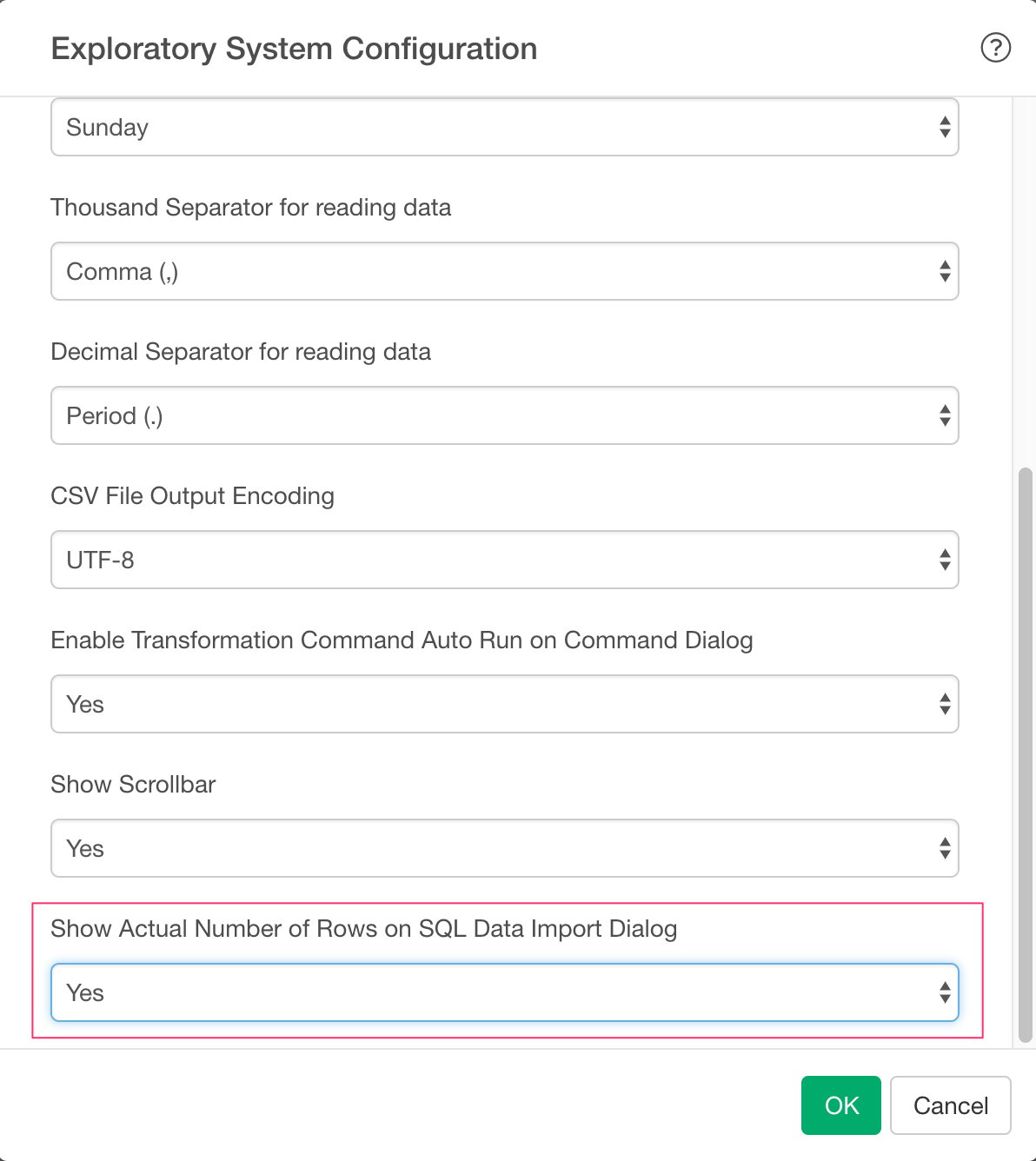
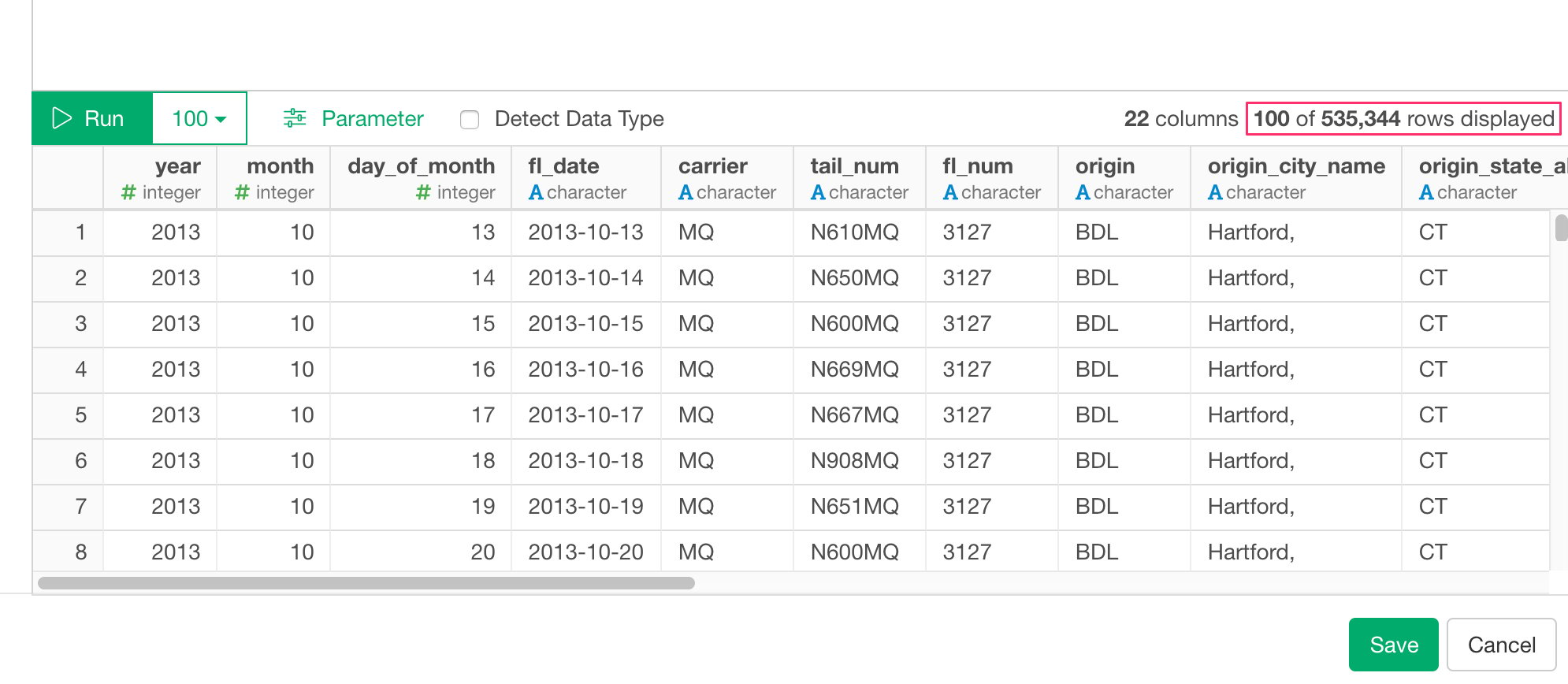
From performance point of view, we no longer show actual number of rows which can be only fetched by executing whole query again.