1. AWS Security Group Setup
Make sure you added your client PC’s IP address to your DB Security Group associated with the Aurora database instance.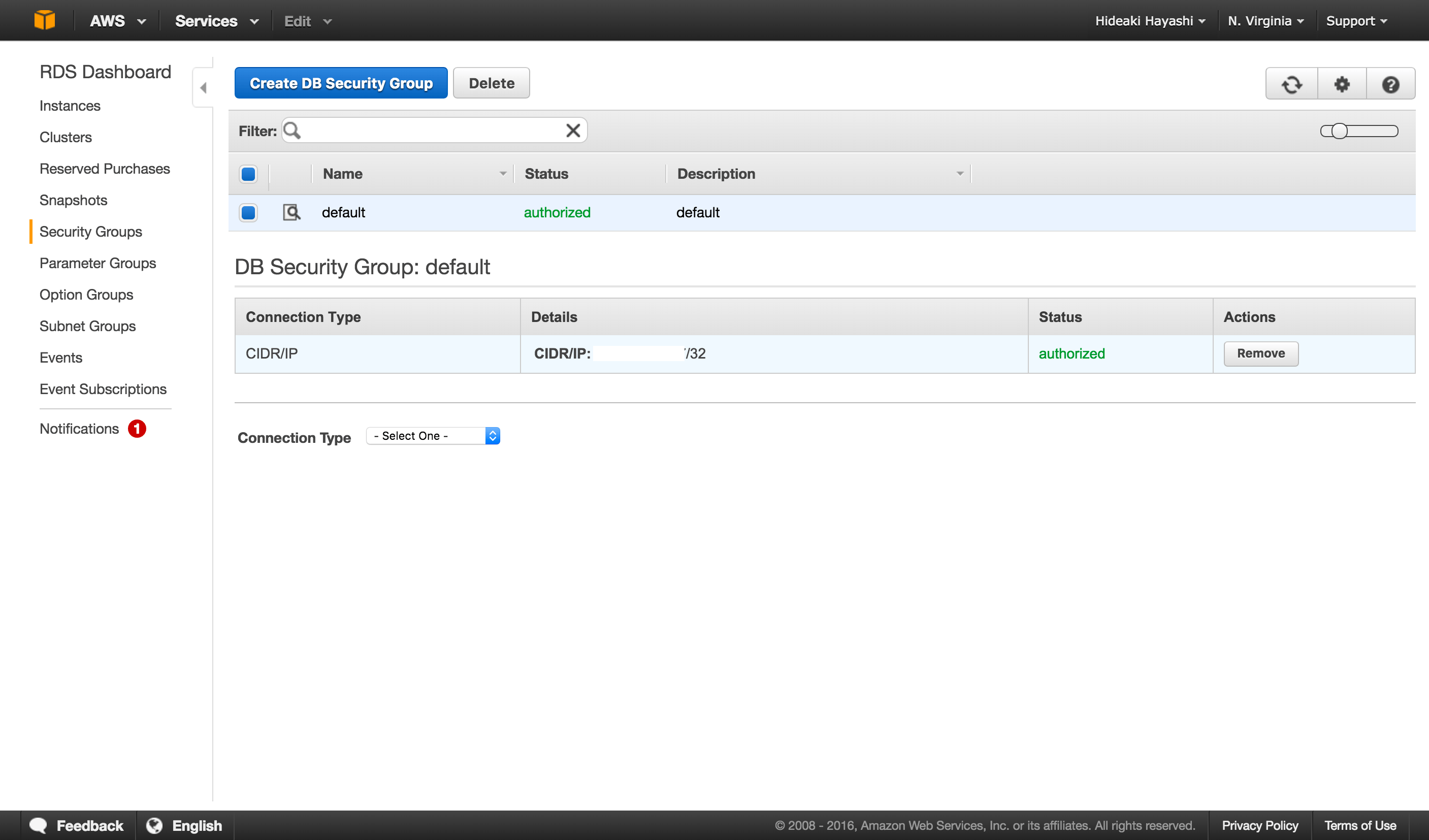
2. Create a Connection to use
Create a connection following this instruction.- Whether the connection is SSL or not is automatically detected.
3. Open Aurora Import dialog
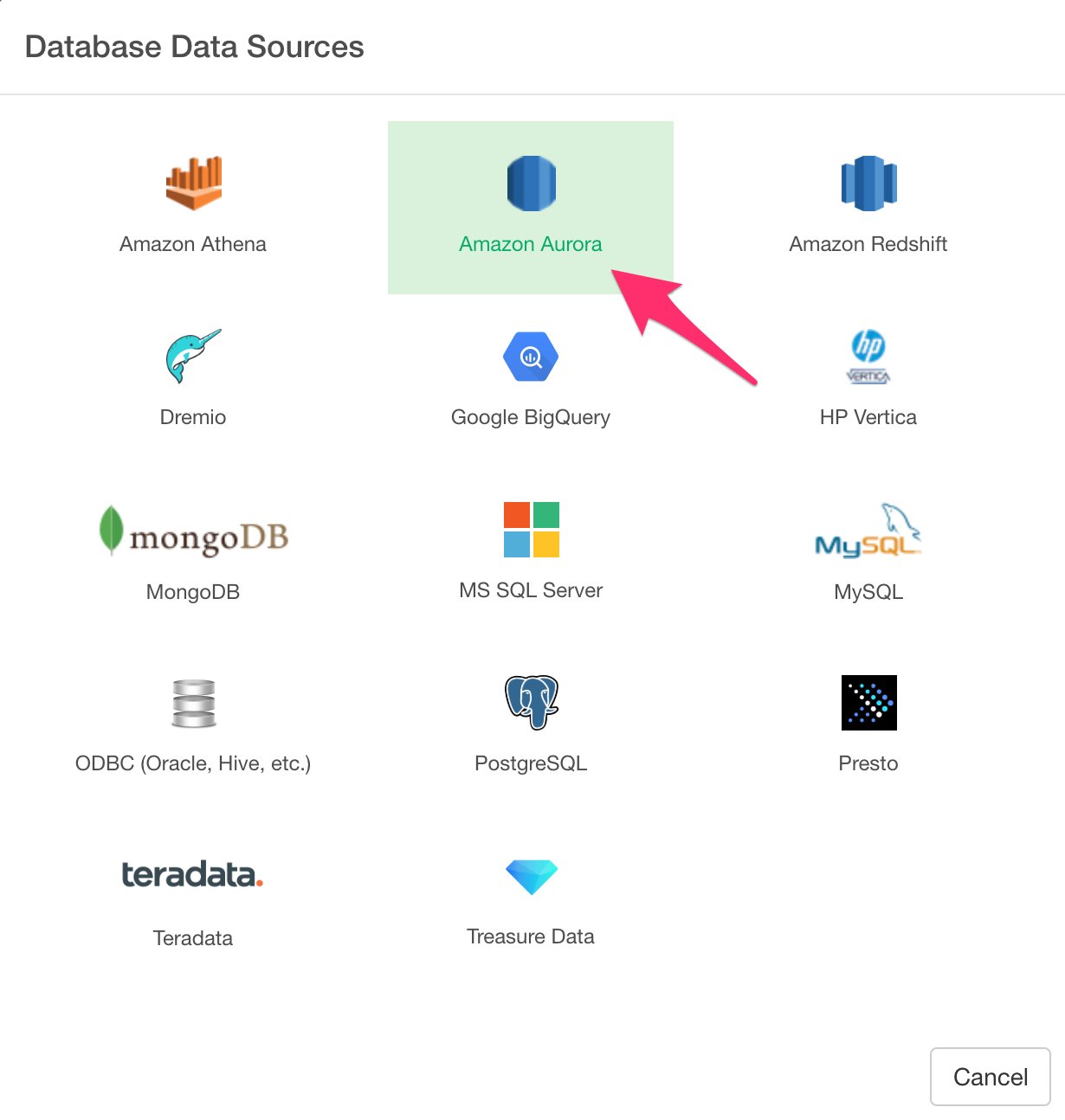
Click ’+’ button next to ‘Data Frames’ and select ‘Import Database Data’.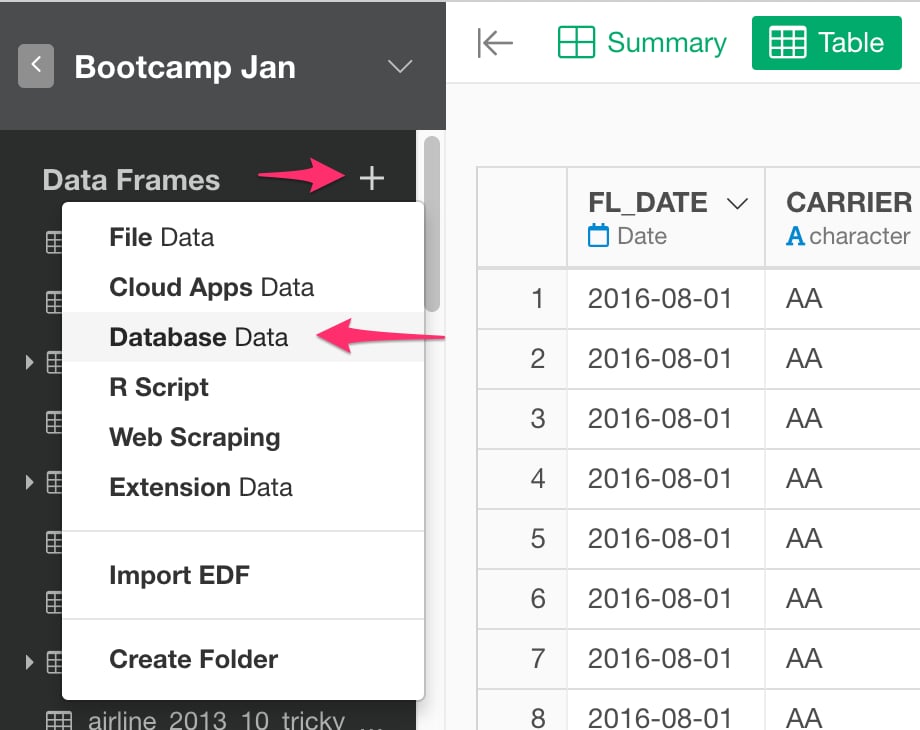
4. Preview and Import
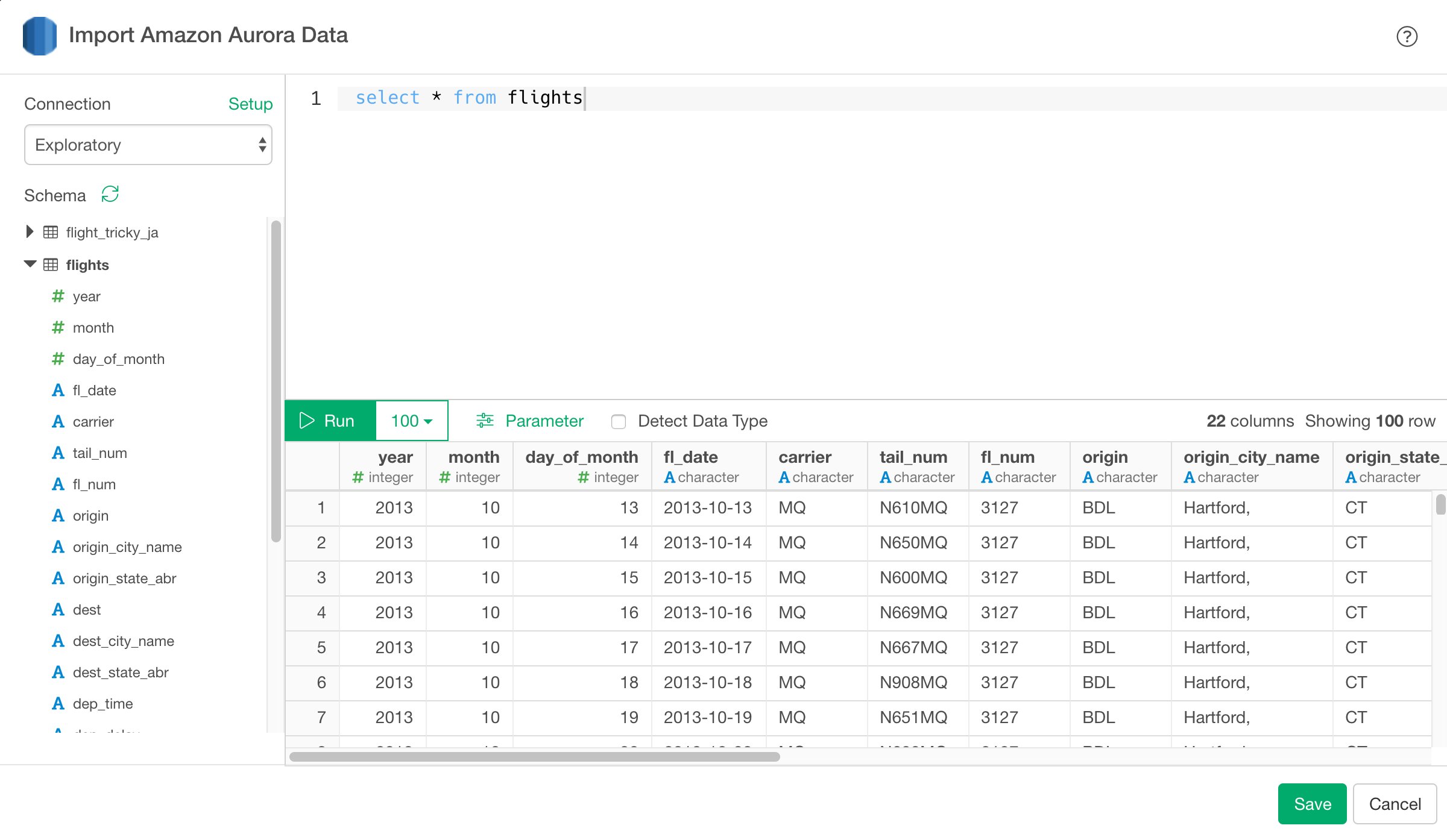
- Select connection from left box in the dialog.
- Write a query in the input field.
- Click “Preview” button. Then you will see the preview of the data.
- Click “Save” button to import.
4. Using Parameters in SQL
First, click Parameter link on the SQL Data Import Dialog.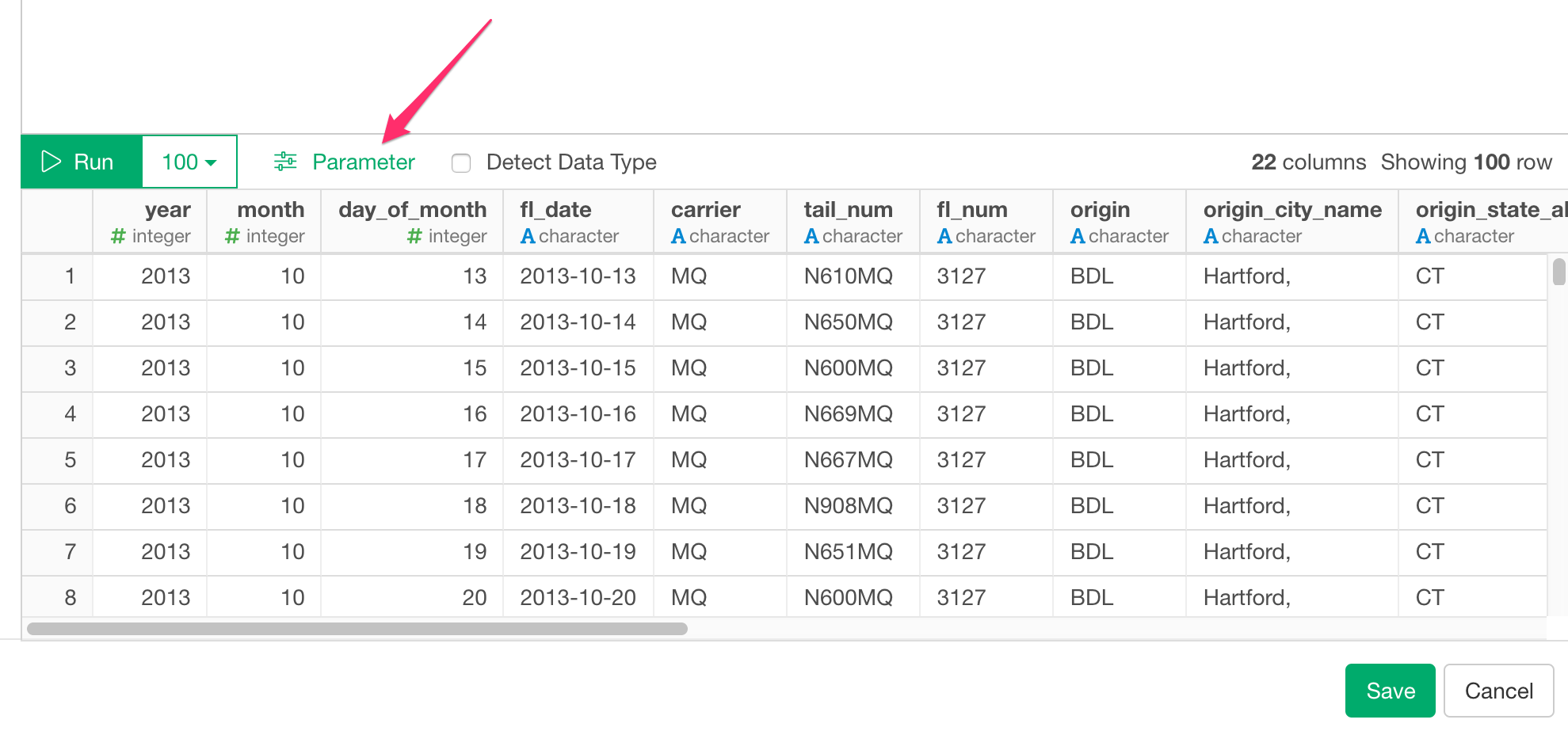
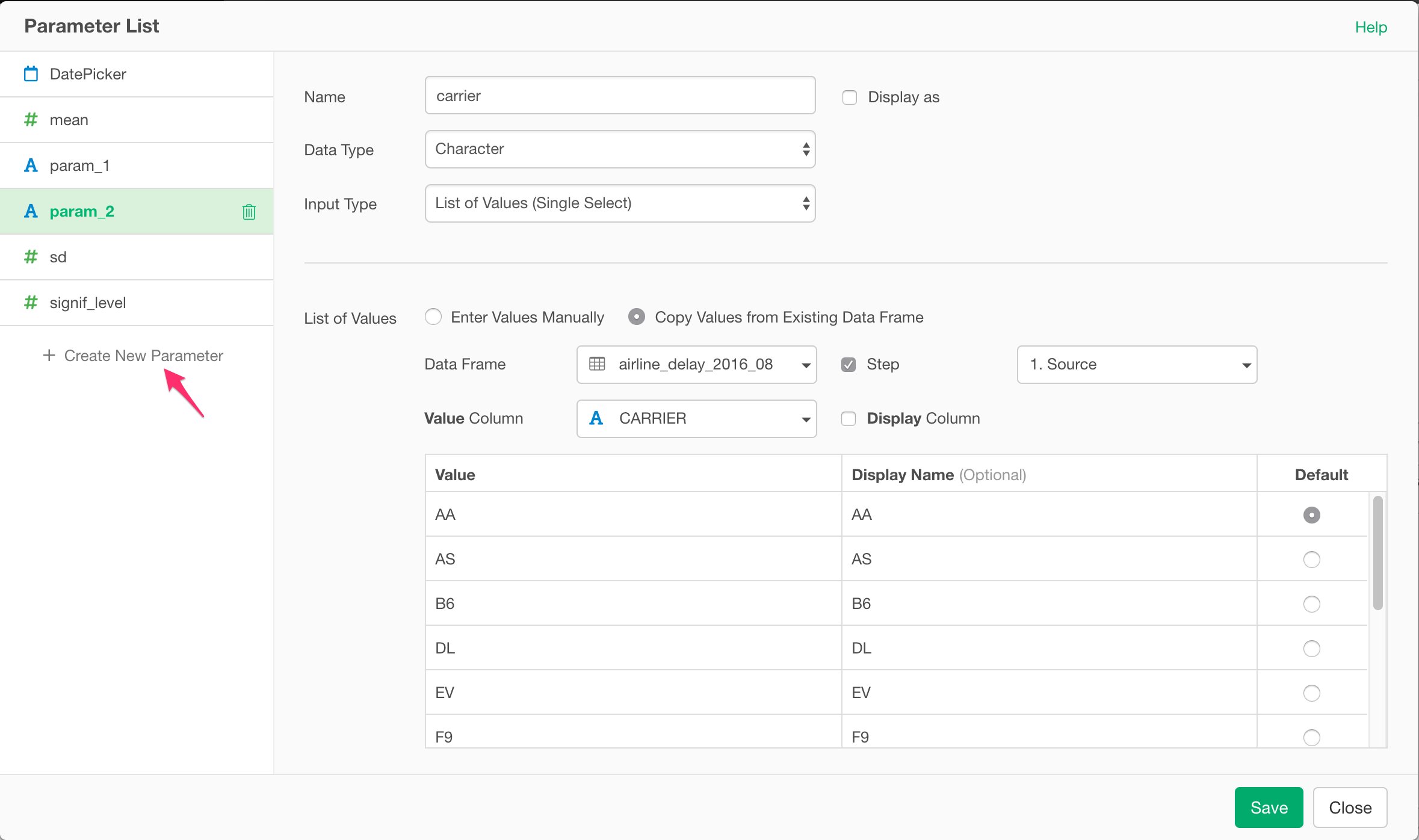
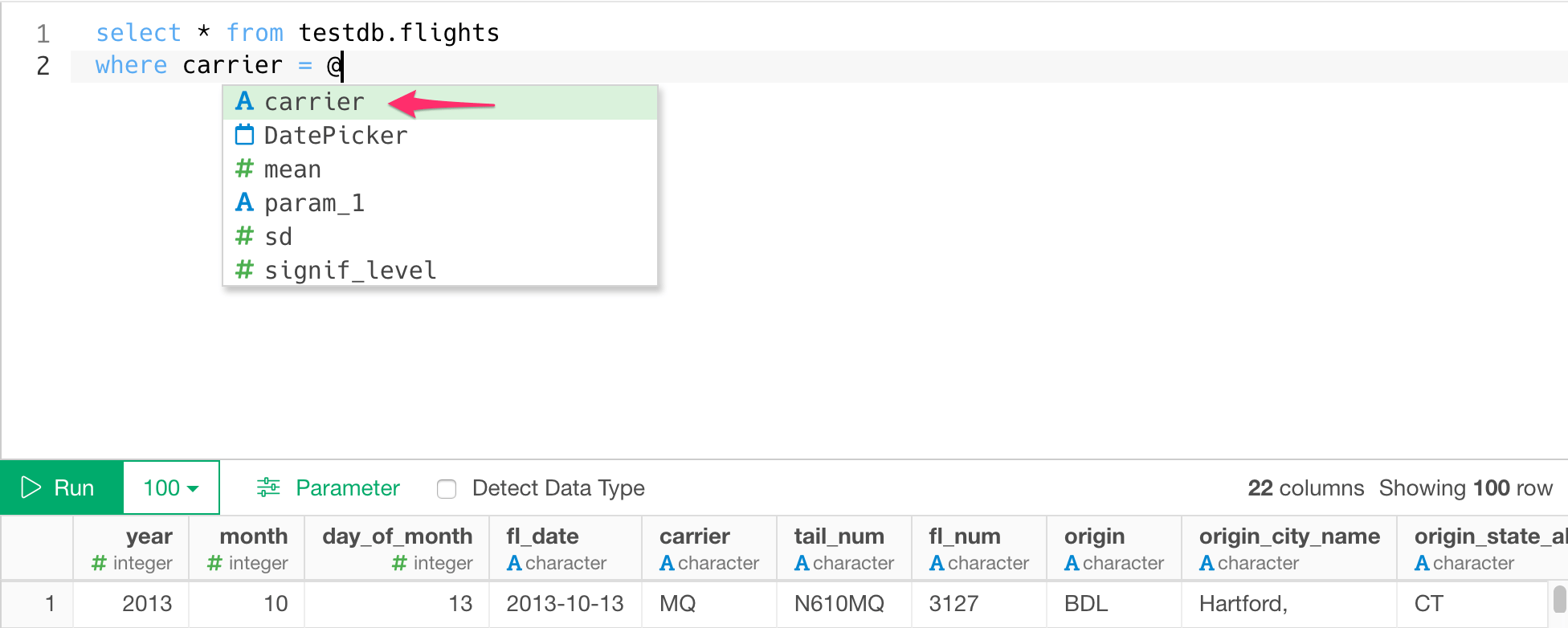
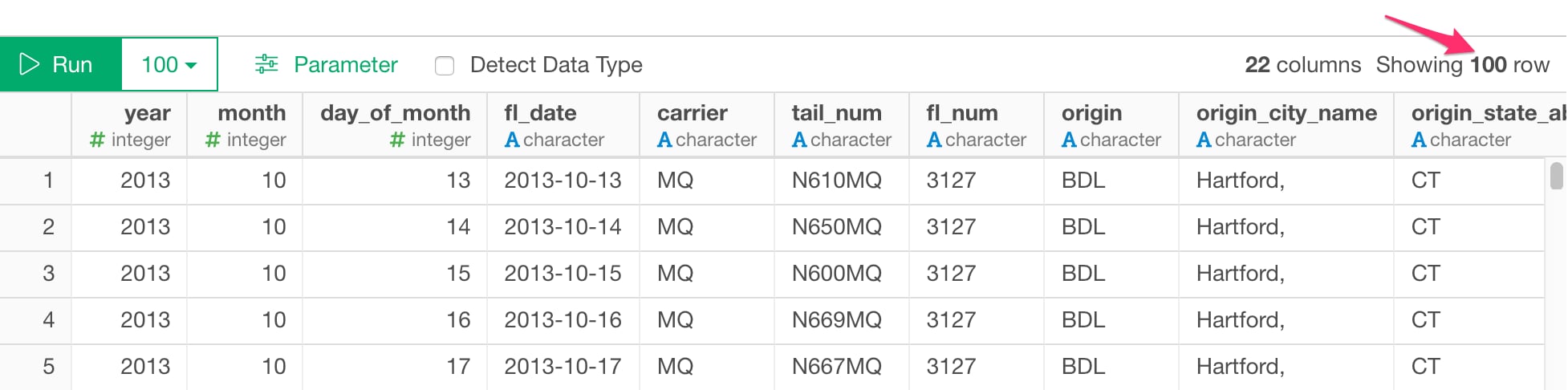
5. Number of rows
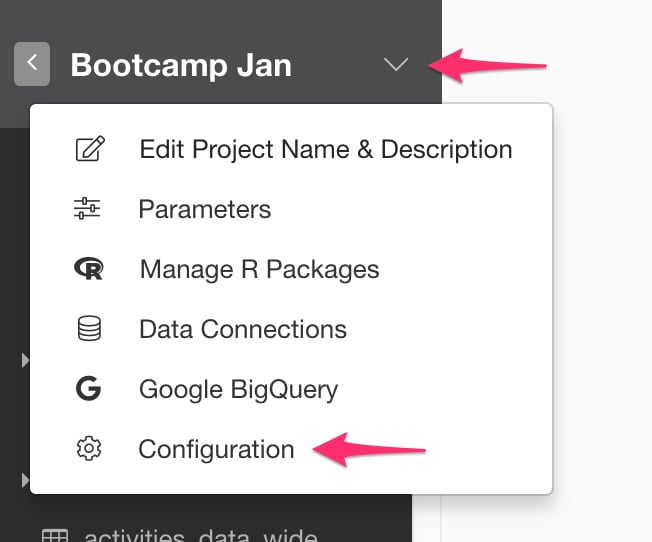
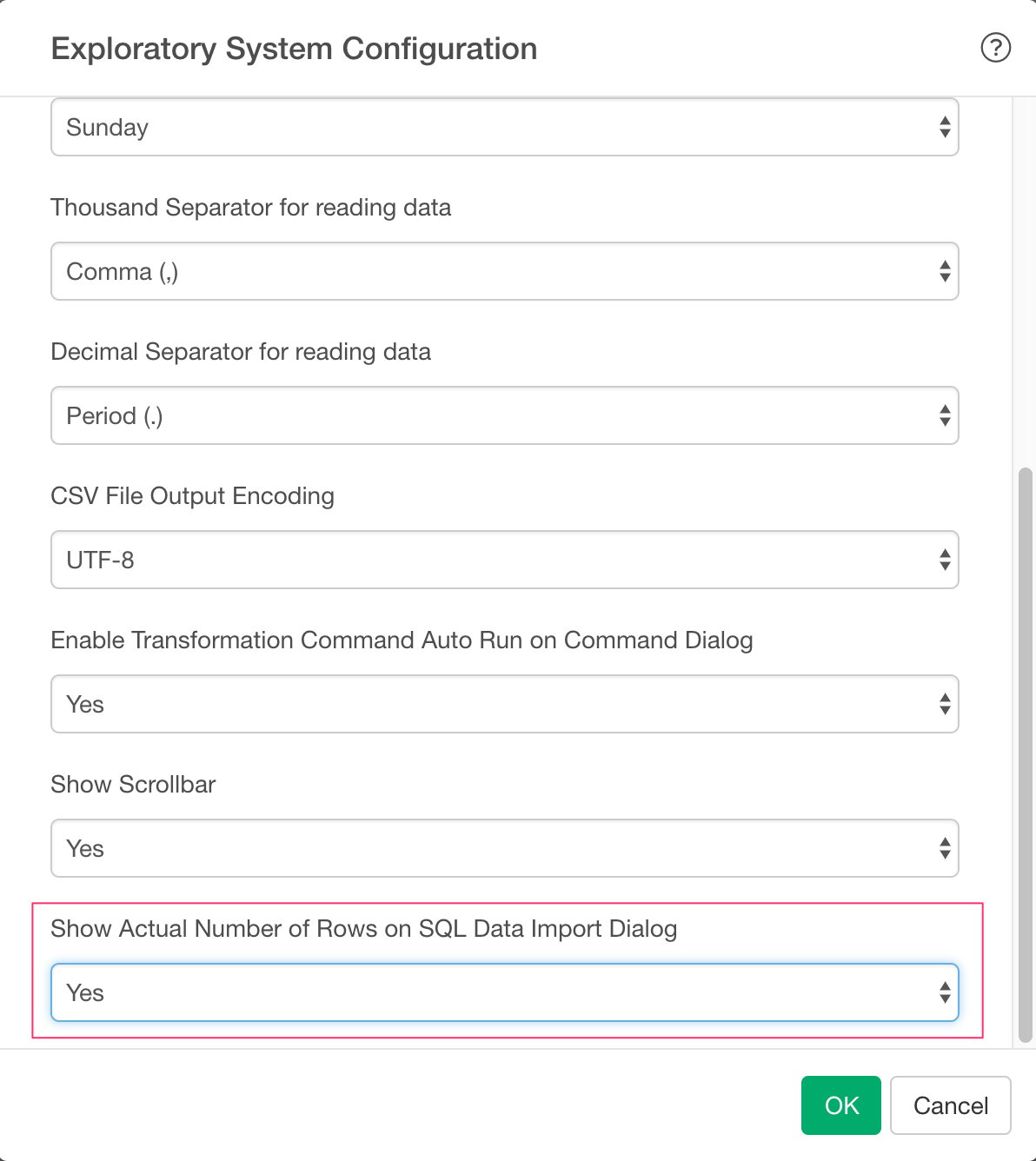
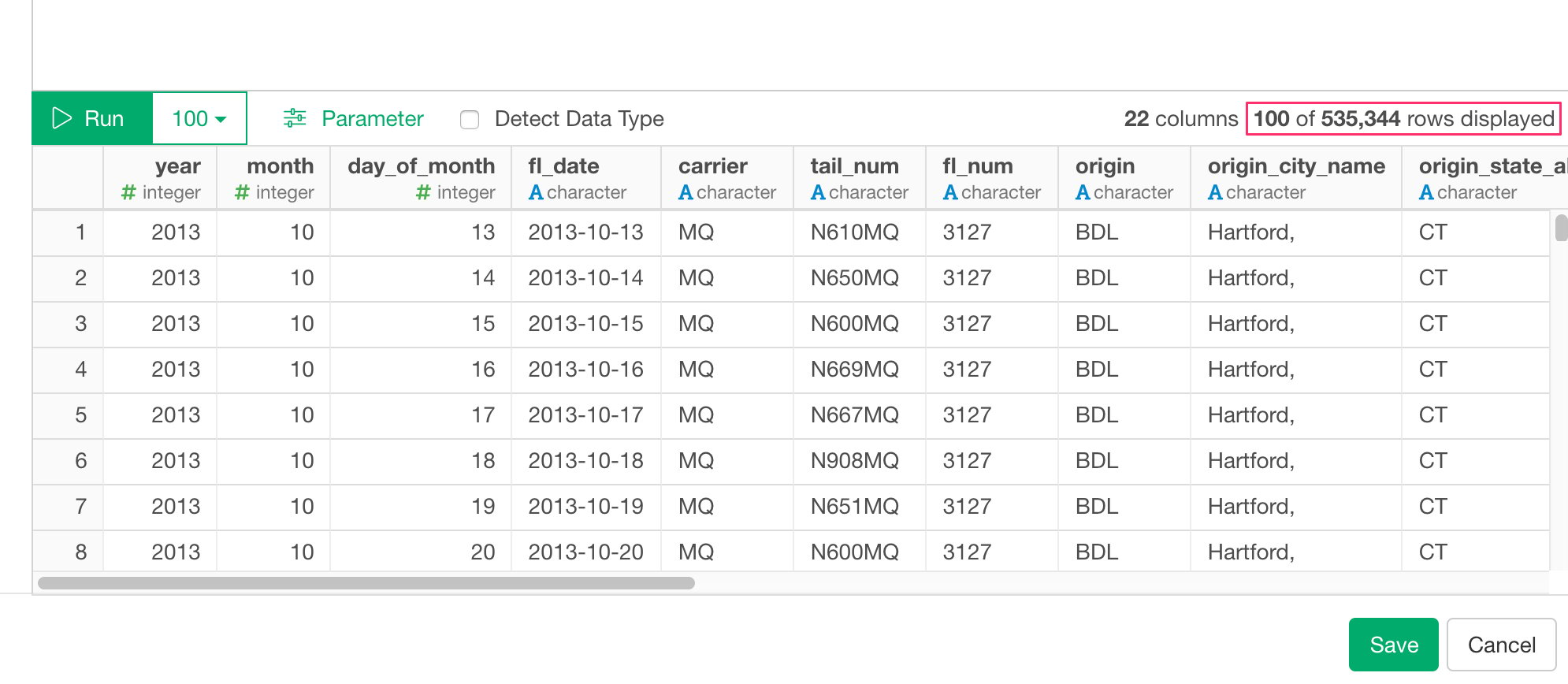
From performance point of view, we no longer show actual number of rows which can be only fetched by executing whole query again.