1. Create a connection for MS SQL Server
First, you want to create a connection for SQL Server.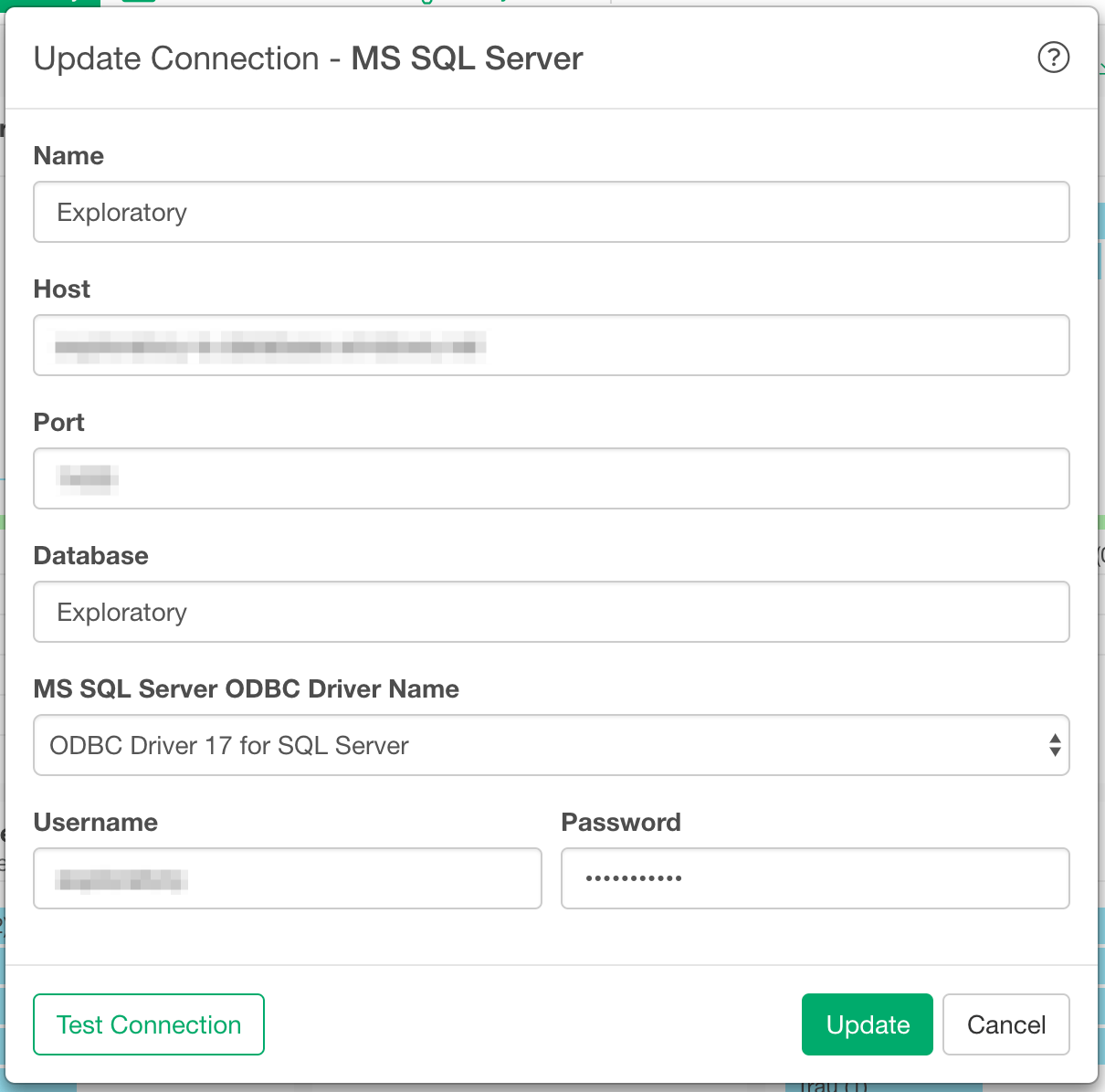
- Host - Host name of the SQL Server
- Port - Port number for the SQL Server.
- Database - Database Name
- MS SQL Server ODBC Driver - It shows list of installed drivers. Regardless of the driver selected here, when you publish a Data source that uses the connection, ODBC Driver 17 for SQL Server is used for Scheduling. (Both exploratory.io and Collaboration Server have ODBC Driver 17 for SQL Server)
- Username - Username of the SQL Server
- Password - Password of the SQL Server
Troubleshooting
If you use Mac and installed ODBC Driver 17 for SQL Server version 17.8 or older, you might see the below error when connection to your SQL Server/usr/local. (you can check it with brew --prefix)Please note
1.1.1s might vary for the last character.
2. Open SQL Server Import dialog
Select ‘Import Database Data’ from Add New Data Frame menu.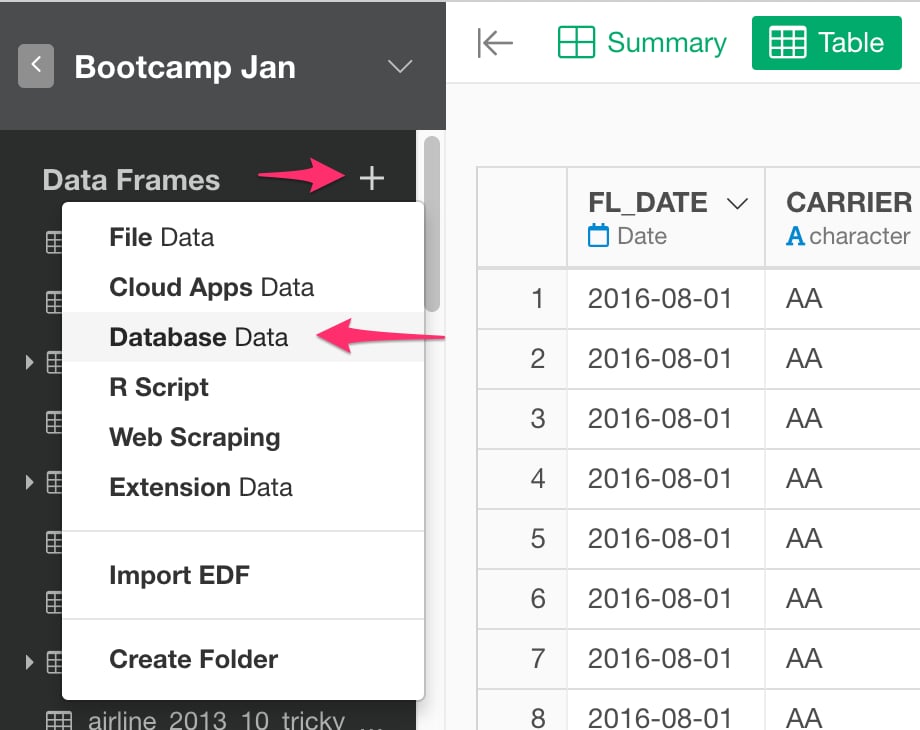
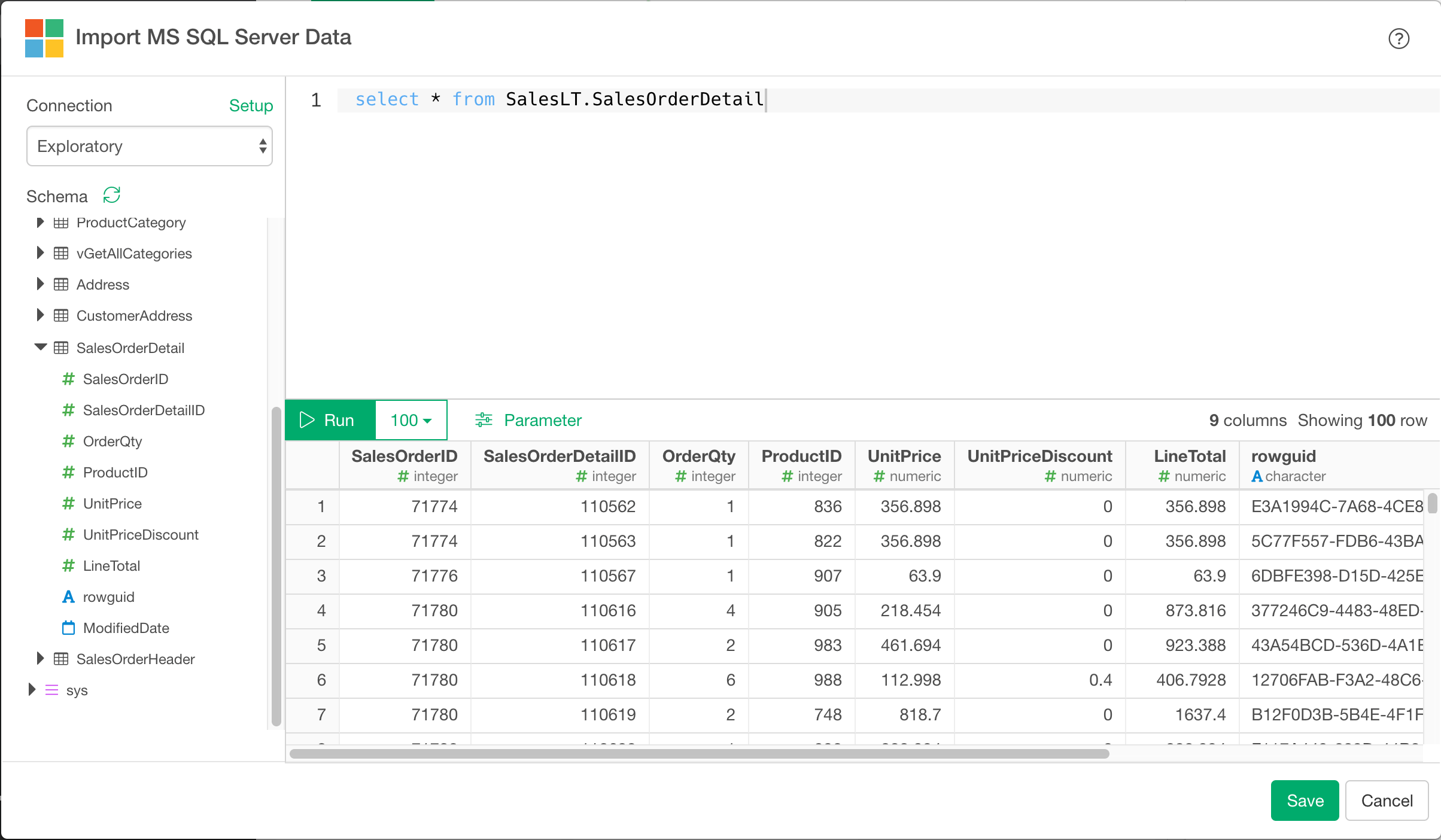
3. Preview and Import
Click “Run” button to see the data back from your SQL Server.