1. Import Text Input Data Menu
Click ’+’ button next to ‘Data Frames’ and select ‘Text Input Data’.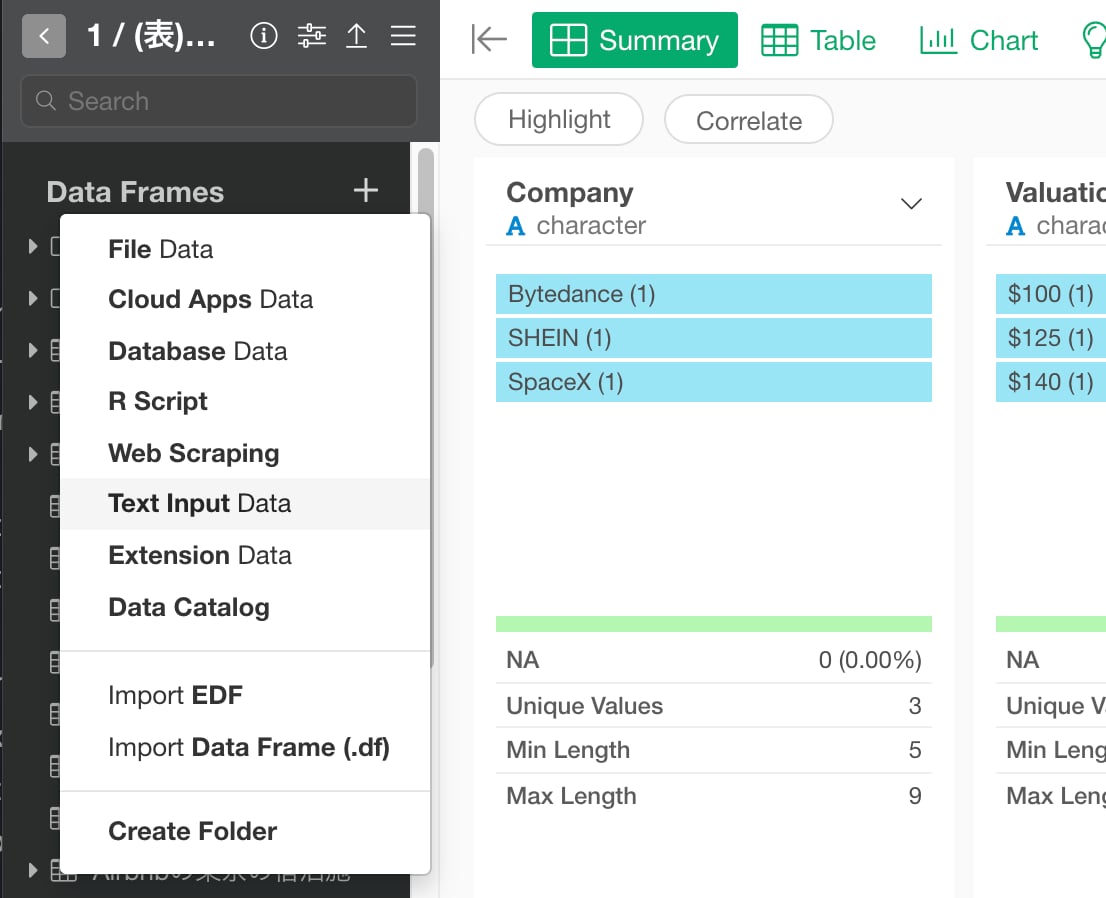
3. Input parameters
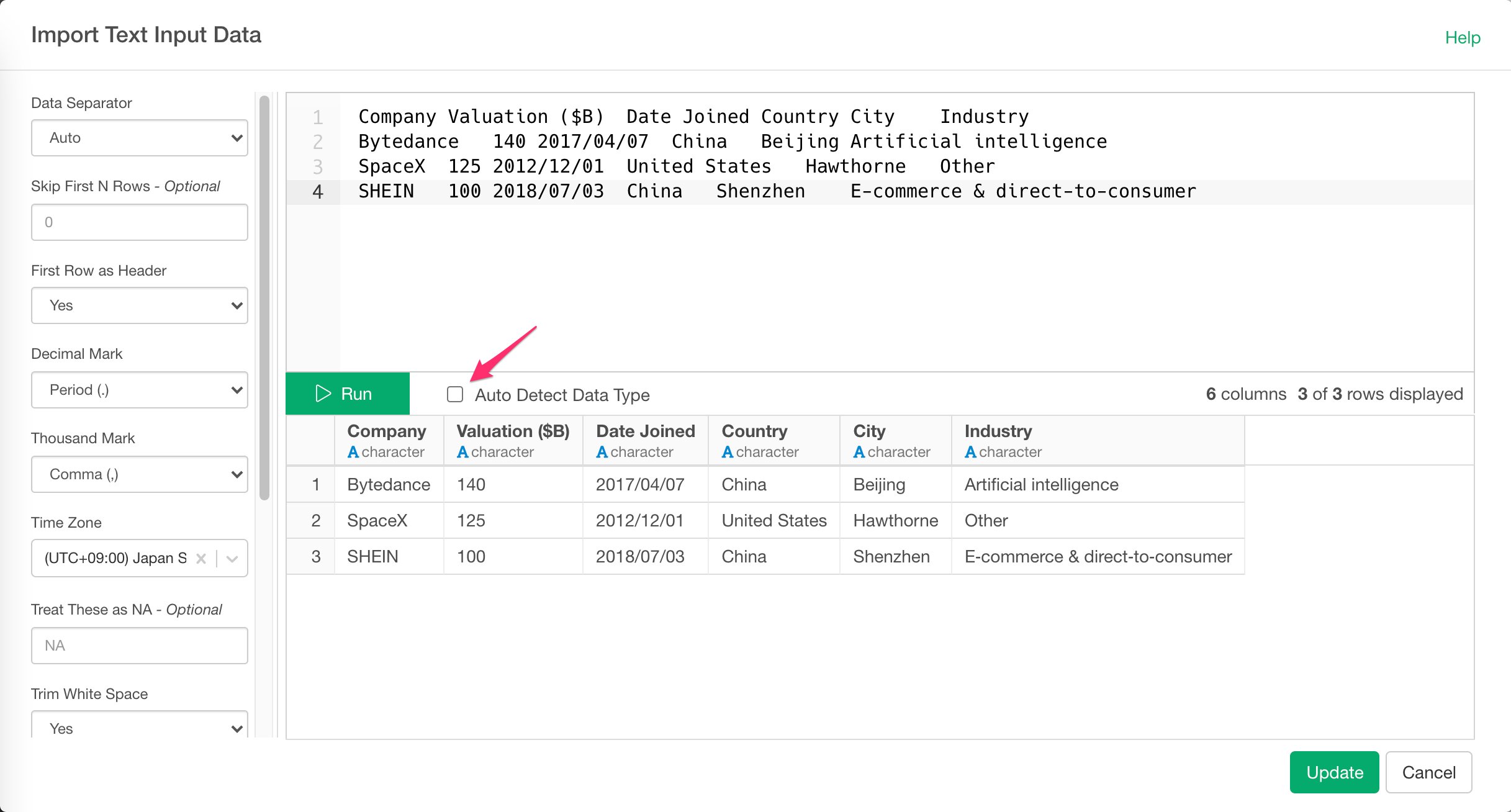
You can copy and paste delimited text to Text Editor area. Input parameters are same for local and remote file import.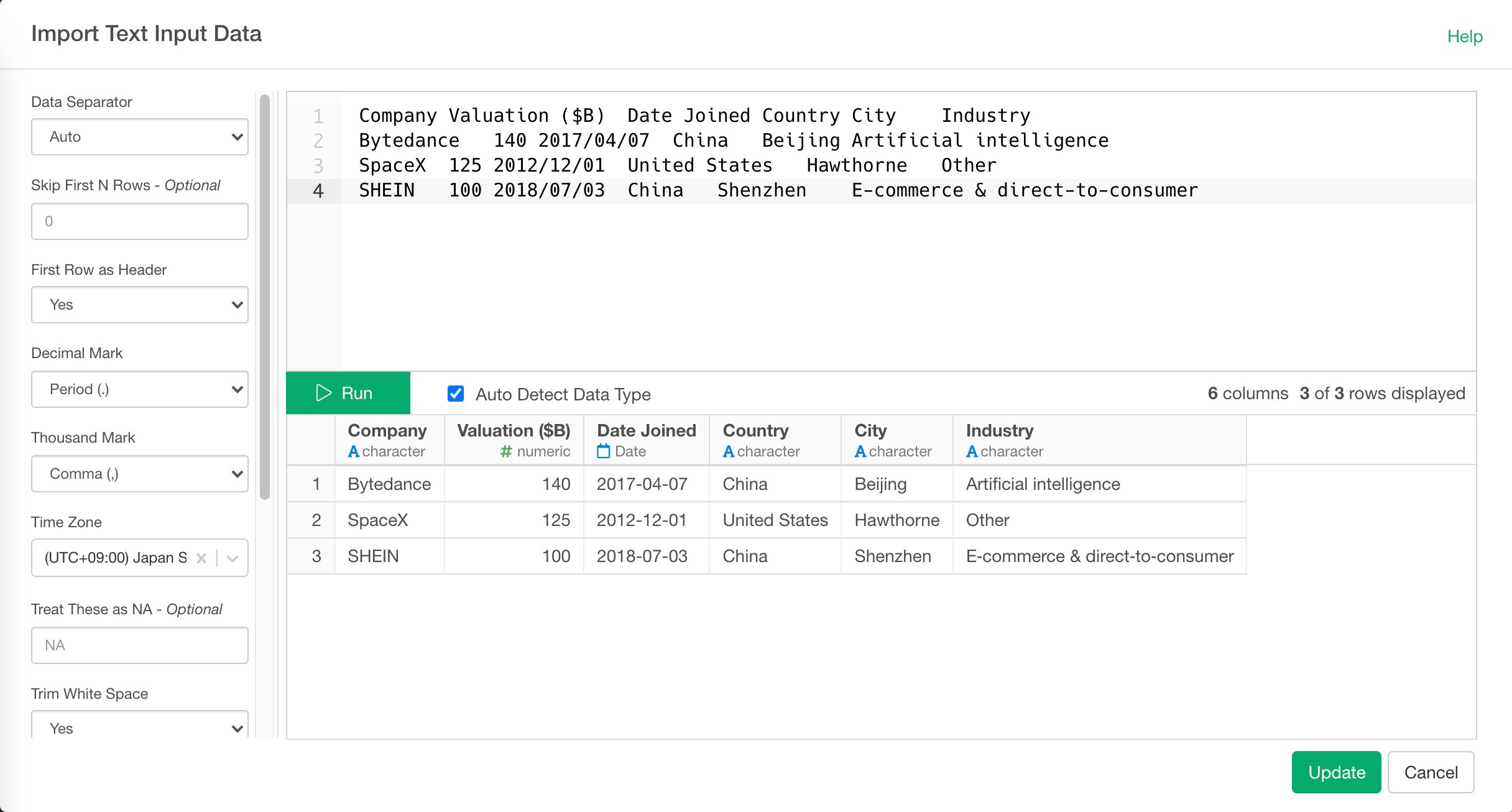
- Separator - Single character used to separate fields within a record.
- Skip first N rows - Number of lines to skip before reading data.
- First Row as Header - Either TRUE or FALSE. If TRUE, the first row of the input will be used as the column names, and will not be included in the data frame. If FALSE, column names will be
- Decimal mark - Decimal mark used for numeric values in the Delimited Text.
- Thousand mark - Thousand mark used in numeric vales in the Delimited Text.
- Time Zone - Time zone used for date values in the Delimited Text.
- Treat these as NA - String(s) to use for missing values. Use comma(,) to enter multiple Strings. (e.g: N/A, Not Applicable) generated automatically: X1, X2, X3 etc.
- Comment Character - A string used to identify comments. Any text after the comment characters will be silently ignored.
- Trim White Space - Should leading and trailing whitespace be trimmed from each field before parsing it?
- Quote - Single character used to quote strings. Either double or Single
- Treat All Columns as Text - Should all columns be treated as text?
- Column Types - See below section for details.
4. Column Types
you can override column type by passing column name and data type pair with columnName = 'type' syntax.
For Example, if value column is detected as integer but you want to import it as double, you can set value = 'd'. (d is for double). If you want to override multiple column types, you can do so by separating each pair with comma(,) like this. key = 'i', value = 'd'
Supported data types for overrides are:
- c (character)
- i (integer)
- n (number)
- d (double)
- l (logical)
- D (date)
- T (Date time)
- t (time)