How to Share Chart or Analytics with Data and Steps
You can simply click ‘Publish’ button in the Chart or Analytics view to start sharing your data visualization.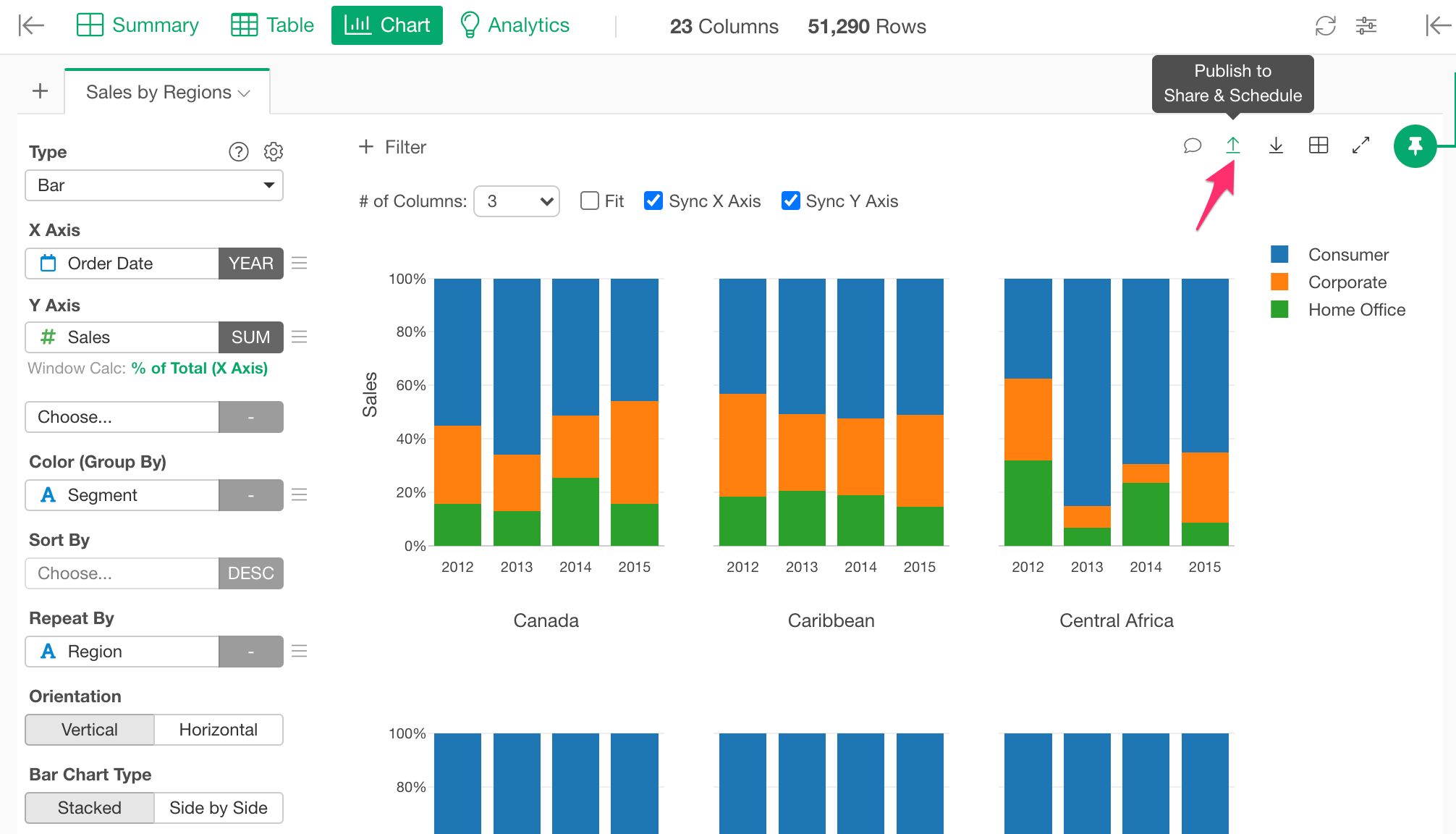
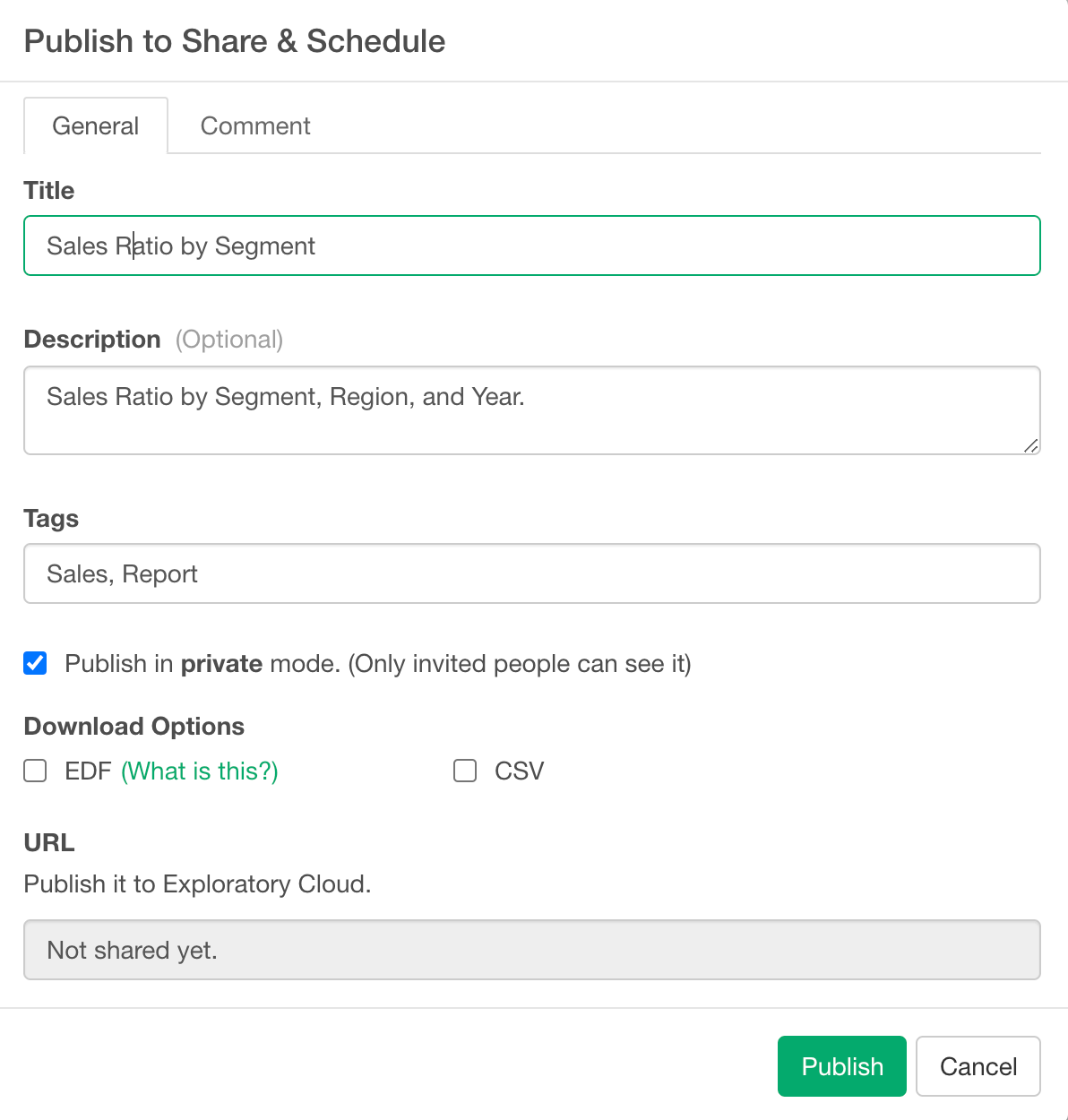
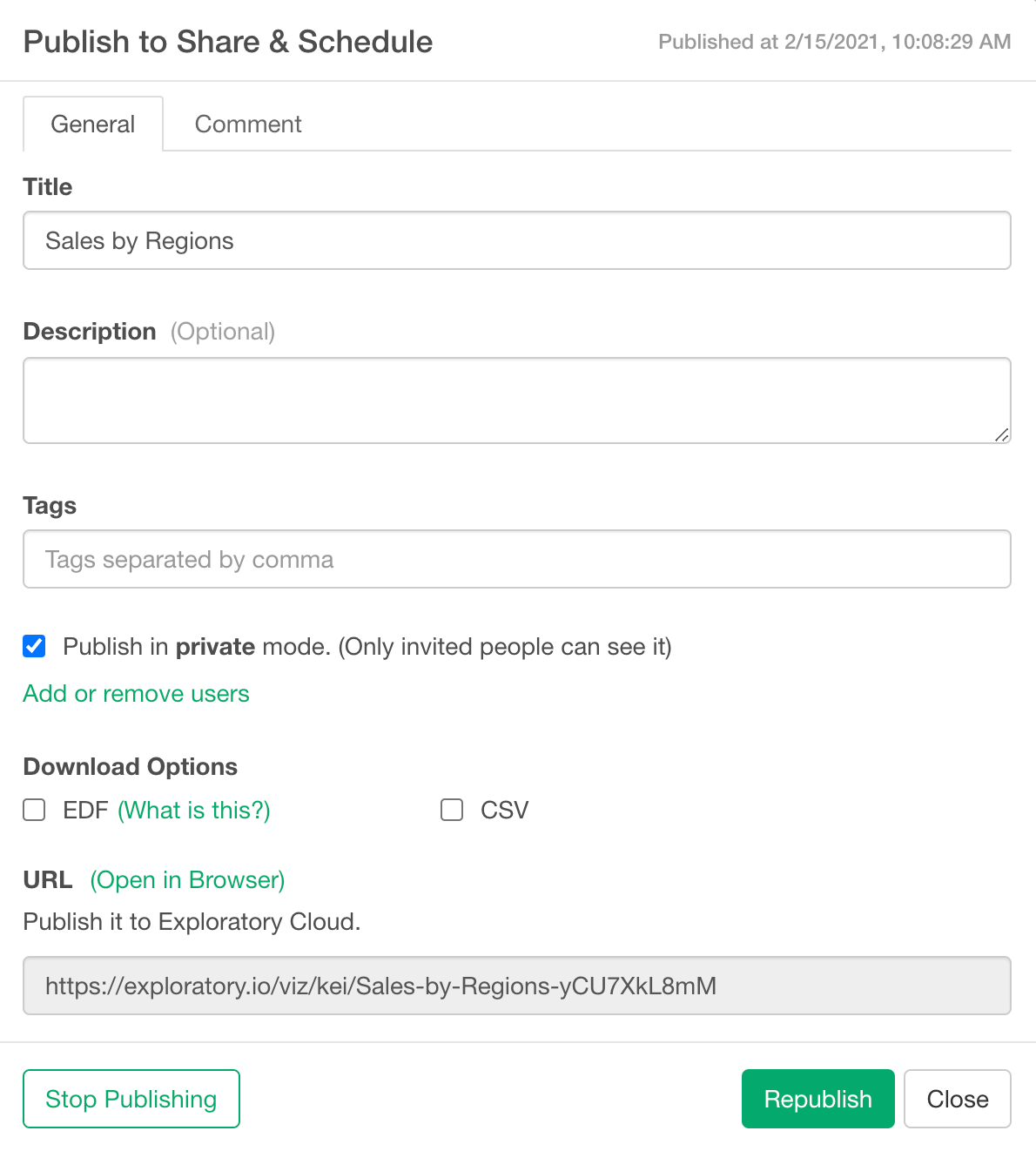
- Title: Title of the chart.
- Description: Description of the chart.
- Tags: Tag words separated by comma. It is useful for other people to search this chart by the keywords.
- Publish in private mode: If you check this checkbox, this chart will be published and shared privately. Only the people that you invite can see the published chart on the server.
- Download Options
- EDF: If you check this, it enables the EDF file download from the published chart page on the server. EDF stands for “Exploratory Data Format”. It is a data exchange format between Exploratory Desktops. It includes metadata information to reproduce the data and visualizations.
- CSV: If you check this, it enables the CSV file download and CSV API from the published chart page on the server.
- URL: This is a read-only field. The URL for the published chart will show up here once you publish the chart.