- Introducing Branch for Running Multiple Experiments Quickly
- Filtering Detail Data, not Aggregated, for Top10 Countries
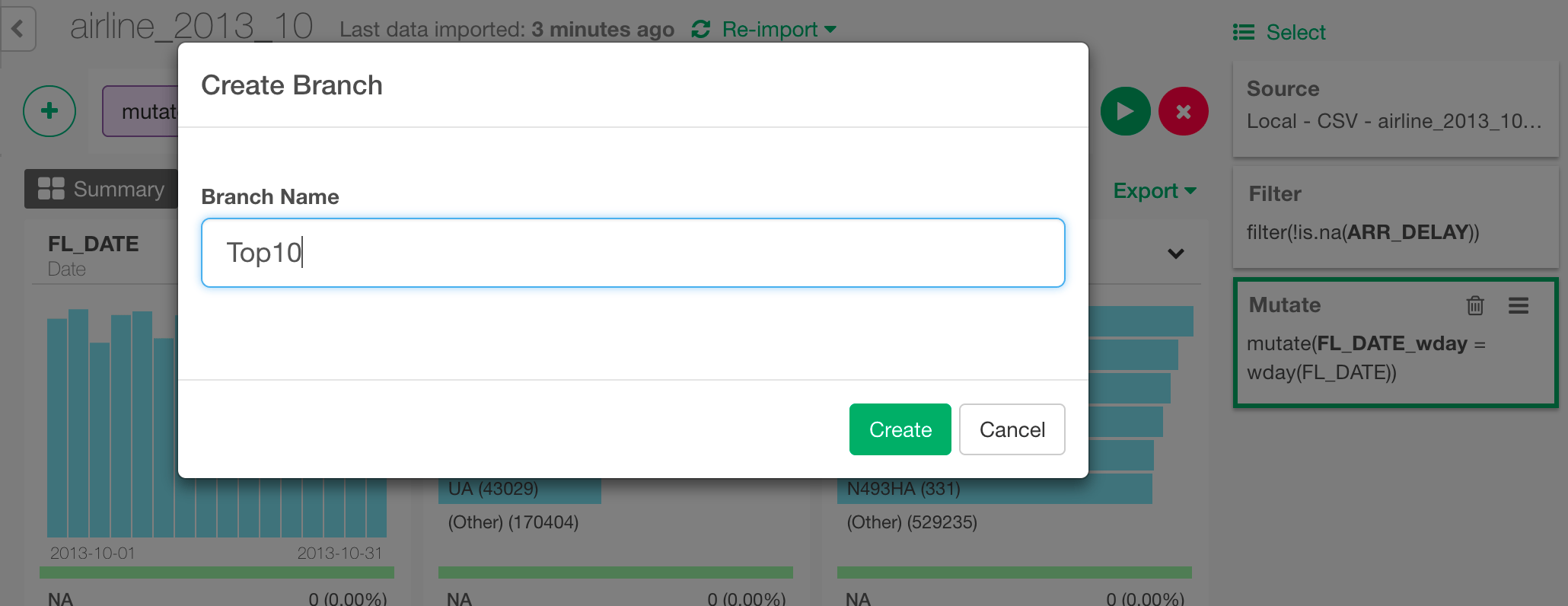
Create Branch
You can click ‘more (three lines)’ menu in any data wrangling step at right hand side and select ‘Create Branch’ to create a branch.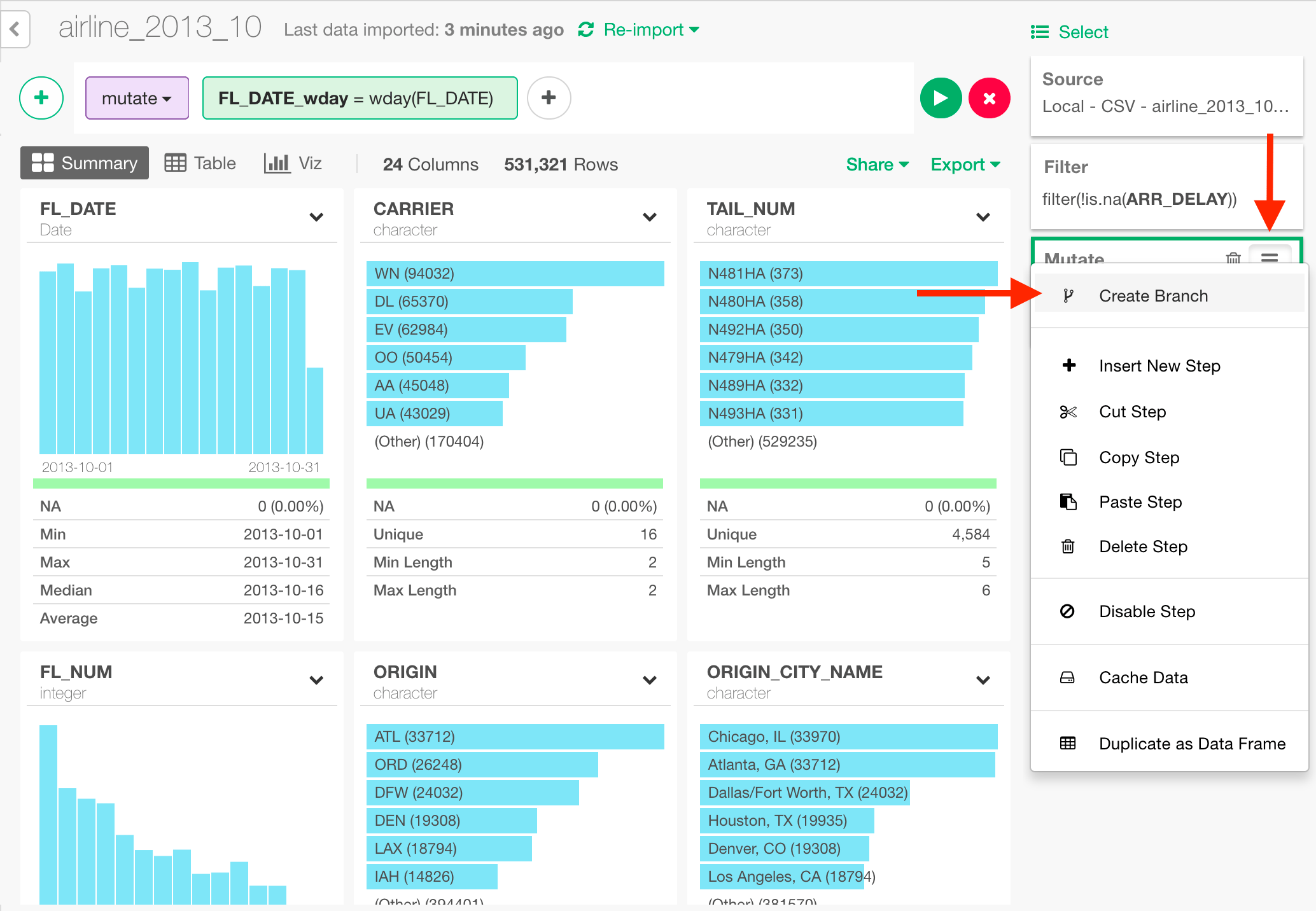
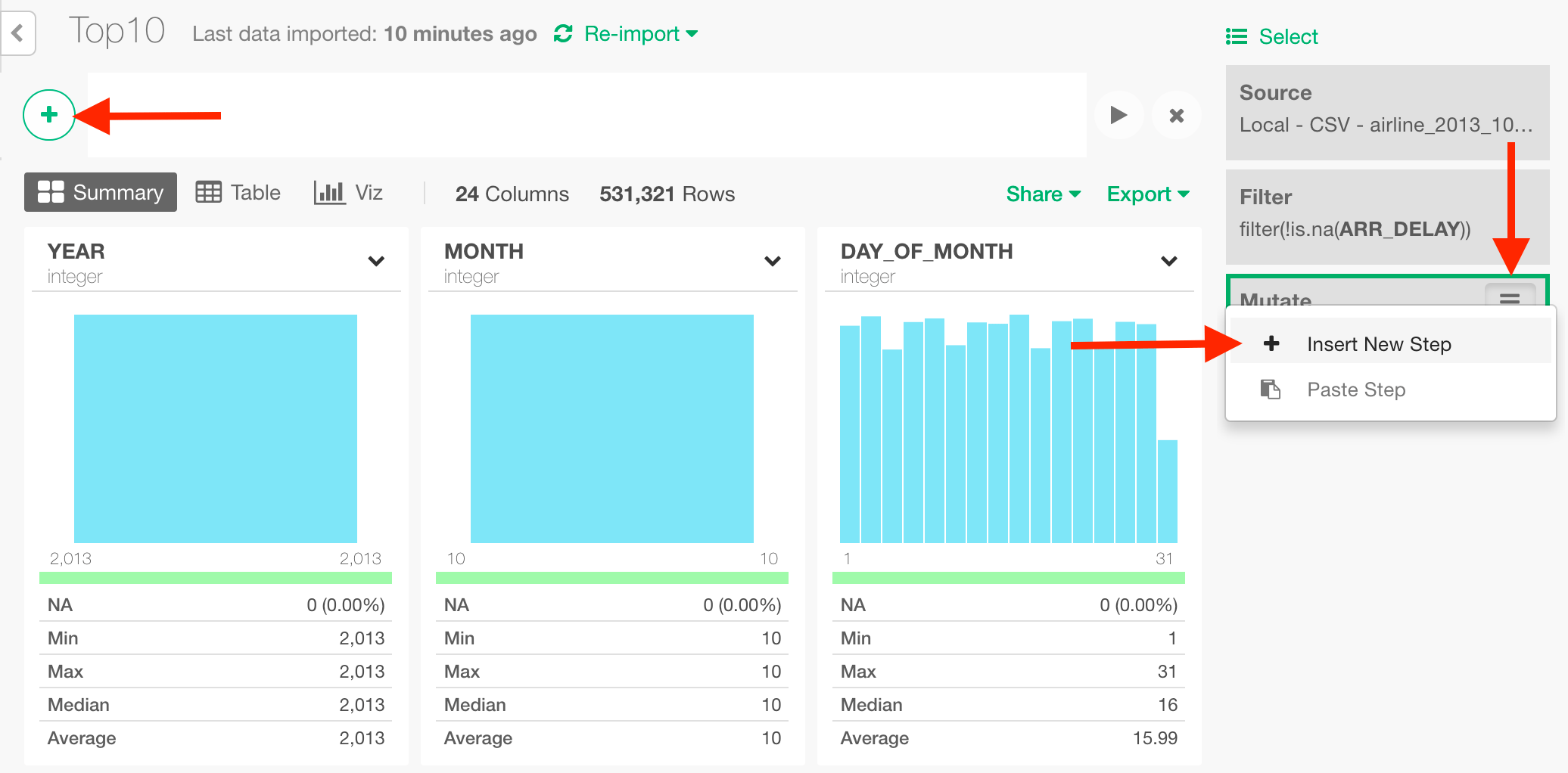
Delete Branch
You can delete a branch by clicking on ‘Delete’ menu under the ‘more (three lines)’ icon on the Data Frames tree on the lefthand-side.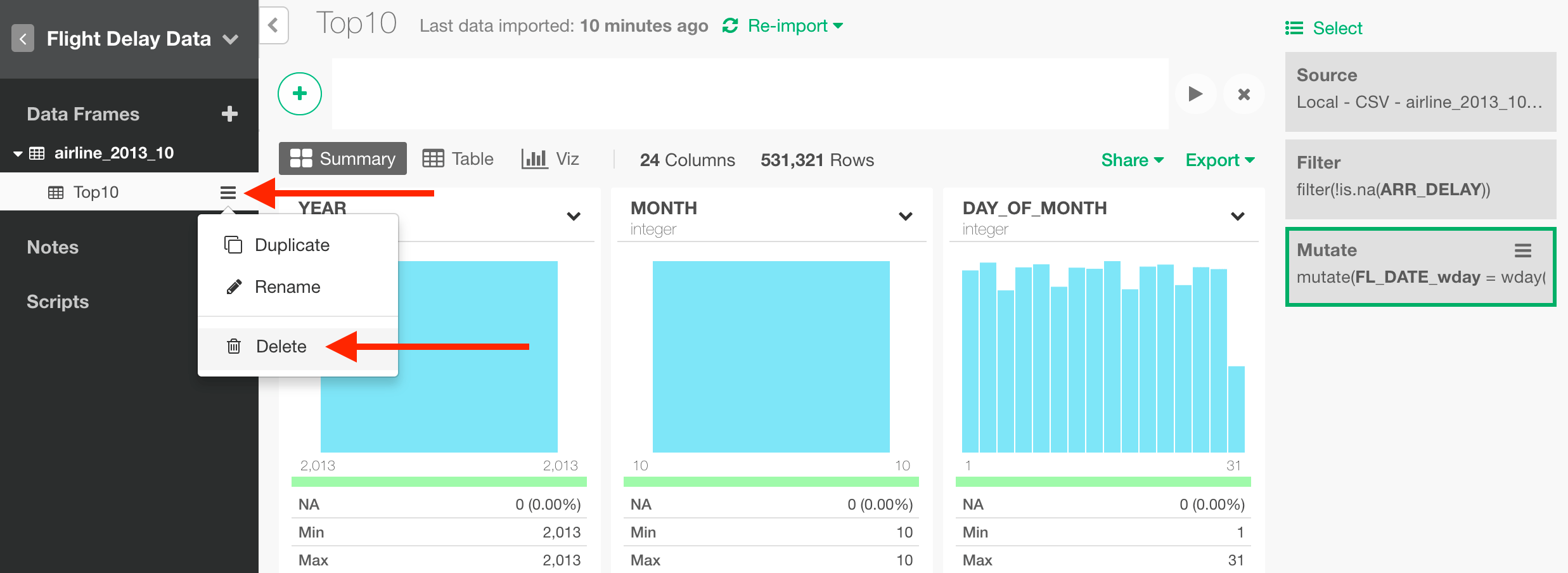
Join with Branch / Filter with Branch
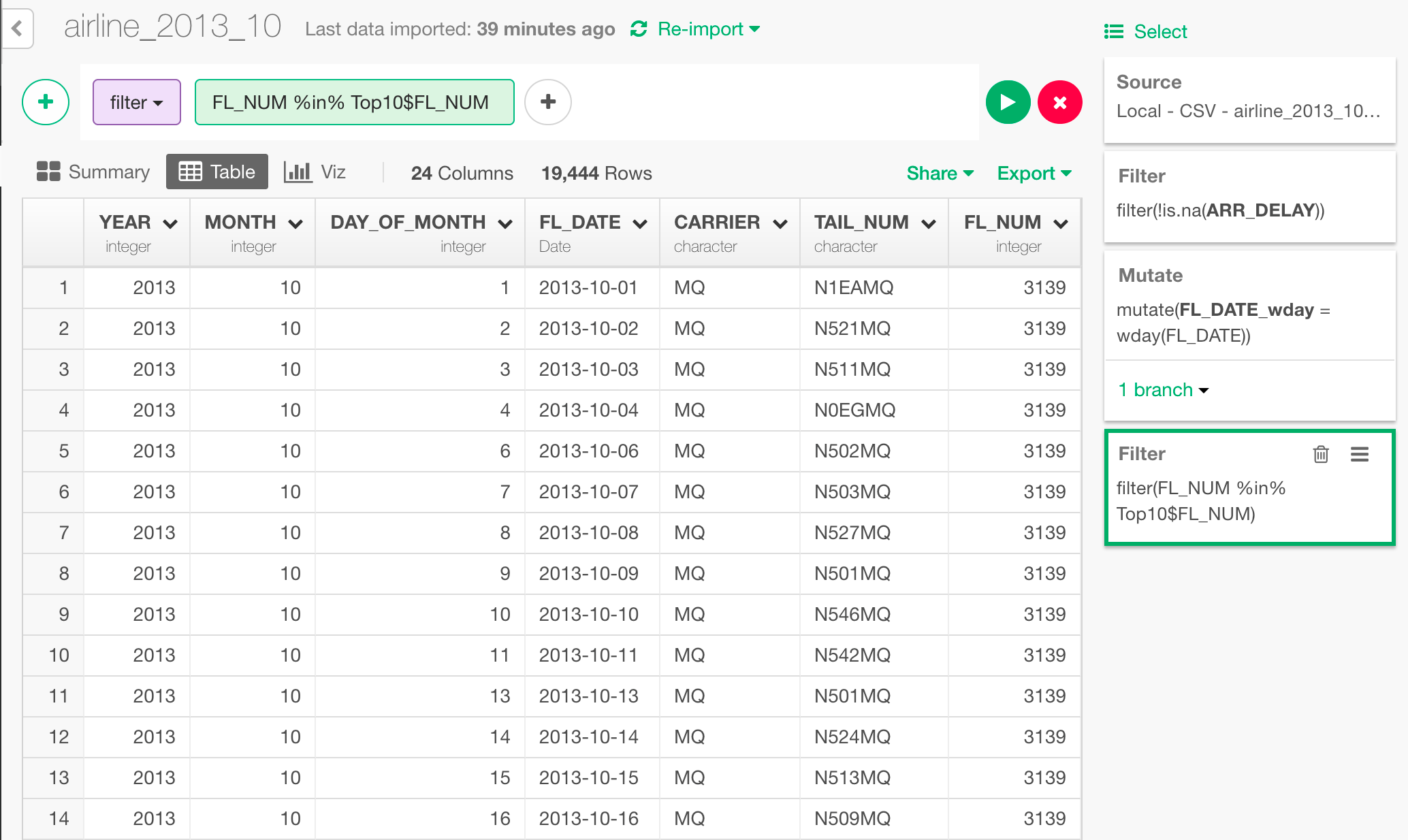
You can join the branch data to the main data frame or to other data frames. Let’s say you have created a branch to filter the data to top 10 flights for each airline carrier based on their arrival delay time, and now you want to use this data to filter the detail data in the main. You can do with two ways. One is to use one of the ‘Filter Join’ commands, ‘semi_join’. Another is to use the column name in ‘filter’ command with ‘%in%’ operator. Here’s a Top 10 flights for each carrier in a branch ‘Top10’.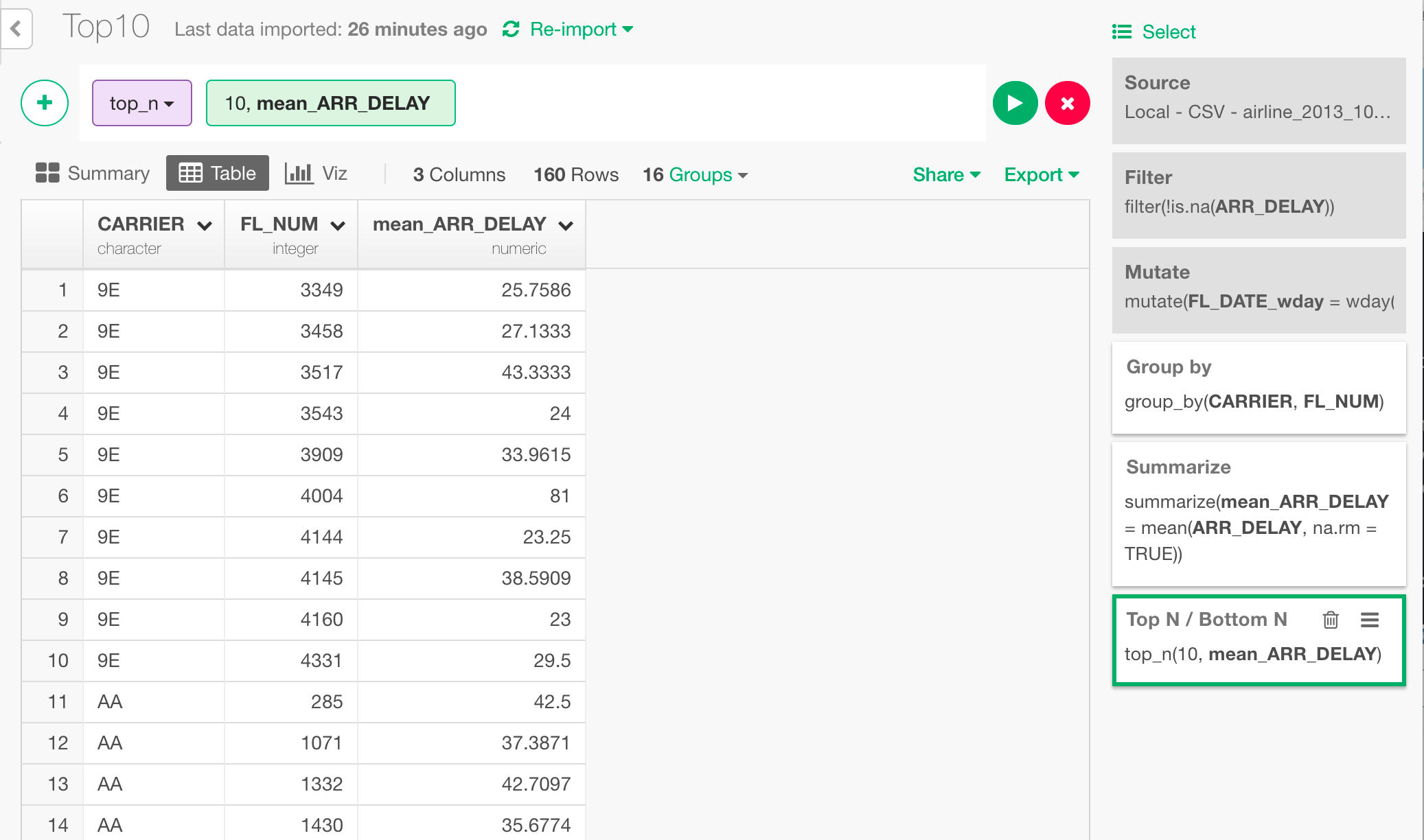
Use semi_join command to filter
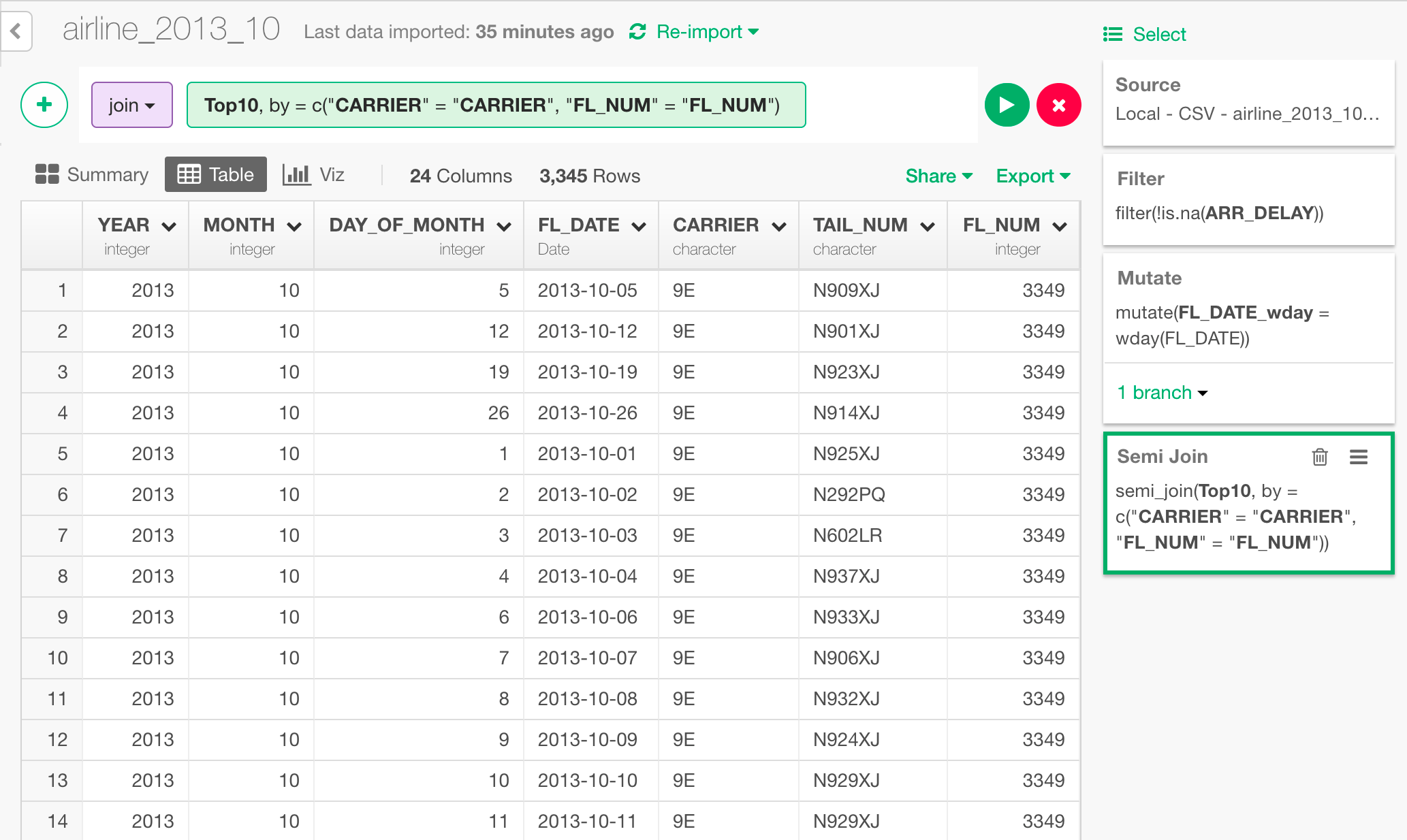
Use filter command to filter