Manage Schedules
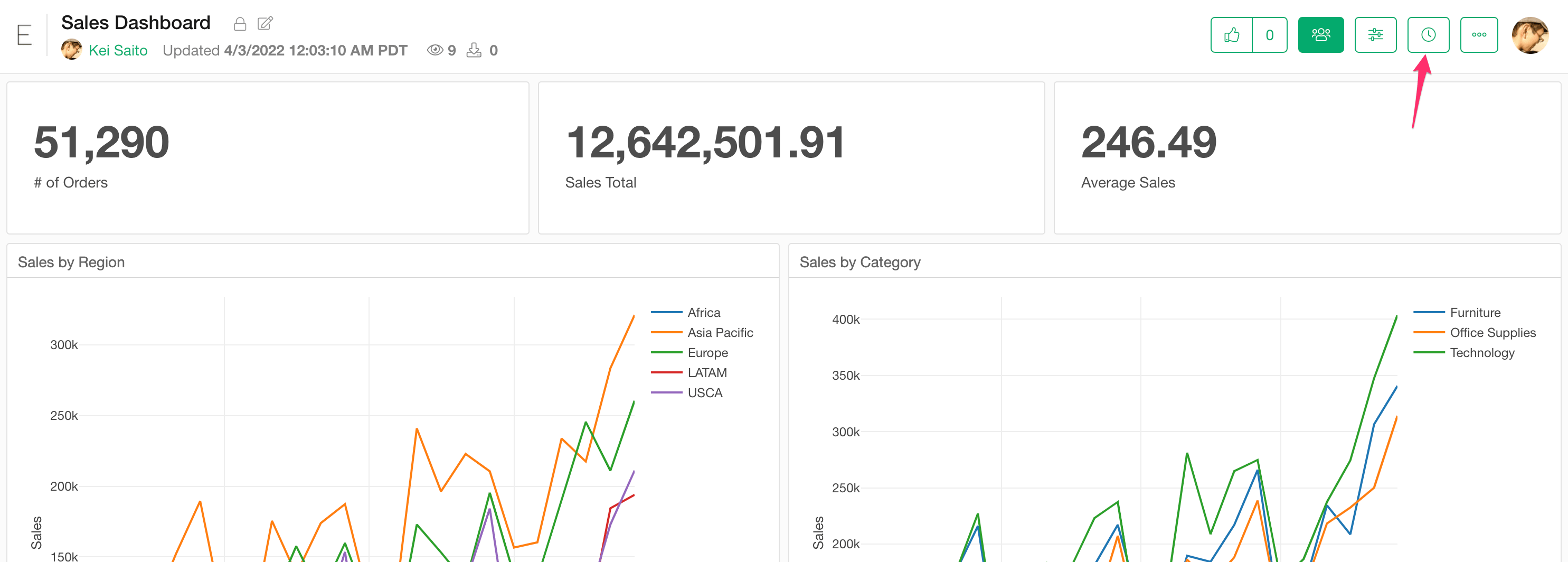
You can click the clock icon to open the scheduling dialog for managing schedules. If the insight is not capable for scheduling, the clock icon doesn’t show up. The popular reasons are the following.- Data is coming from your local file. The data should be accessible from the network for scheduling.
- Data source type doesn’t support scheduling such as “R Script” data source.
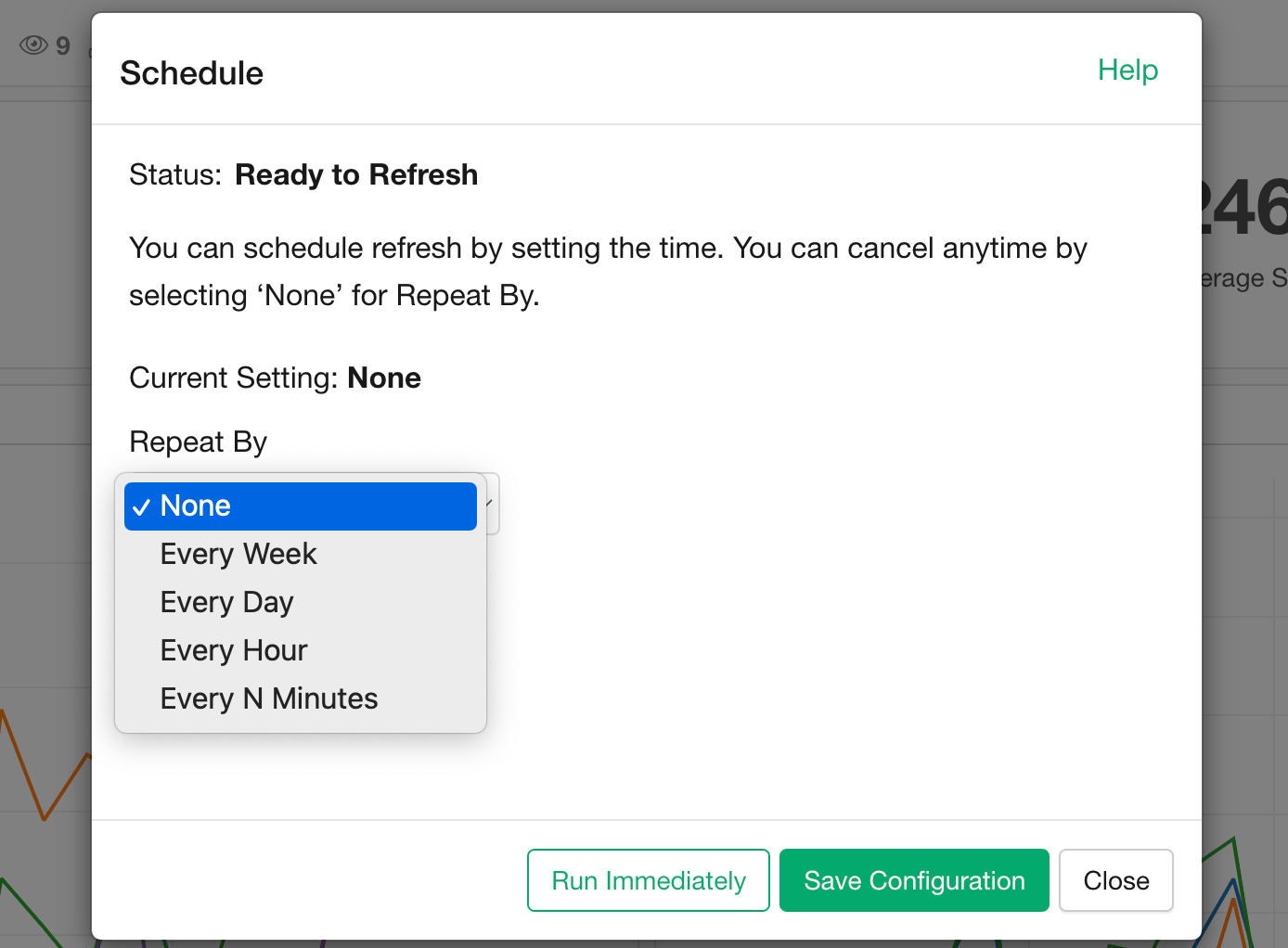
- Every Week
- Every Day
- Every Hour
- Every N Minutes (Available only for Business plan users)
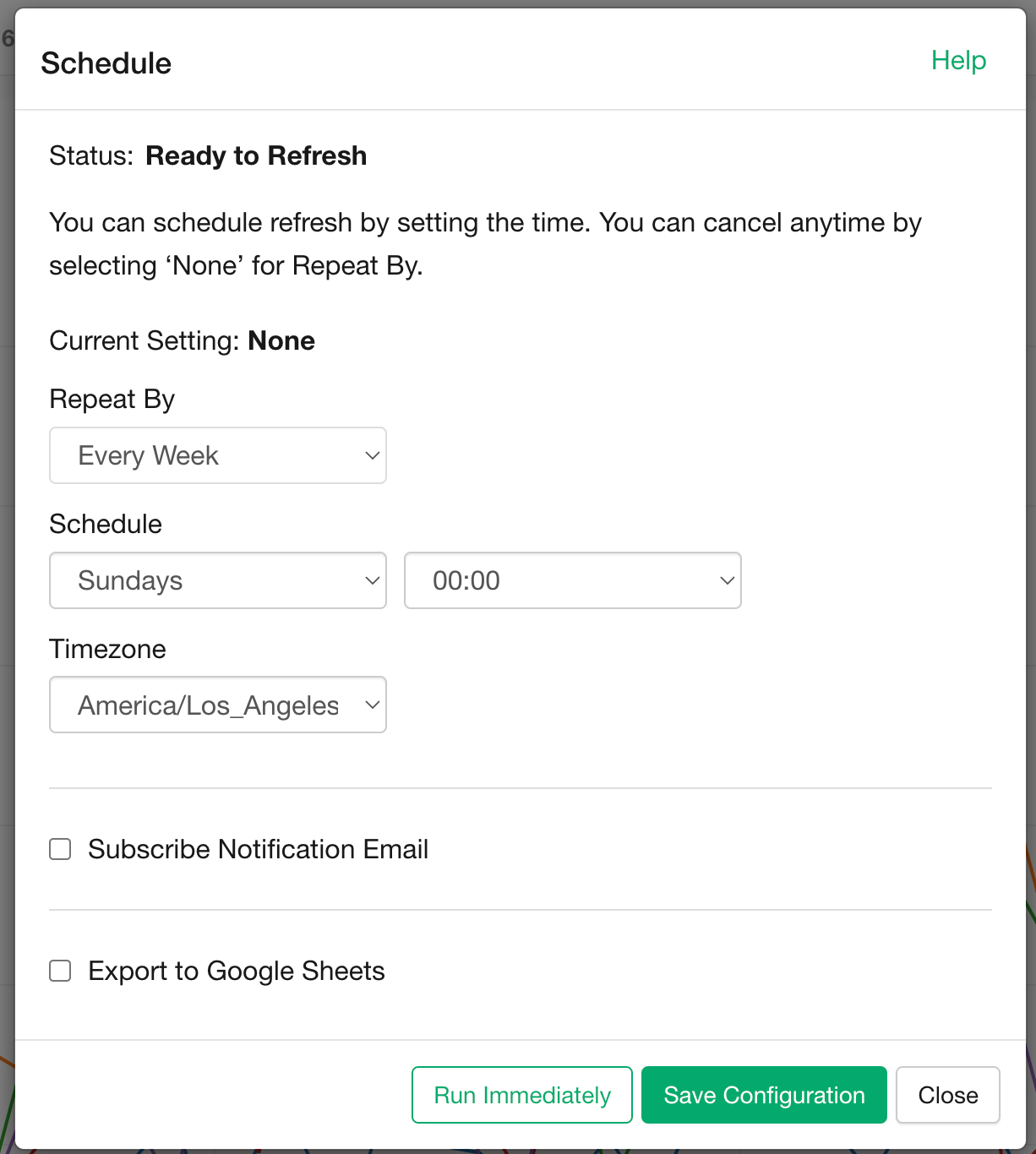
- Save it as a new spreadsheet.
- Add a new tab in an existing spreadsheet.
- Override the data in an existing tab in an existing spreadsheet.
- Append the data to an existing tab in an existing spreadsheet.
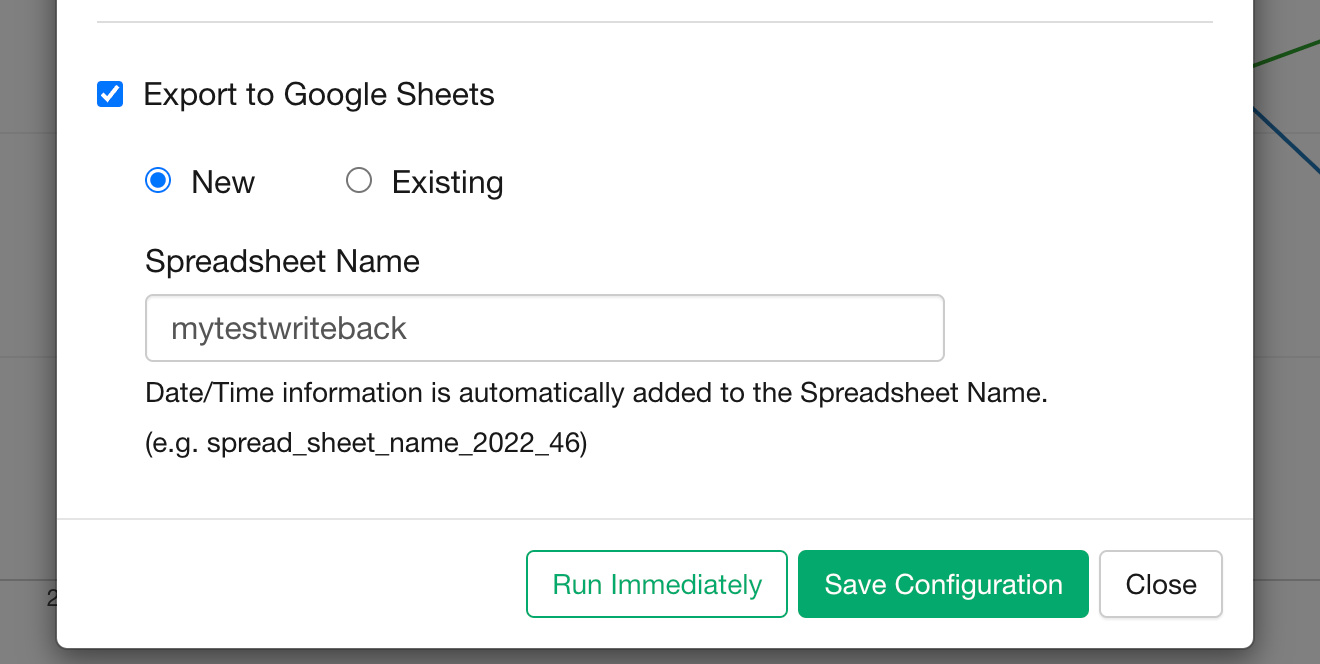
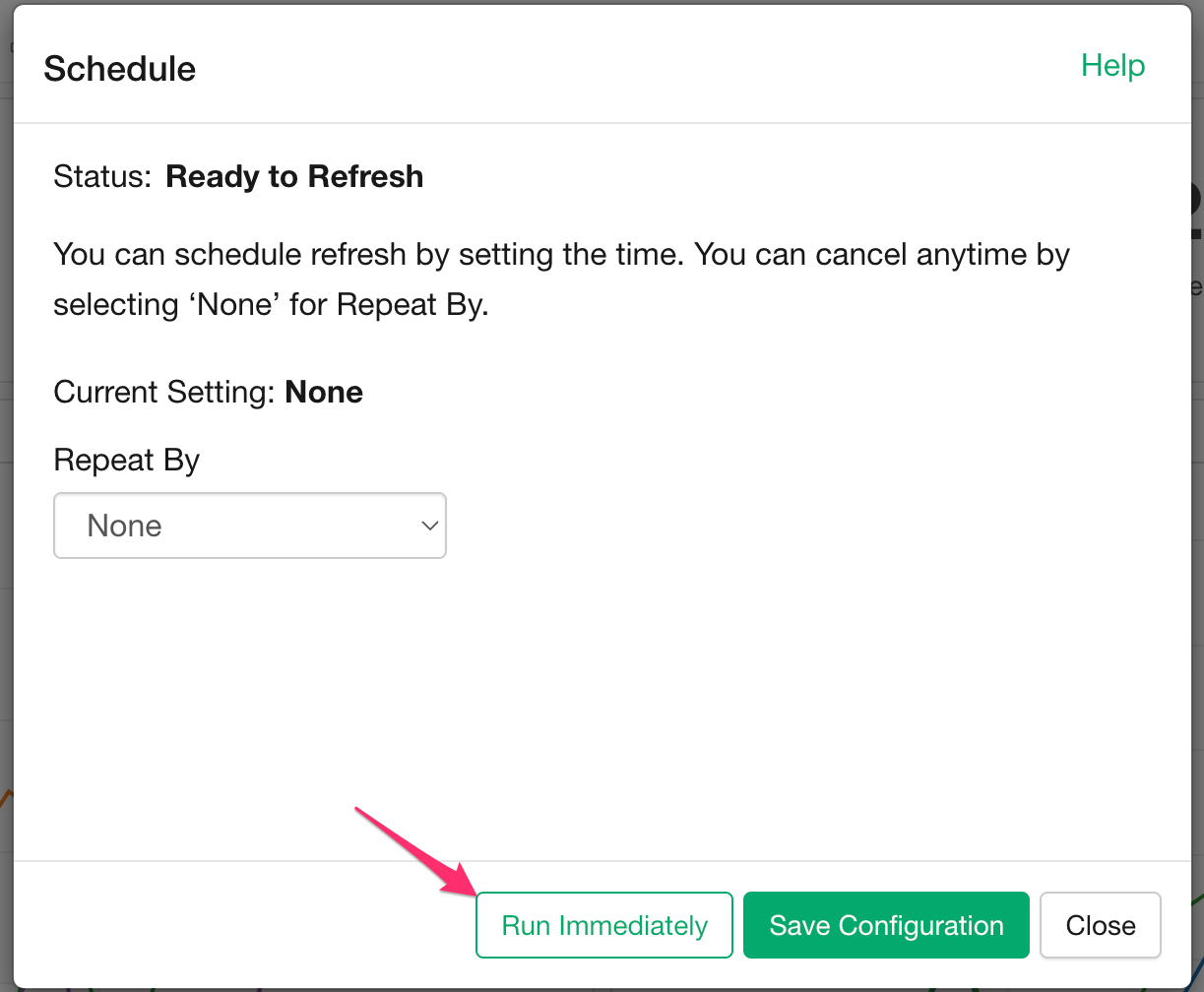
Run Immediately
If you just want to run it once immediately to refresh the data without setting up a schedule, you can click the “Run Immediately” button.