
1. Select Excel File Data Menu
Click ’+’ button next to ‘Data Frames’ and select ‘Import File Data’.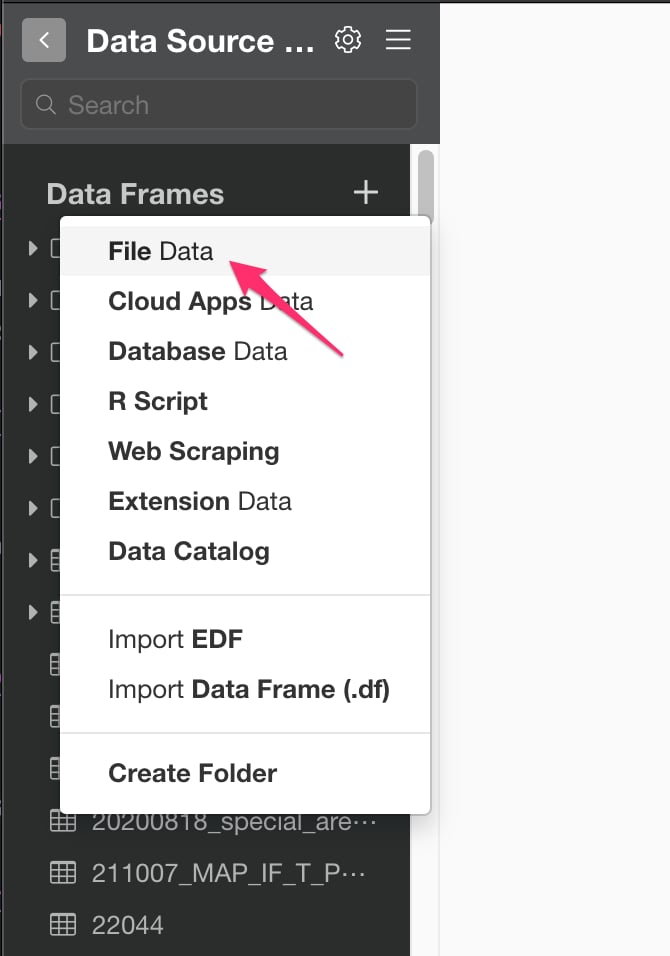
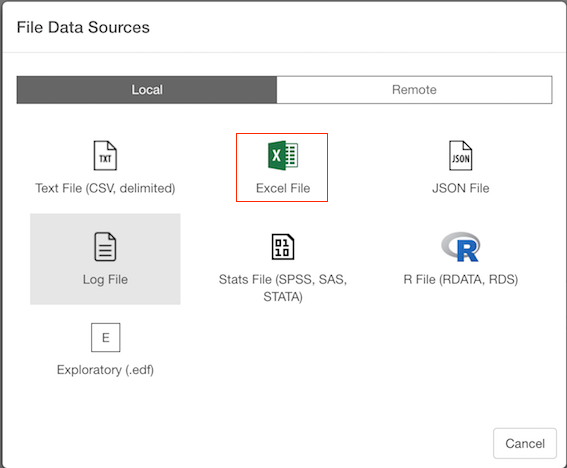
2. Select File.
If you select local, file picker shows up so select a file to import.2.1 Local File
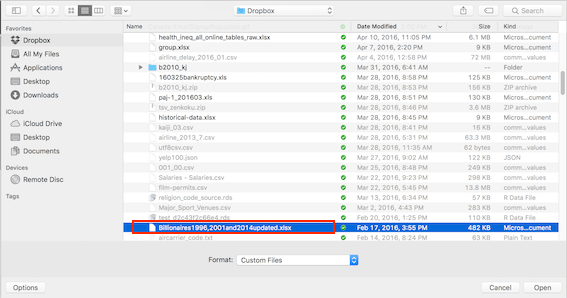
2.2 Remote File
if you select remote, small dialog shows up so enter a URL for the file.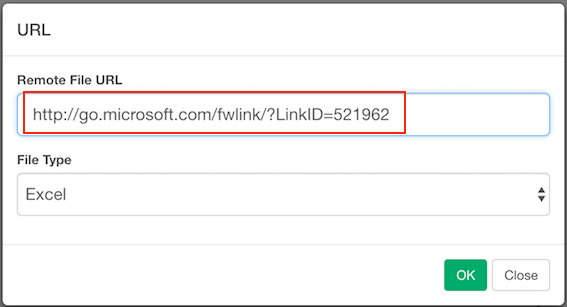
3. Input parameters
Input parameters are same for local and remote file import.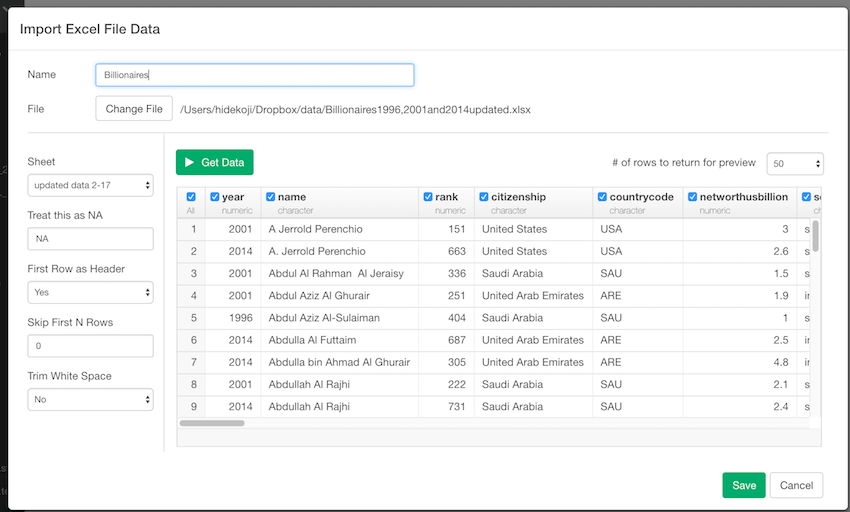
- Sheet - Sheet name of the Excel File that you want to import.
- Treat this as NA - String to use for missing values.
- First Row as Header - Either TRUE or FALSE. If TRUE, the first row of the input will be used as the column names, and will not be included in the data frame. If FALSE, column names will be generated automatically: X1, X2, X3 etc.
- Skip first N rows - Number of lines to skip before reading data. enter multiple Strings. (e.g: N/A, Not Applicable)
- Trim White Space - Should leading and trailing whitespace be trimmed from each field before parsing it?