
Requirements
- An Exploratory account
- Cursor (its command-line agent is
agentorcursor-agent) - You do not need an API key or a client ID.
Steps
Register in mcp.json
If your app’s official directory lists Exploratory Server, follow its installation instructions. Otherwise, add only the server by hand, without the skill, as follows.exploratory@exploratory is for Desktop.
- Open ~/.cursor/mcp.json (or .cursor/mcp.json in a project).
-
Add the
exploratory-serverentry below. IfmcpServersalready exists in the file, add only theexploratory-serverentry inside it and keep the other server settings. The example shows a complete new file.
Open MCPs
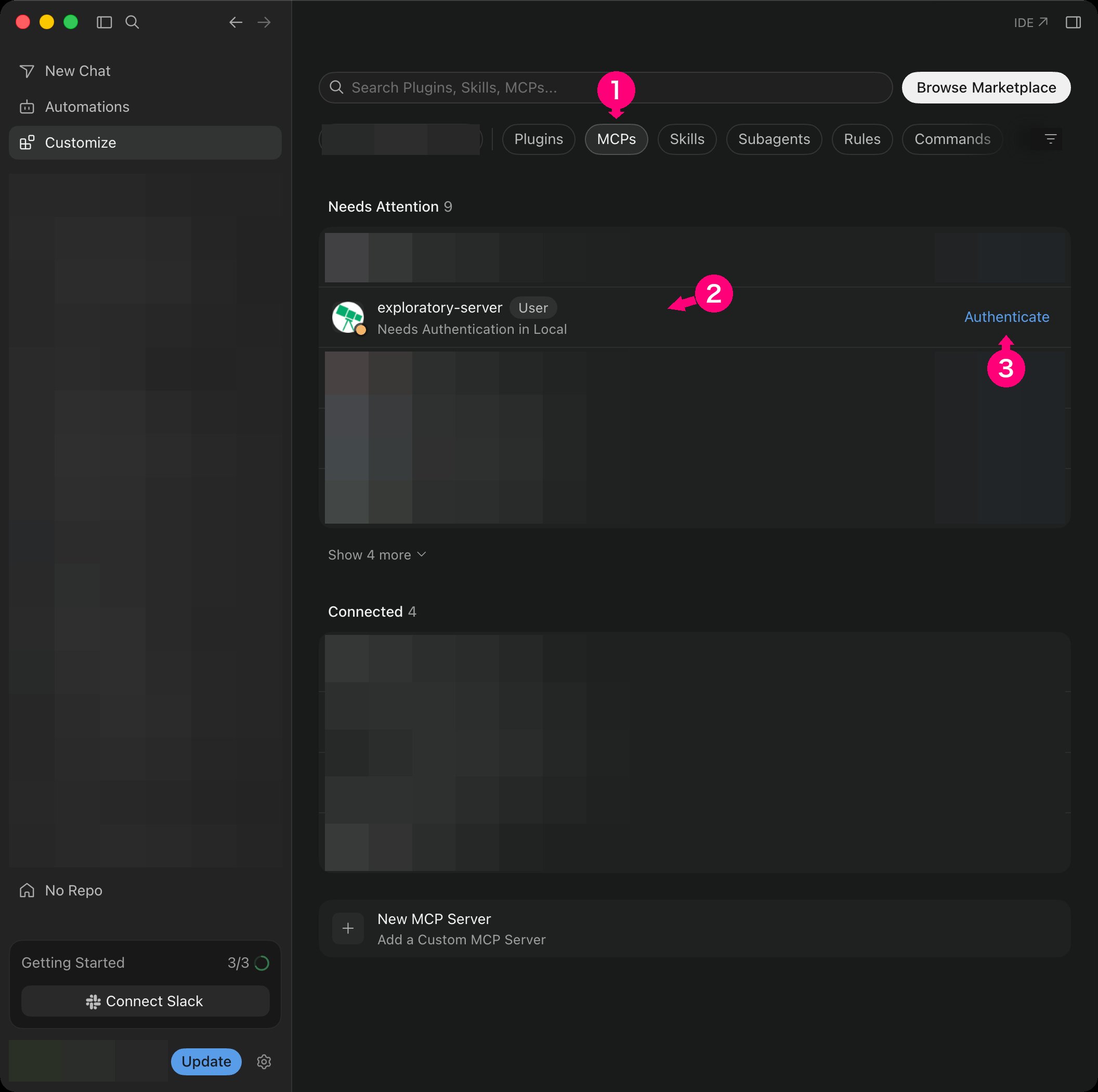
In the Cursor app, check the MCP server you added.- Choose Customize in the sidebar.
- Choose MCPs.
- Check the exploratory-server row. Before you sign in, it shows “Needs Authentication in Local”.
- Choose Authenticate at the right of the row.
Approve the access on exploratory.io
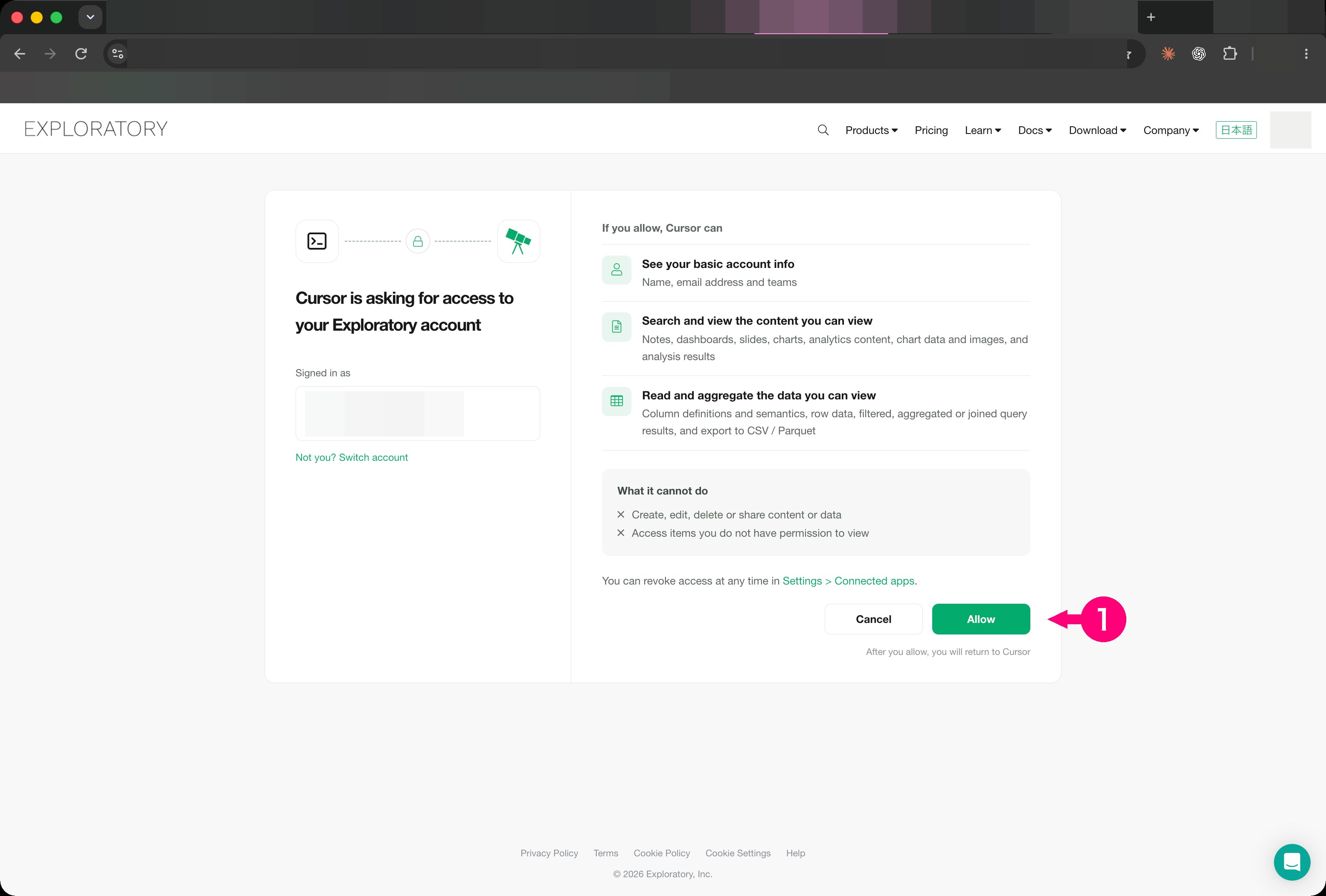
Your browser opens. If you are not signed in, sign in to Exploratory. Choosing Authenticate in the app and running the terminal command open the same browser screen.- Choose Allow.
Check that it is connected
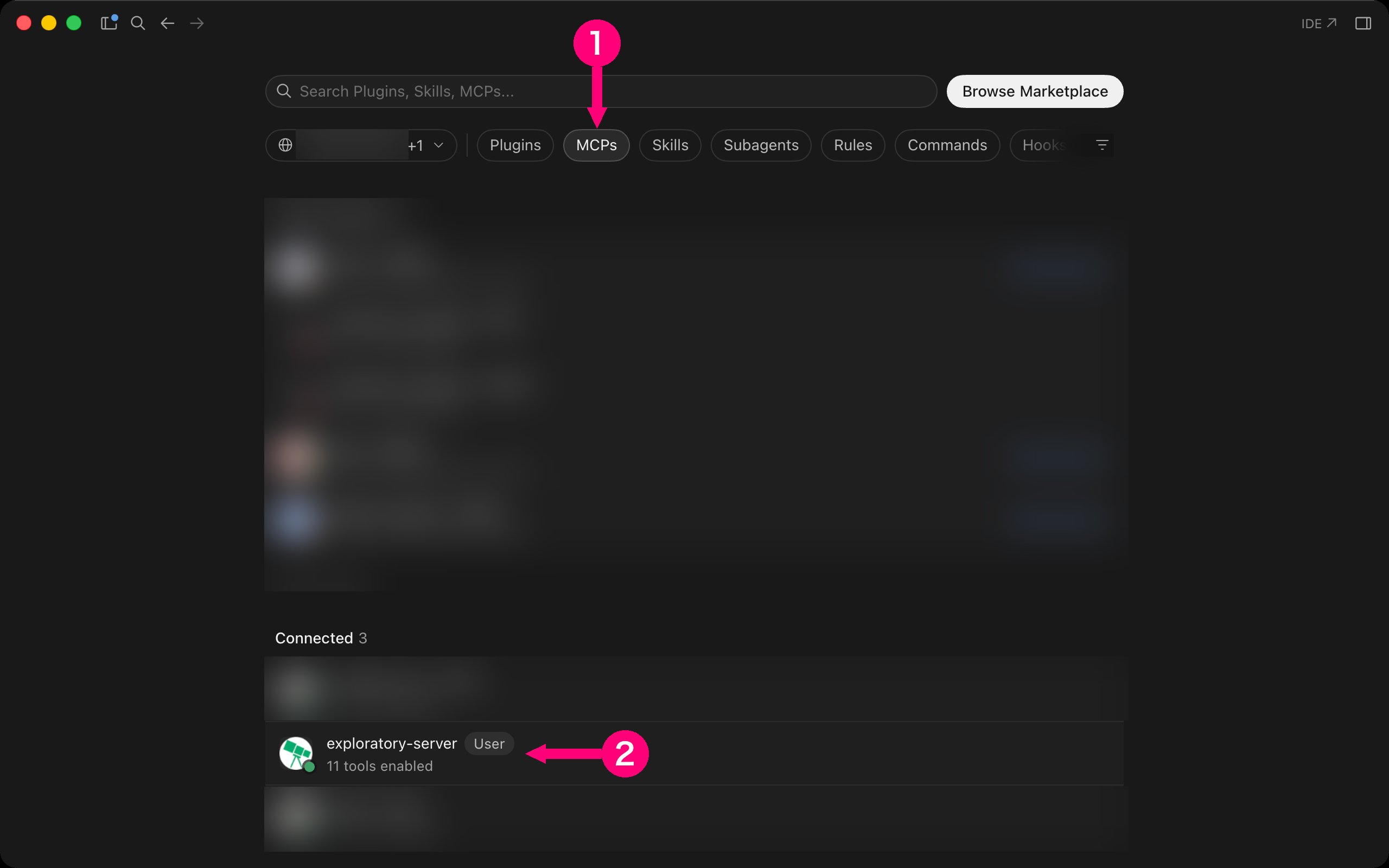
When you have signed in, exploratory-server moves to the Connected list under MCPs.- Choose MCPs.
- Check the exploratory-server row in the Connected list.
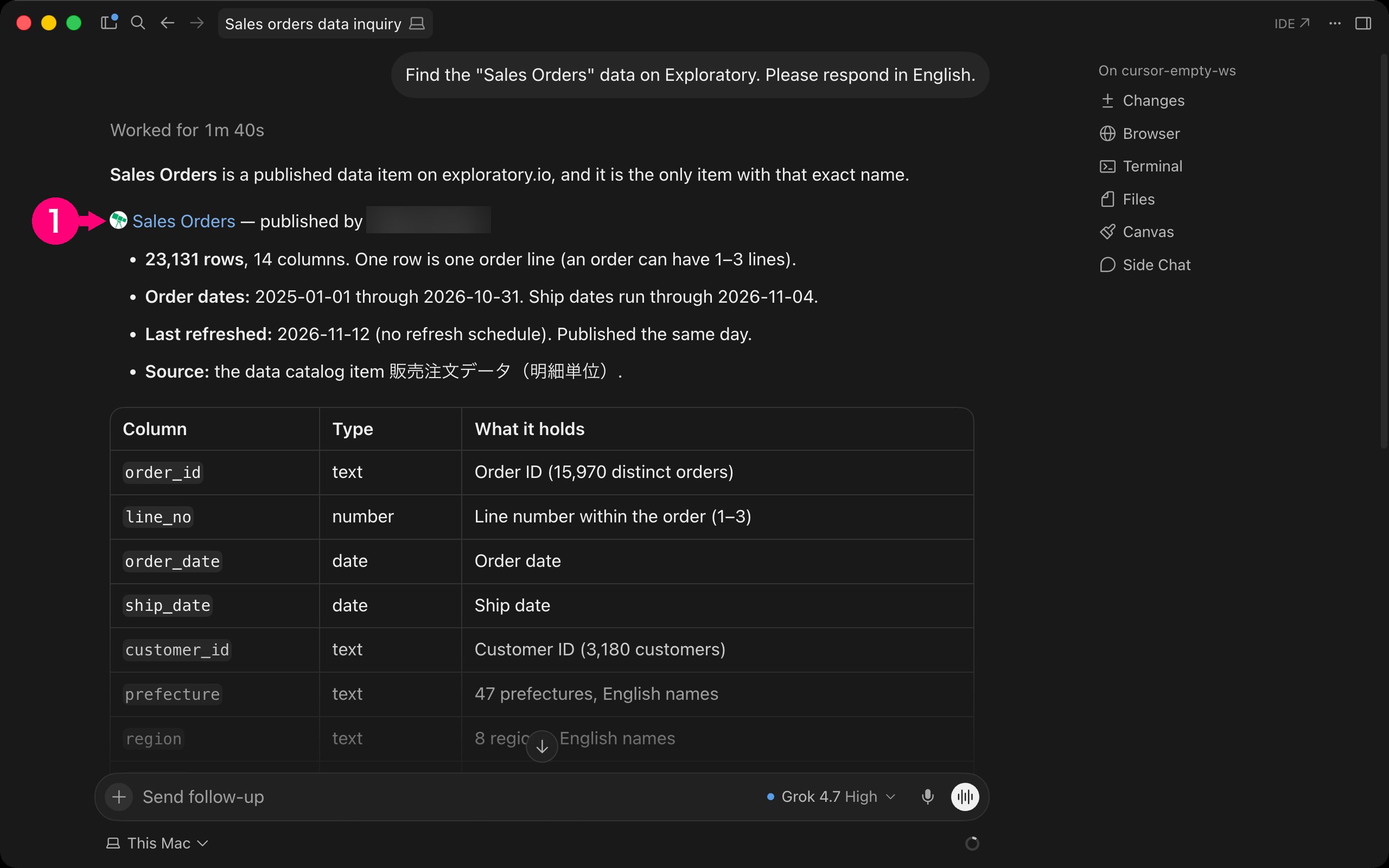
- Check the Sales Orders link in the search result.
Connect with an API key
If your environment cannot open a browser, use an API key instead of the sign-in. Create the key in Account Settings > API Keys, and put it in an environment variable named EXPLORATORY_API_KEY before you start Cursor, and set it from a secret manager, not in a shell startup file. Then refer to it in mcp.json.Troubleshooting
- Troubleshooting - Fixes by symptom for the Server MCP as a whole.