
Requirements
- An Exploratory account
- Codex
- You do not need an API key or a client ID.
Steps
Register
This registers only the server, without the skill. Use either of the two ways below. To edit the config file-
Add this to ~/.codex/config.toml.
-
Run this command.
Sign in
-
Run this command.
- When your browser opens, sign in to Exploratory.
- Approve the access.
Check that it is connected
-
In a new chat, send this.
Add by asking in chat
Instead of running the command yourself, you can ask Codex in the chat to add the server.Ask in the chat
-
In Codex, send this.
The image below used this request with “Please respond in English.” added, so that the reply is in English.
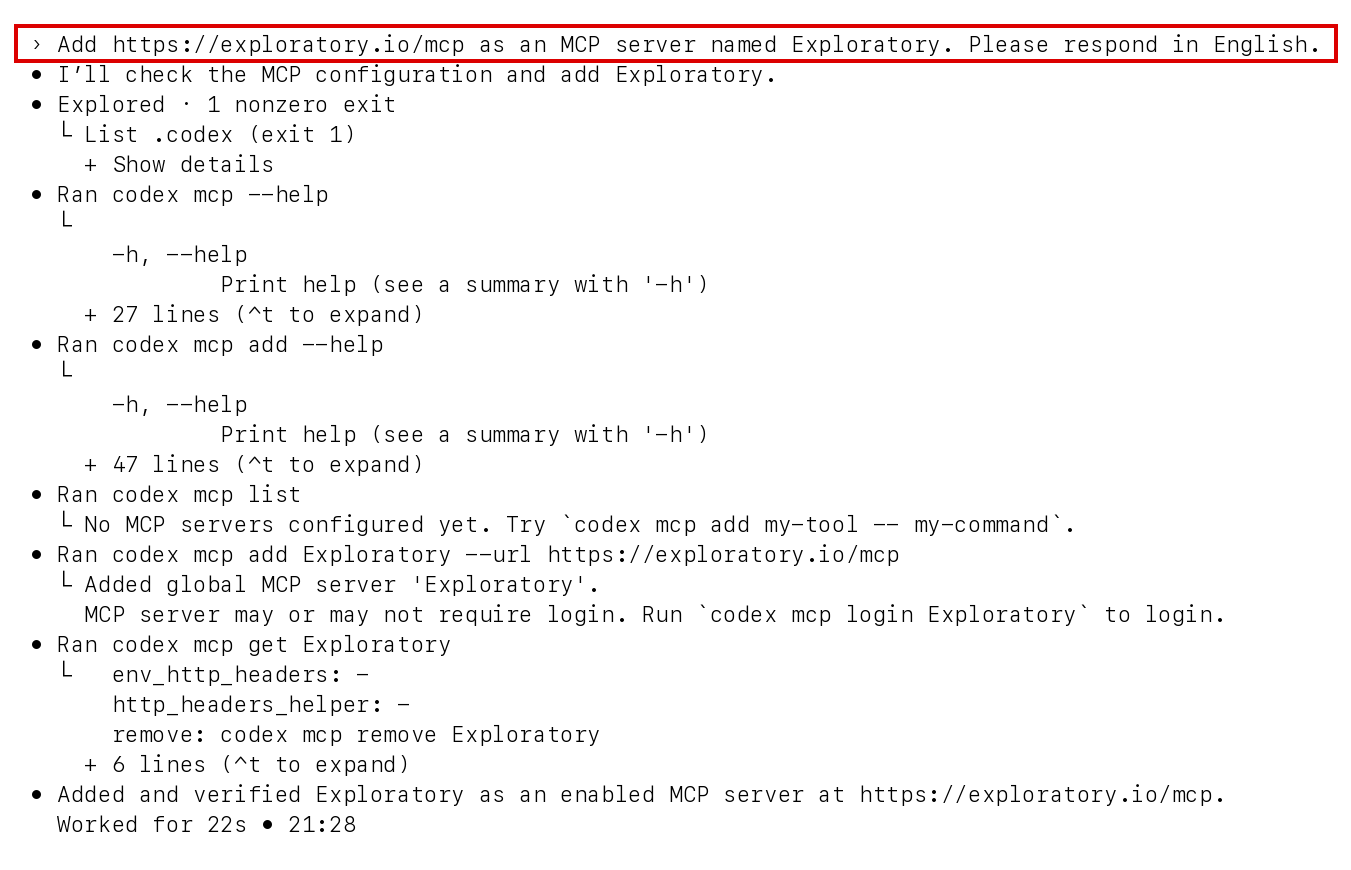
codex mcp add and answered that the server was added and enabled. If you have not signed in yet, run codex mcp login Exploratory. Which command the AI chooses can differ from run to run, so read its answer.
Sign in and check
-
If you are not signed in yet, run
codex mcp login Exploratory. Your browser opens. Approve the access in the browser. -
Start a new session and open
/mcp. Check that Exploratory is connected. -
Ask for the data, and name the connection to search with.

Connect with an API key
If your environment cannot open a browser, use an API key instead of the sign-in. Create the key in Account Settings > API Keys, and put it in an environment variable. Set EXPLORATORY_API_KEY through your environment’s secret-management facility, such as your operating system’s credential store or the secrets of your CI, not through your shell’s startup file. Do not write the key itself on the command line or in a configuration file. The configuration below assumes that this environment variable is already set. Add the name of the variable, not the key, to ~/.codex/config.toml.Troubleshooting
- Troubleshooting - Fixes by symptom for the Server MCP as a whole.