
Requirements
- An Exploratory account
- Antigravity
- You do not need an API key or a client ID.
Steps
Copy the config file path
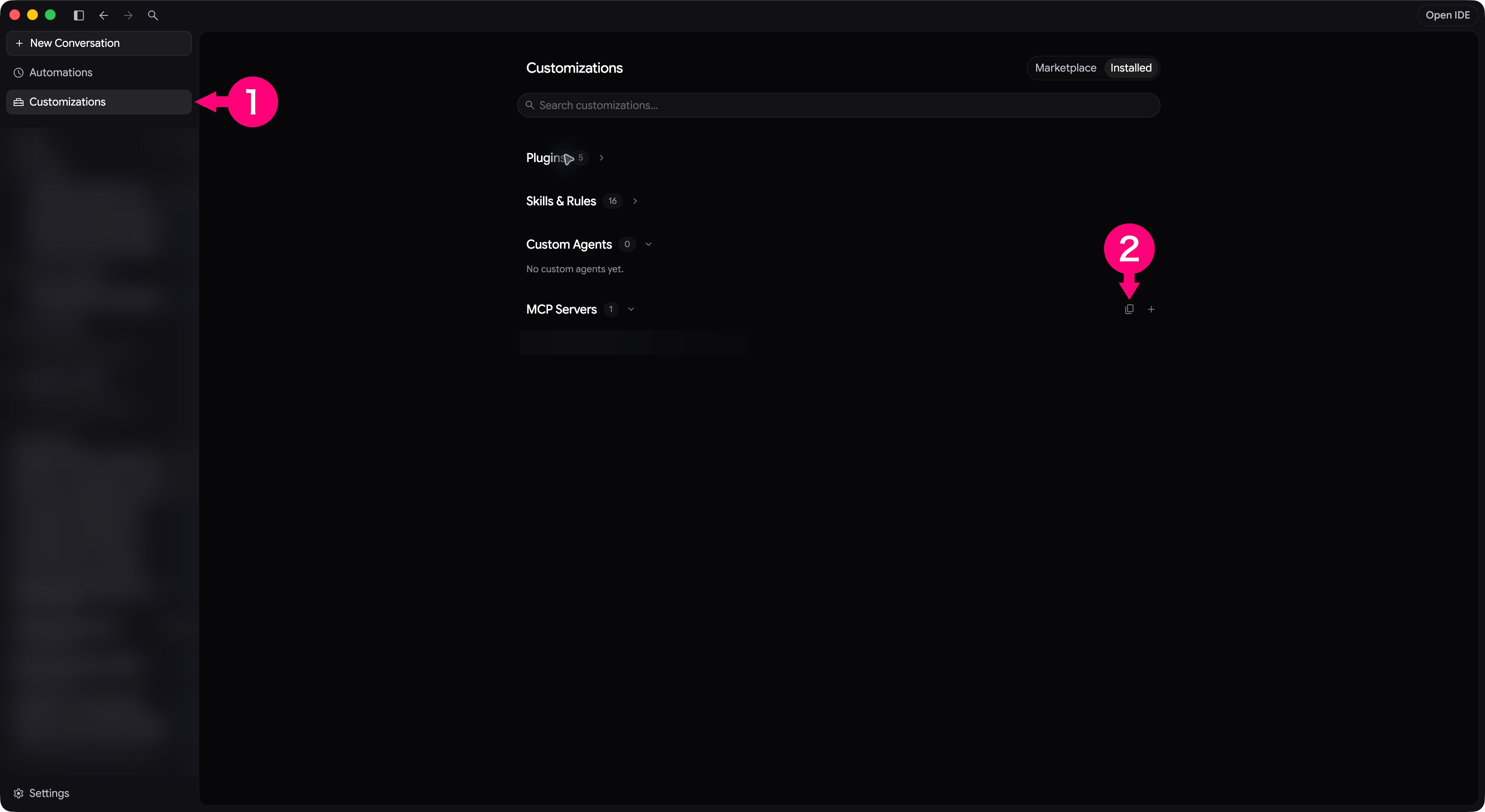
Do this.- In the Antigravity app, select Customizations in the sidebar. Check that Installed is selected at the top of the screen.
- At the right end of the MCP Servers row, select the copy icon (Copy Config File Path). The location of the config file (mcp_config.json) is copied.
Register the server
A remote server takes its URL in “serverUrl”.- Open mcp_config.json.
-
Add the
exploratory-serverentry below. IfmcpServersalready exists in the file, add only theexploratory-serverentry inside it and keep the other server settings. The example shows a complete new file.
Start the sign-in
In the app, do this.- Under MCP Servers, select Authenticate next to exploratory-server.
- Start agy.
- Run
/plugin. - Open the exploratory-server connection (the Desktop plugin exploratory is separate).
- Choose Sign in.
Approve the access on exploratory.io
Your browser opens, in the app and in agy.- In the browser, sign in to Exploratory.
- On Exploratory’s consent page, approve the access.
- Copy the authorization code shown in the browser.
Paste the authorization code
In the app, go back to Antigravity and do this.- Paste the authorization code into the Enter authorization code field.
- Select Submit.
- Paste the authorization code.
Check that it is connected
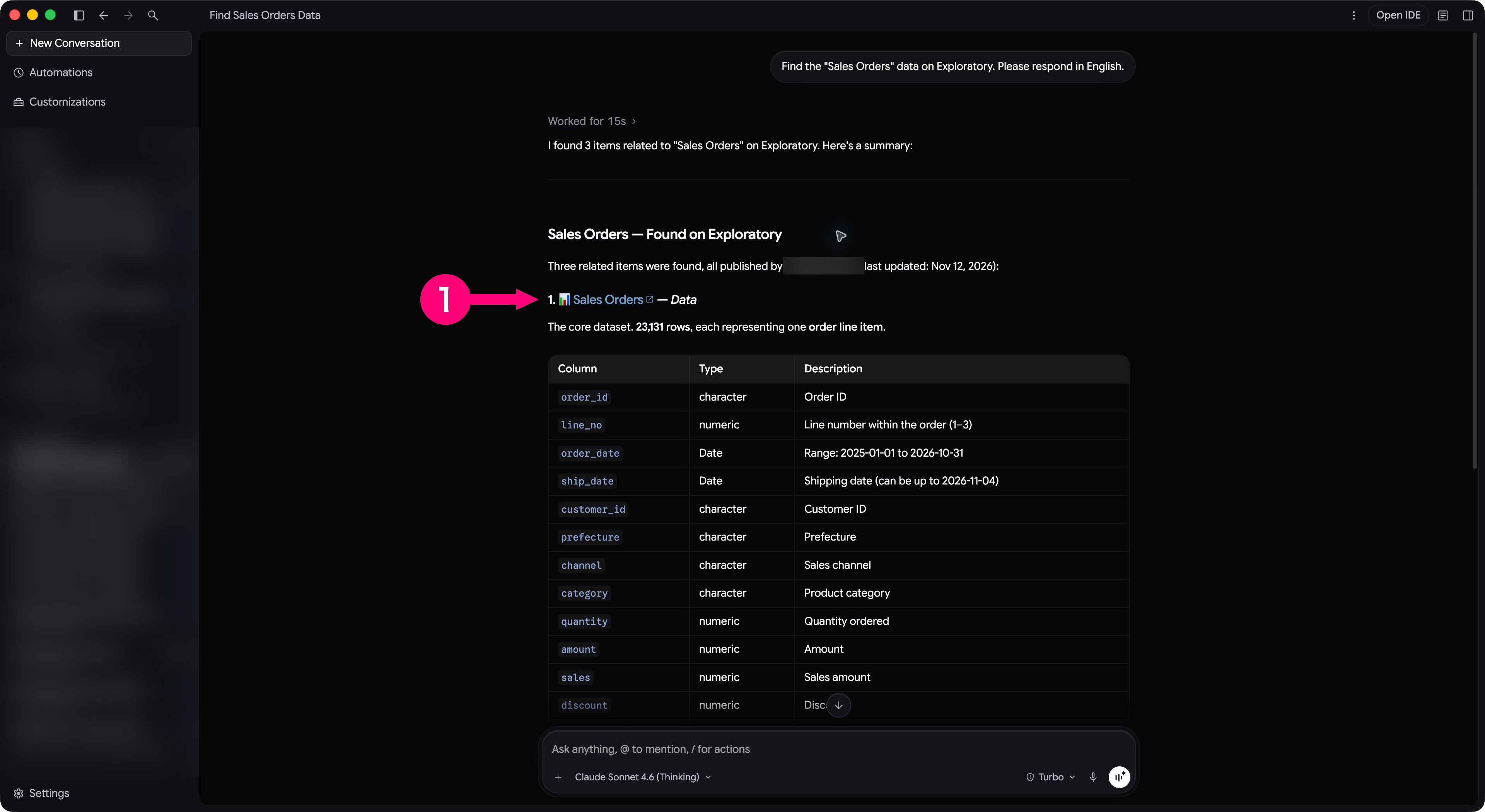
In a new chat, send this.- Check the Sales Orders link in the reply.
Check the connection when you installed the plugin
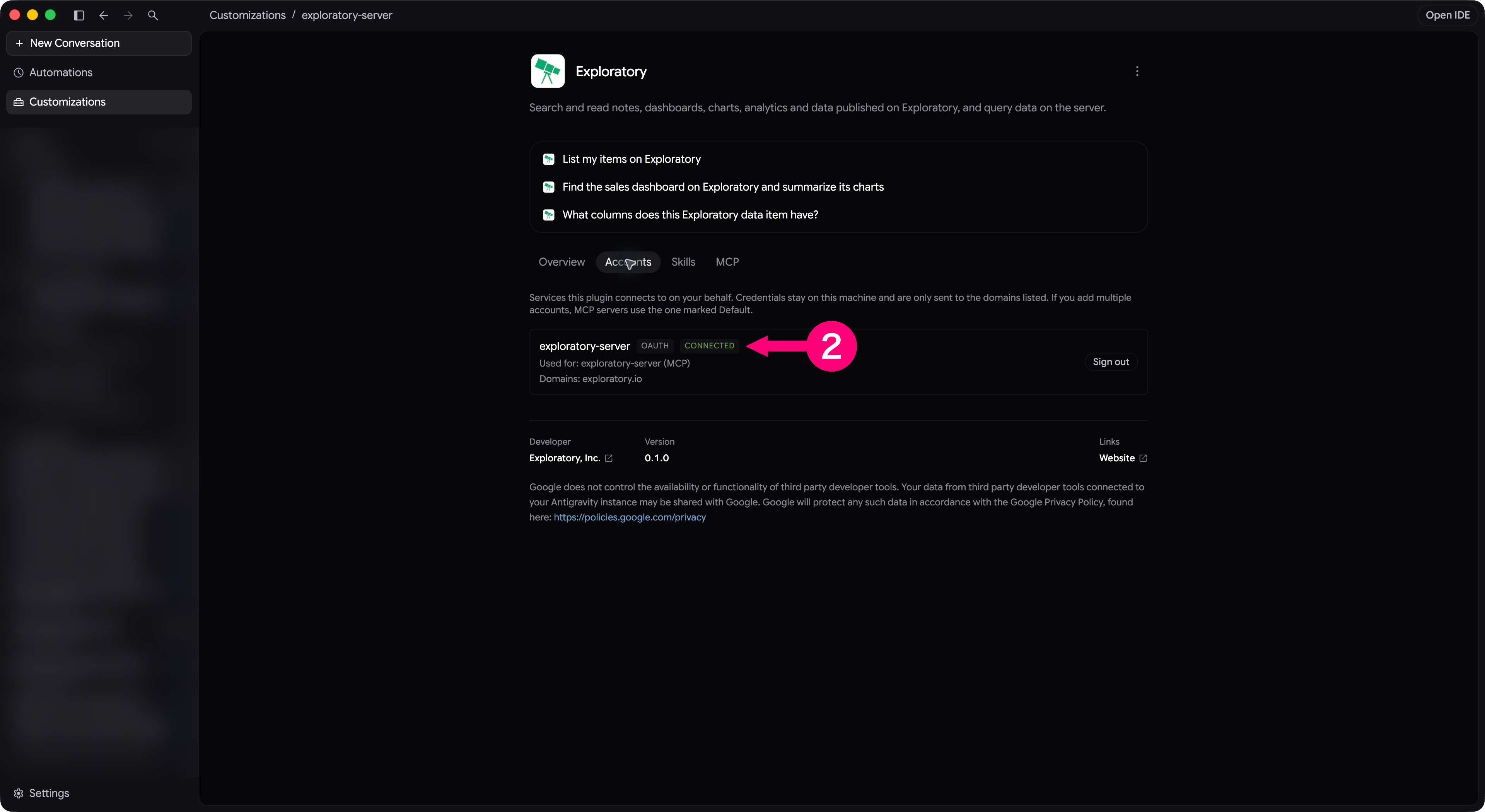
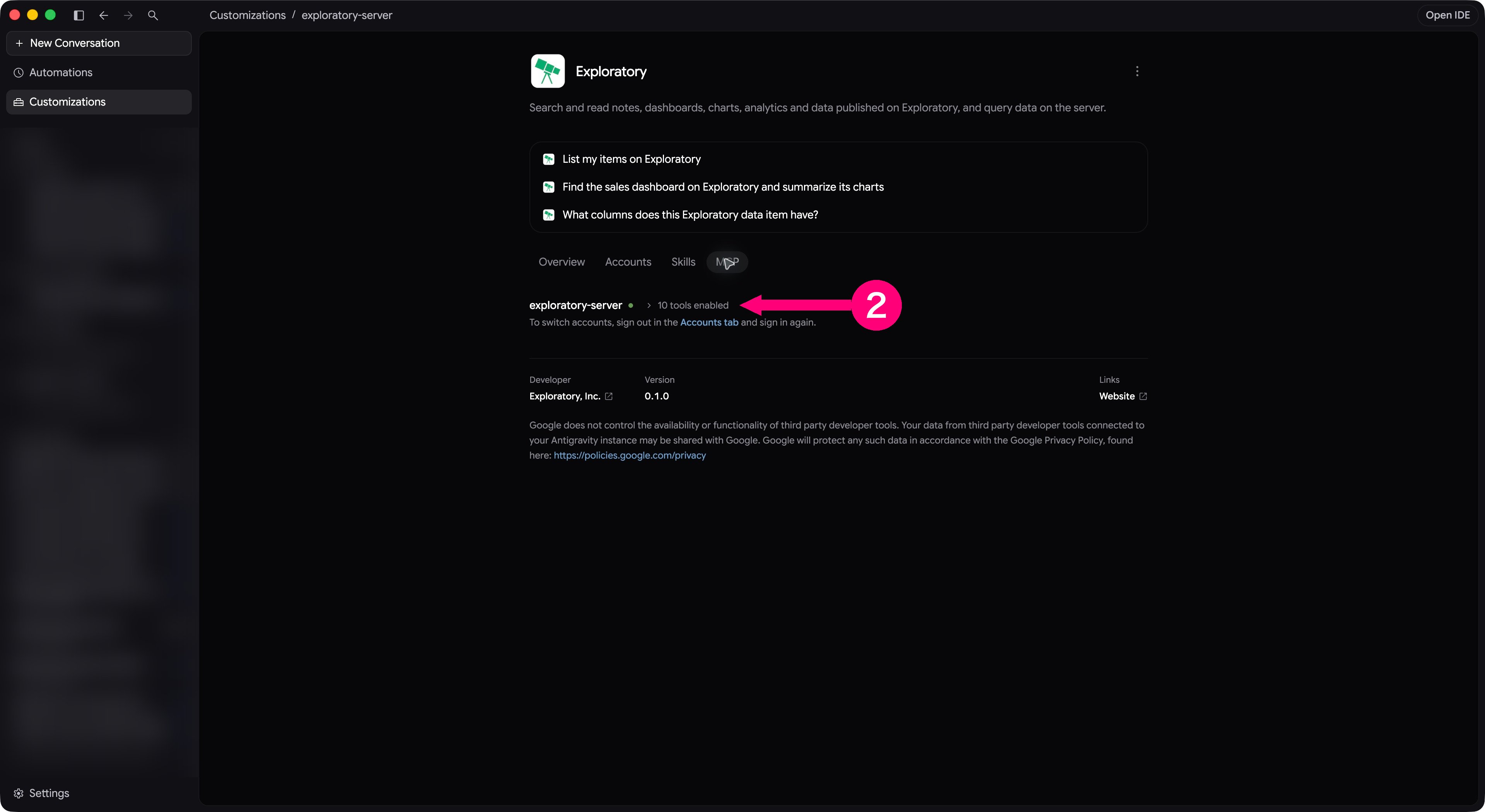
If an Exploratory plugin that lists exploratory-server is installed (as in the pictures below), open Exploratory under Plugins in Customizations to check the connection.exploratory@exploratory is the Desktop plugin, a different plugin from Server.
You can check it on these two screens.
- Select the Accounts tab.
- Check the CONNECTED label of exploratory-server.
- Select the MCP tab.
- Check the exploratory-server row.
Troubleshooting
- Troubleshooting - Fixes by symptom for the Server MCP as a whole.