
Requirements
- An Exploratory account
- The Claude desktop app, or the web (claude.ai)
Steps
Open the add screen
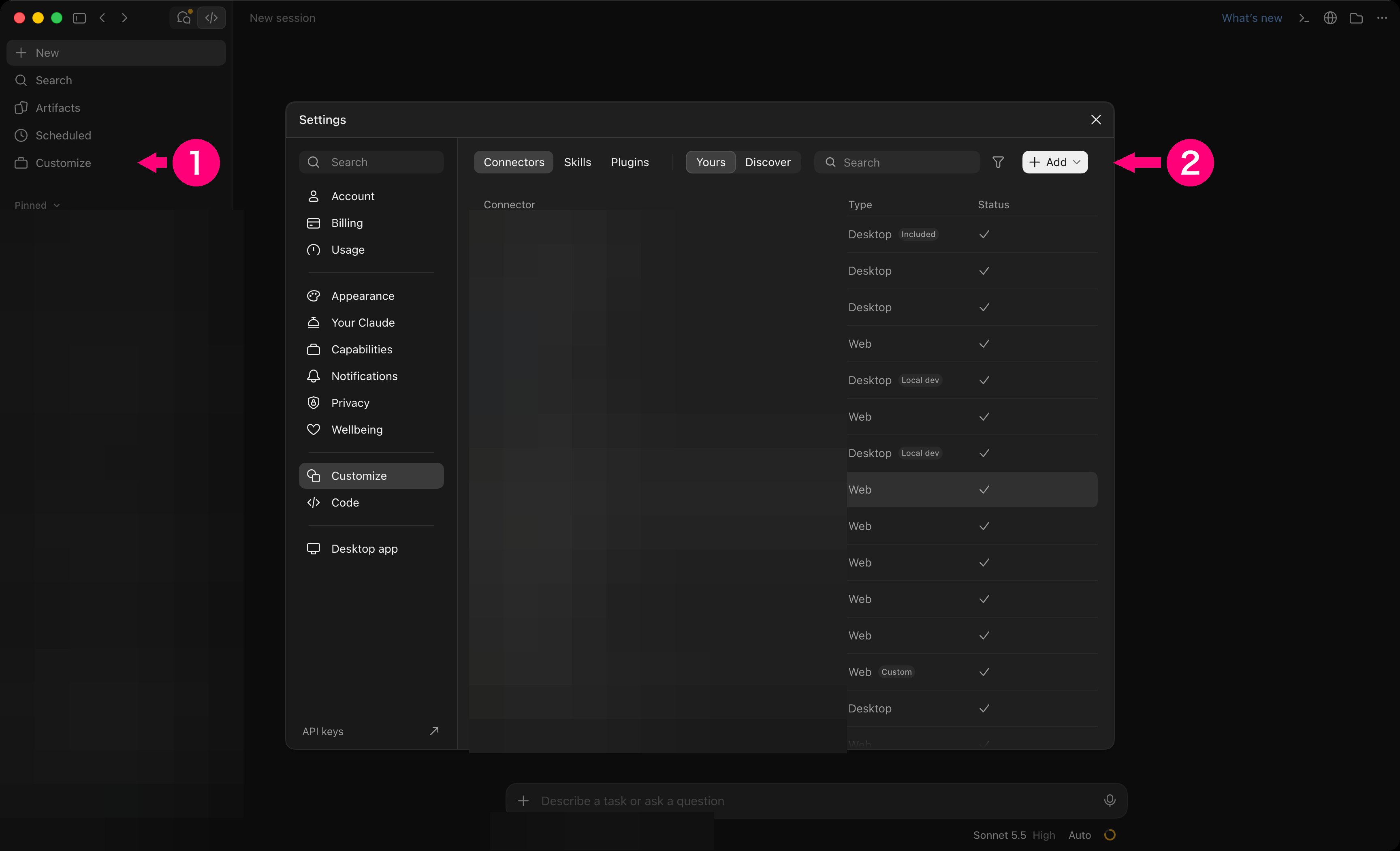
In the Claude desktop app, open the Connectors screen in Settings. You work on the screen where the Connectors tab and Yours are selected.- Choose Customize in the sidebar on the left. Settings opens and shows the Connectors screen.
- Choose Add at the top right of the list.
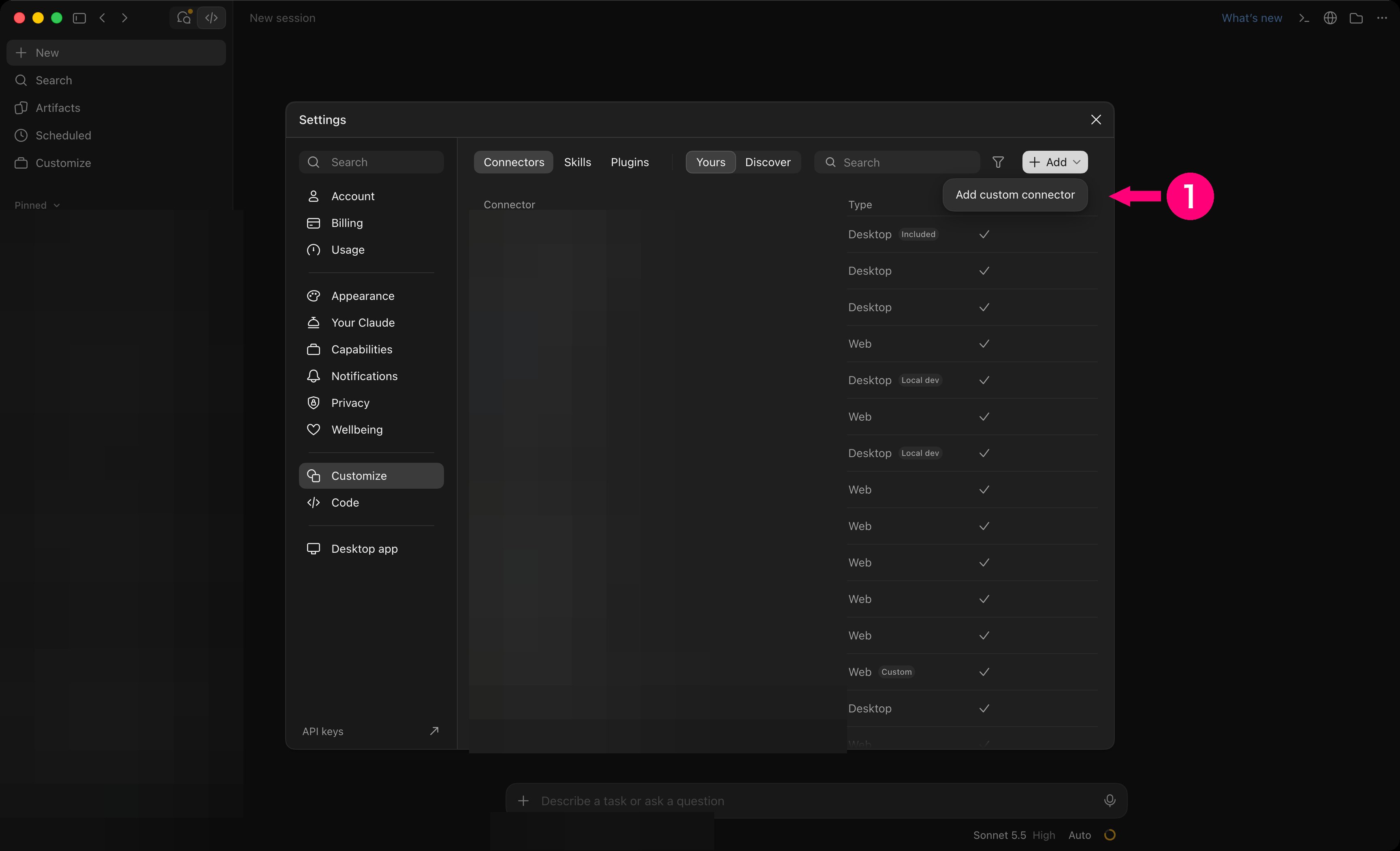
- Choose Add custom connector.
Enter the address
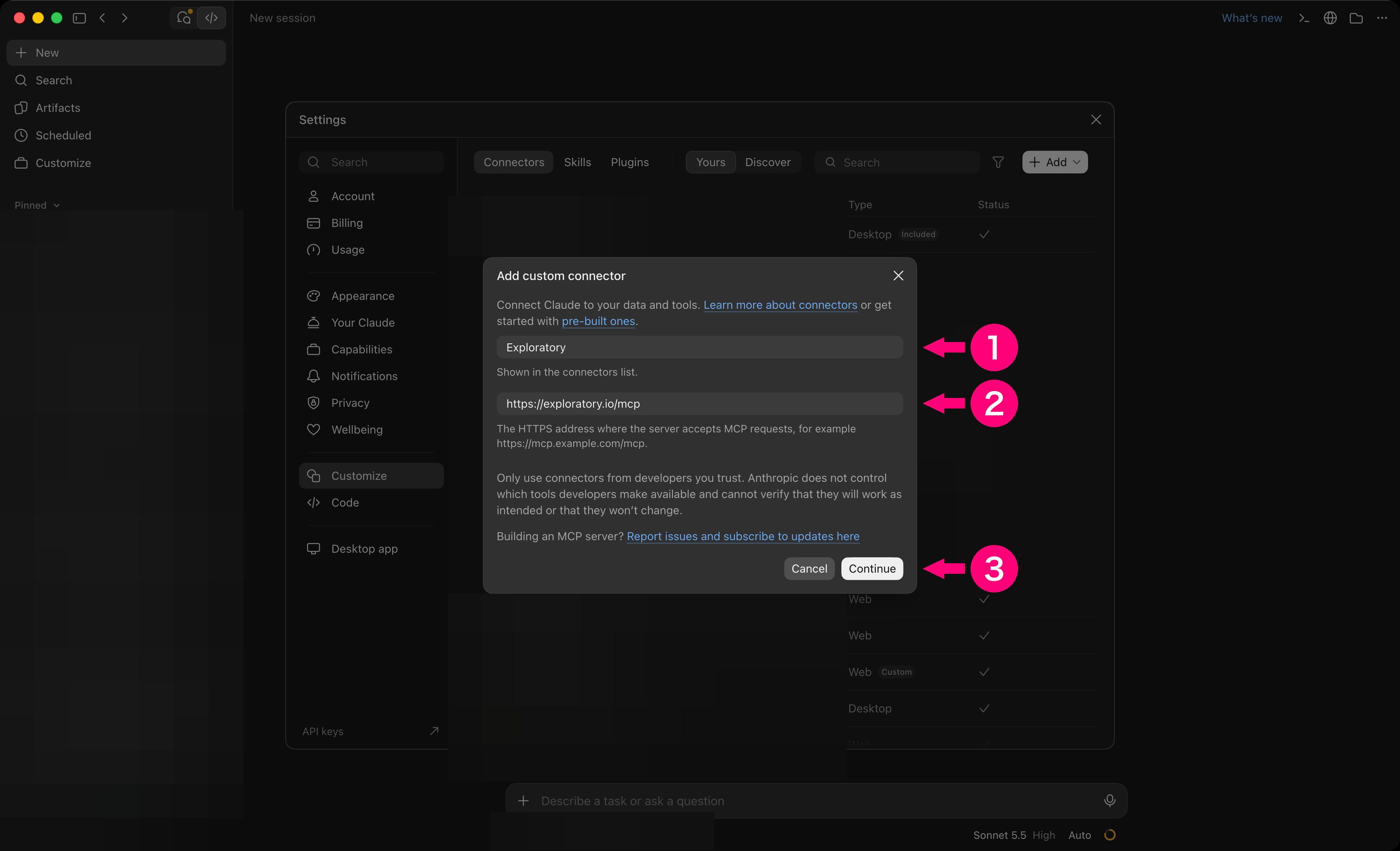
- In the name field, enter
Exploratory. - In the MCP server URL field, enter
https://exploratory.io/mcp. - Choose Continue.
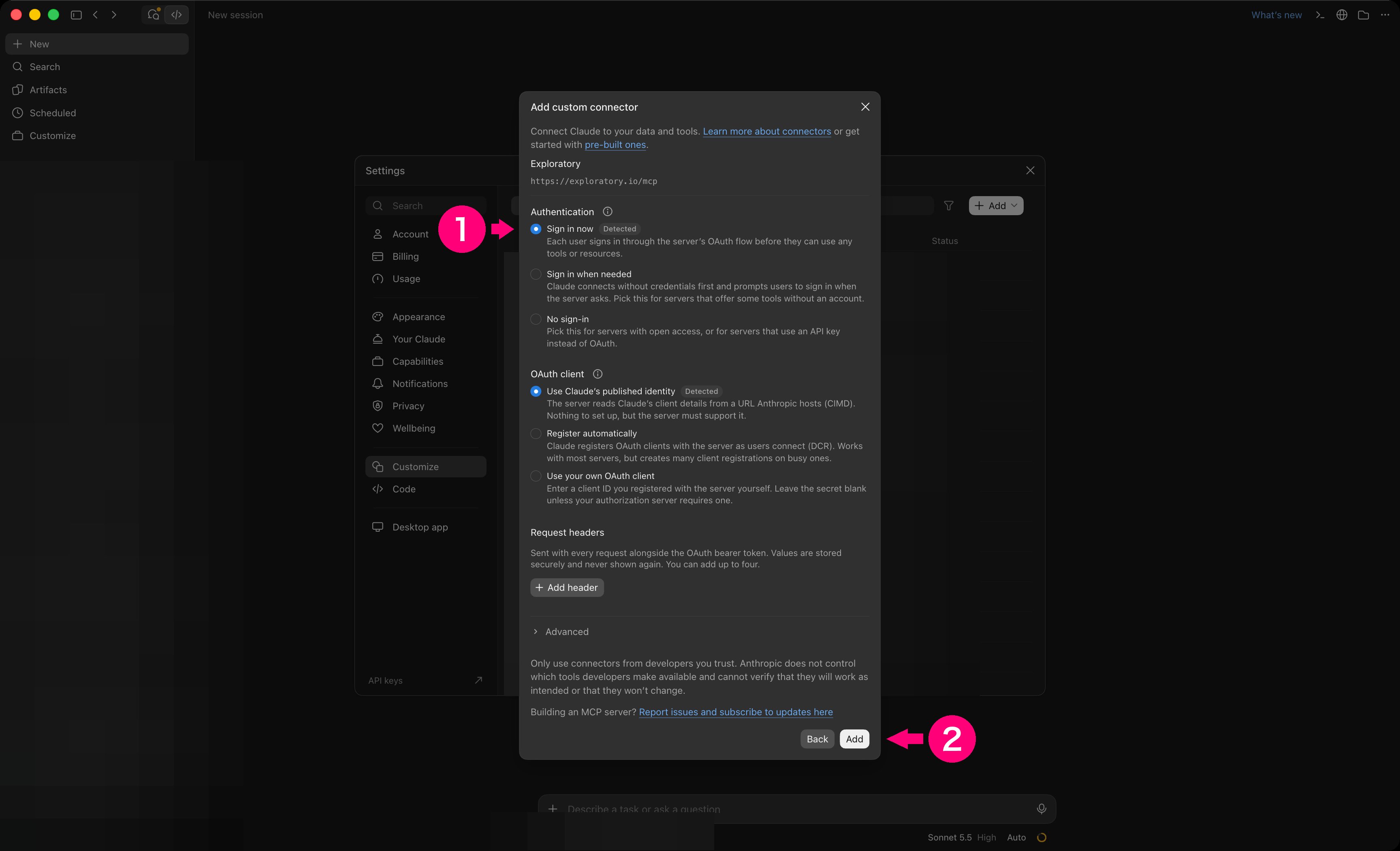
- Check that Authentication is Sign in now.
- Choose Add.
Approve the access on exploratory.io
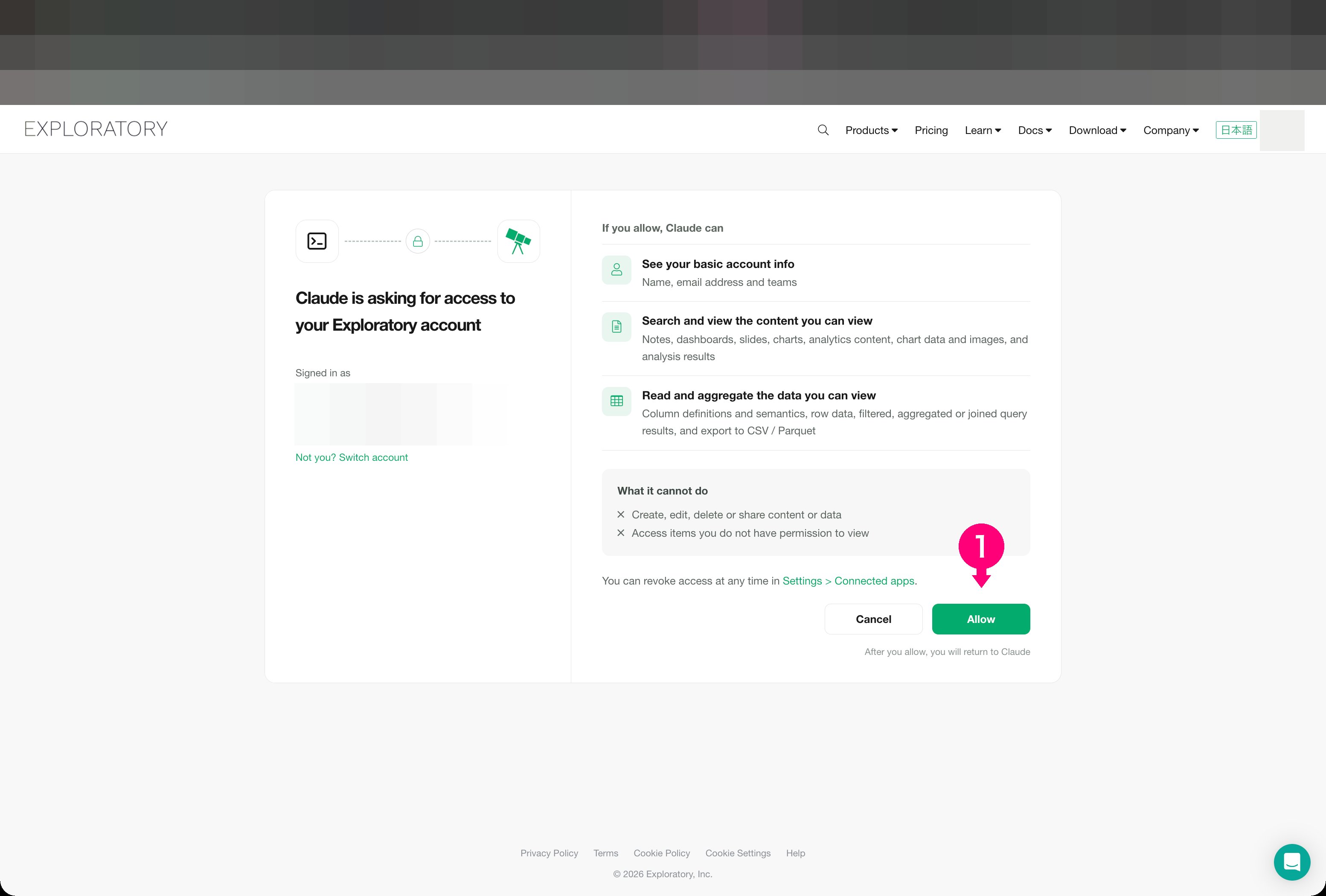
Your browser opens exploratory.io and shows “Claude is asking for access to your Exploratory account”. If you are not signed in, sign in first.- Choose Allow.
Check that it is connected
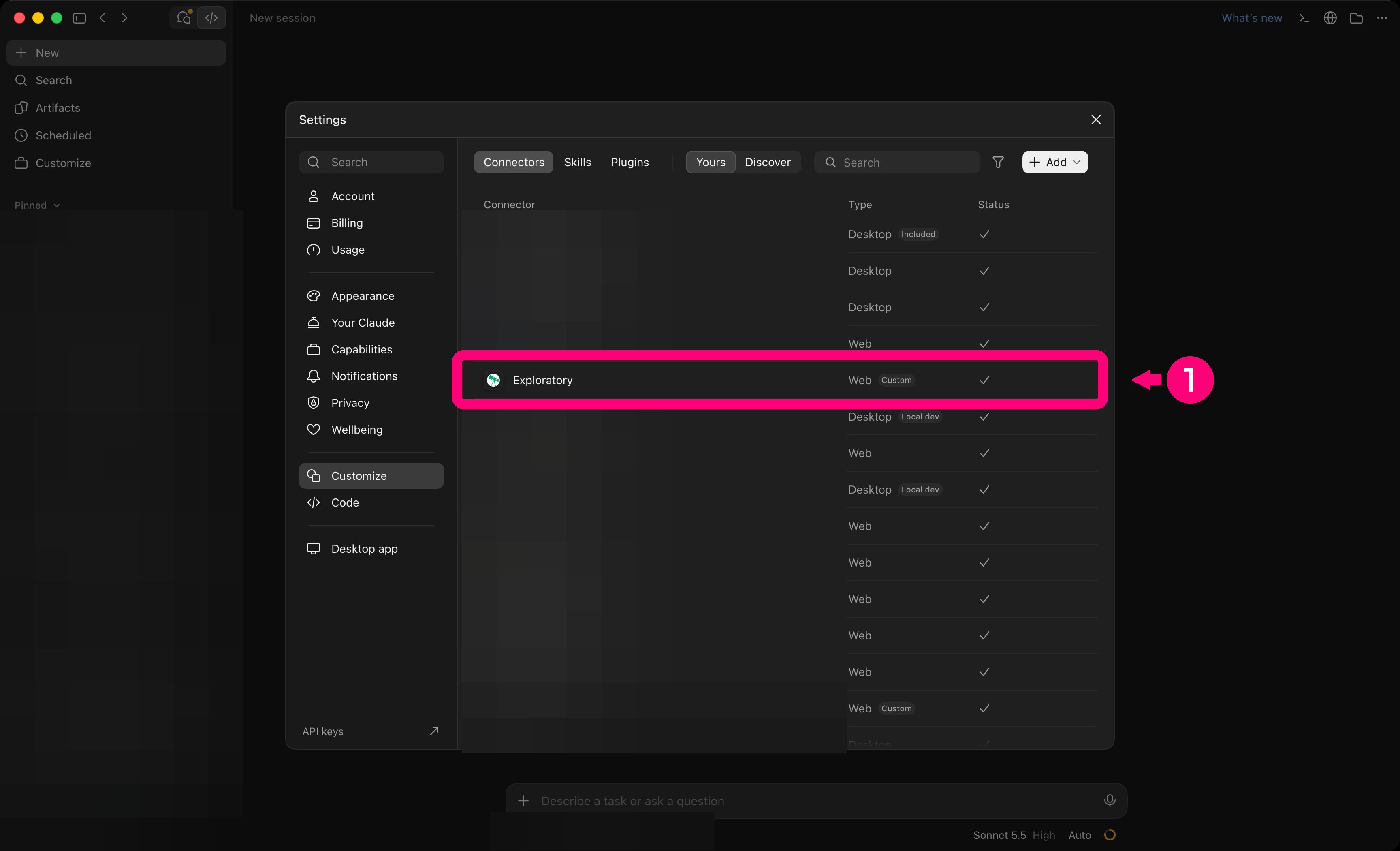
- Check the Exploratory row in the Yours list.
- Open a new chat.
-
Send this.
Use it in Claude Code too
If you sign in to Claude Code with the same claude.ai account, the connector you added here also appears there as “claude.ai Exploratory”, and you can use it as is. You do not need to add it again in Claude Code.Check when tools run
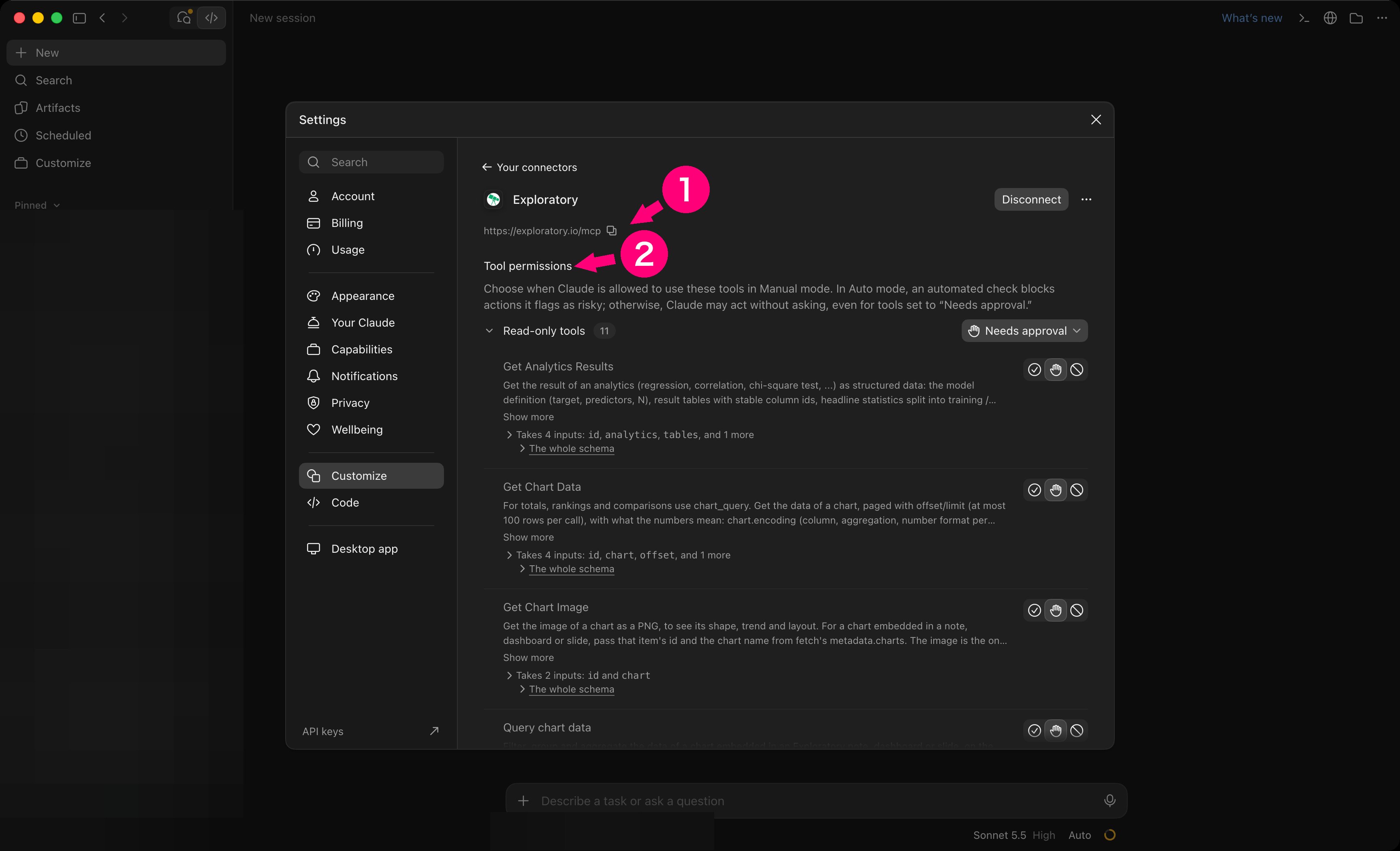
Open Exploratory in the list.- Check the server URL (https://exploratory.io/mcp).
- Check Tool permissions.
If it does not work
For other symptoms, see Troubleshooting.