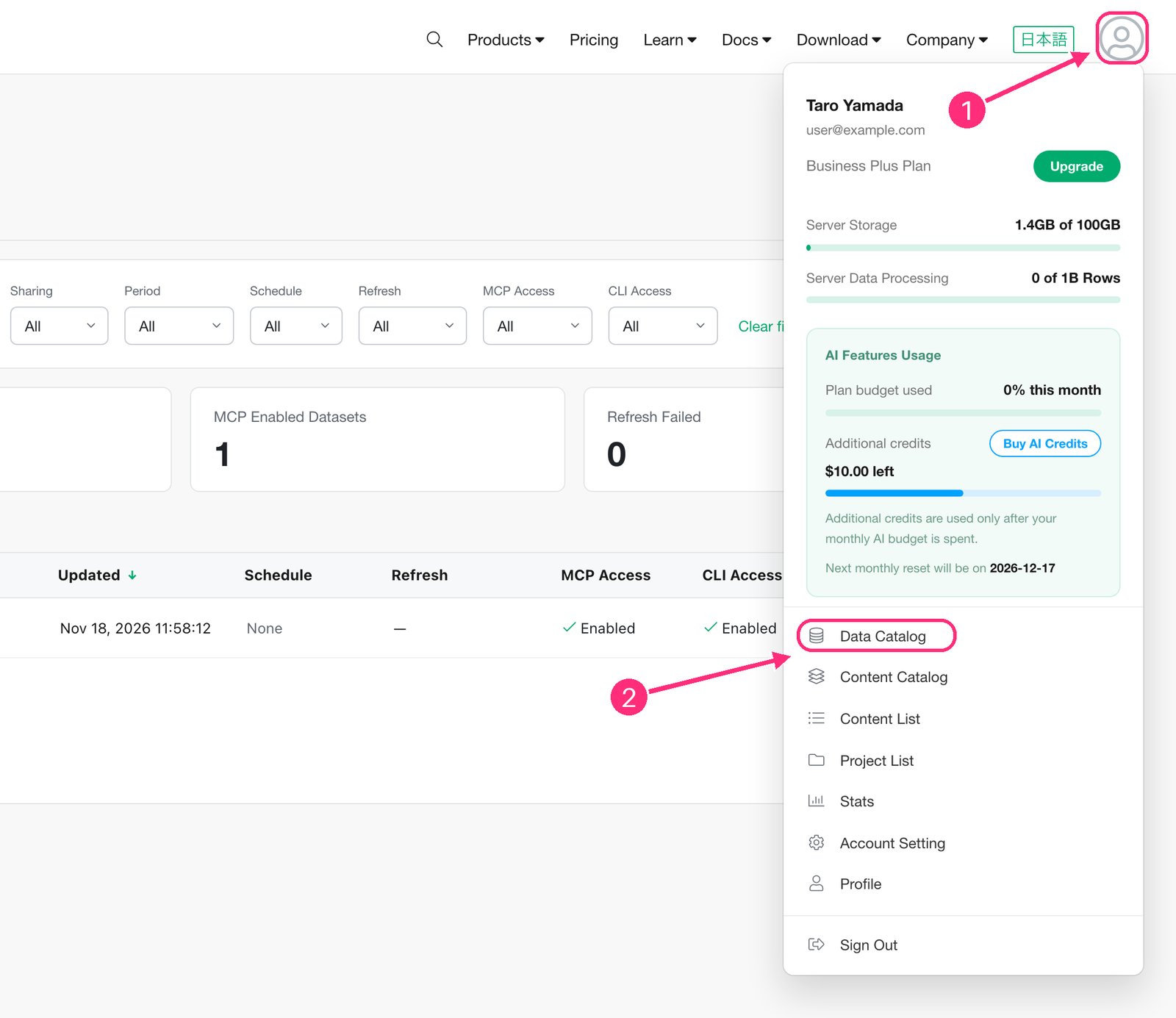
Open the Data Catalog page
- On exploratory.io, choose the account icon at the top right
- Choose “Data Catalog” in the menu
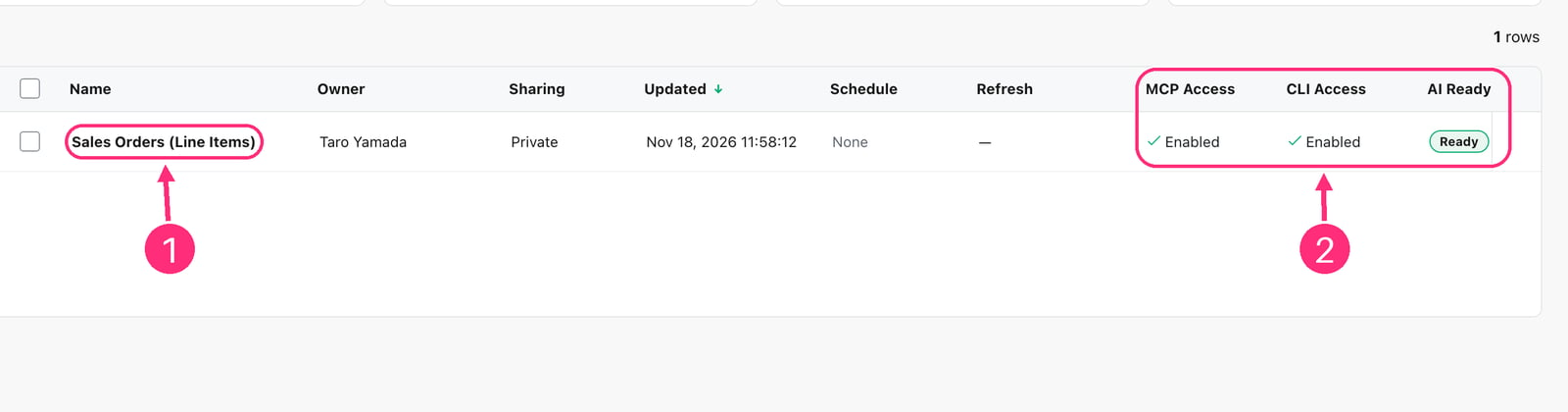
- Name, Owner, Sharing, Updated, Schedule, Refresh (the refresh status)
- MCP Access, CLI Access (some environments also show a REST API Access column)
- AI Ready
Check the contents on the data page
Choose a data name to open its data page. In the image, ❶ is the “Summary” and “Table” tabs, and ❷ is the “Wrangling Steps” tab.
- Summary: Check an overview of the data
- Table: Look at the rows. You can search with “Search all columns”, narrow with “Filter”, and choose the columns to show with “Columns”. Switch “View” to “Aggregate” to see grouped and aggregated results. “Download CSV” saves it as a CSV, and “Copy link” copies a link that includes the table settings
- Metadata: Check the description, tags, column descriptions, and semantic information. The owner edits and approves them here. See Semantic information
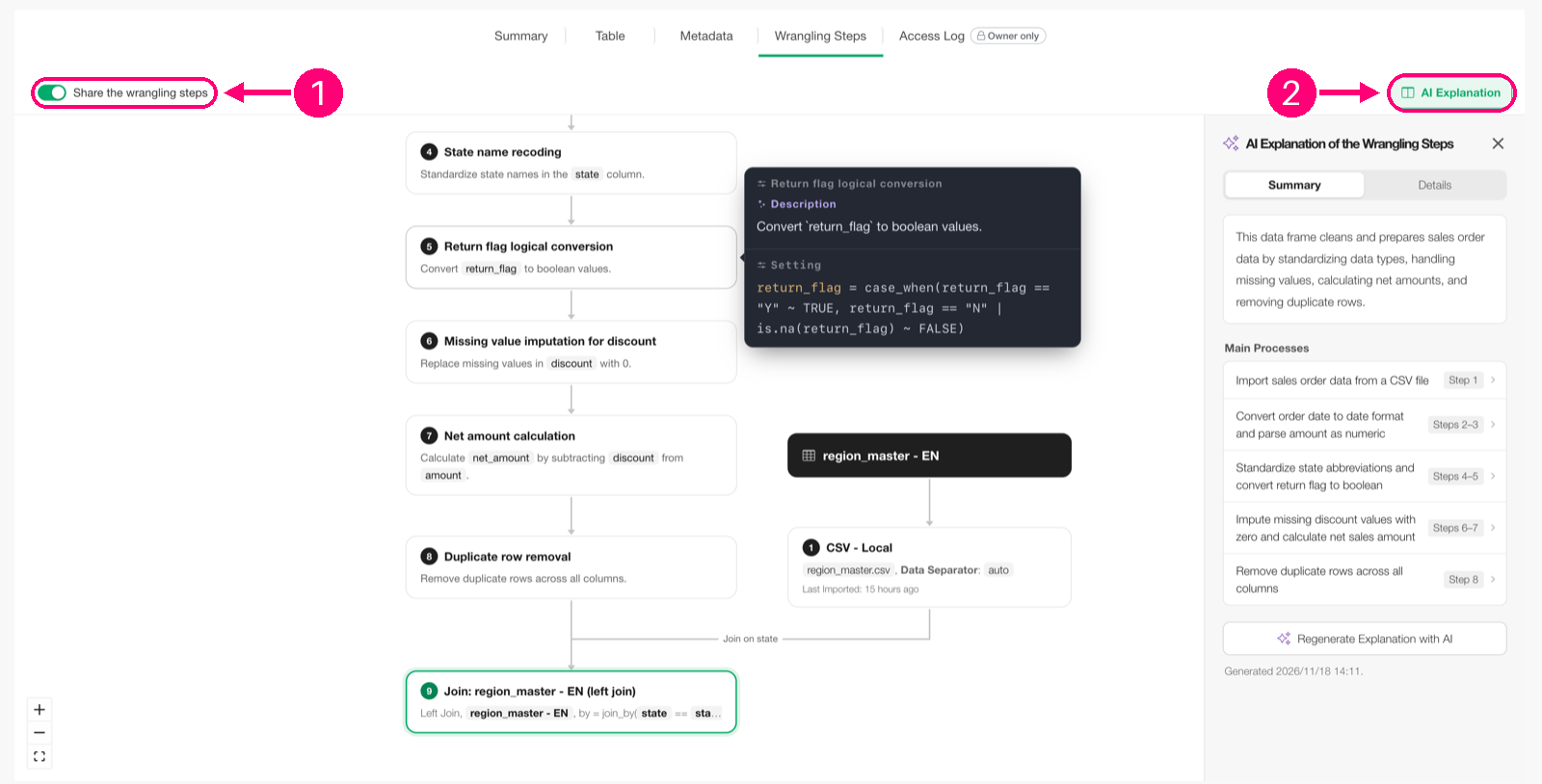
- Wrangling Steps: See in a diagram how the data was made from the original data. The “Share the wrangling steps” switch decides whether others can see it. “AI Explanation” gives a summary of the wrangling. The image shows the “Wrangling Steps” tab, with the sharing switch (❶) at the top left and the AI explanation (❷) on the right
- Access Log: Check access to the data. Only the owner can see it
Set access
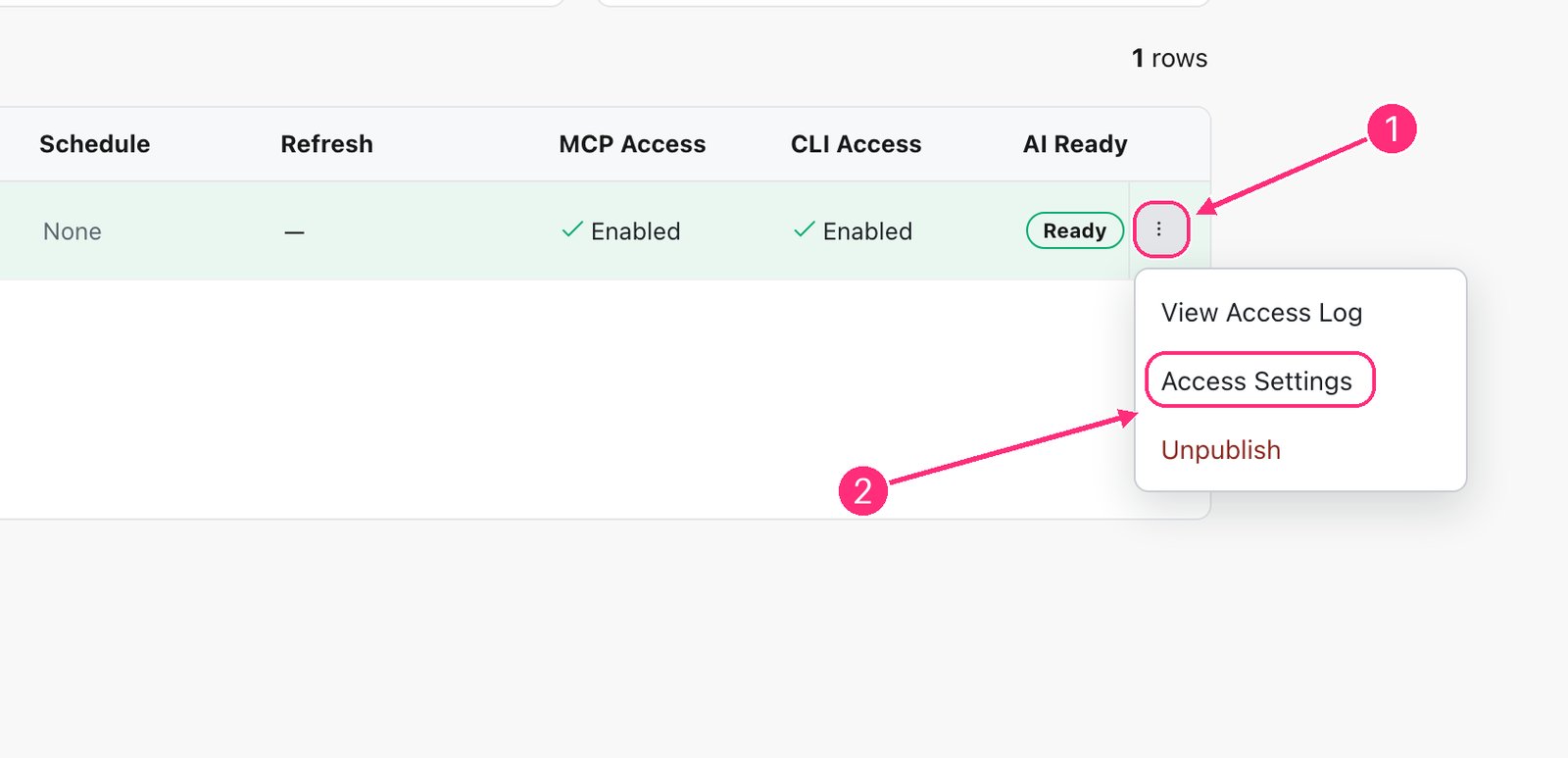
The data owner can set MCP and other access for each data item.- In the server “Data Catalog”, click the ”⋮” at the right end of the row. The menu shows “View Access Log”, “Access Settings”, and “Unpublish”
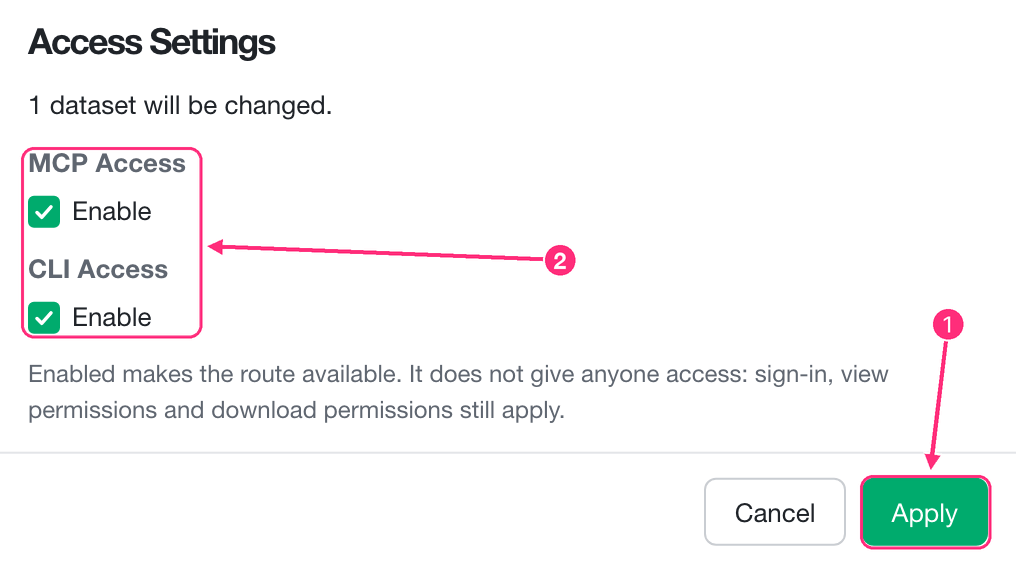
- Choose “Access Settings”. You can also select several data items and set them all at once
- For each of “MCP Access”, “CLI Access”, and “REST API Access”, decide whether to check “Enable”. “CLI Access” lets a terminal or an AI agent read the data with
expl server. “REST API Access” does not appear in some environments - When you change a setting, click “Apply”. You cannot click “Apply” until you change a setting. In the image, ❶ is “Apply” and ❷ is the “Enable” check marks of “MCP Access” and “CLI Access”