
Ask from the server MCP
- In the list, check that the “MCP Access” column shows “Enabled”. If it is off, turn it on in “Set access” on Use it on the server screen
- Connect the server MCP to the AI tool you use. See the instructions for each client
- Ask with the title you used when publishing. Replace “Sales Orders (Line Items)” in the example below with the title of your own data
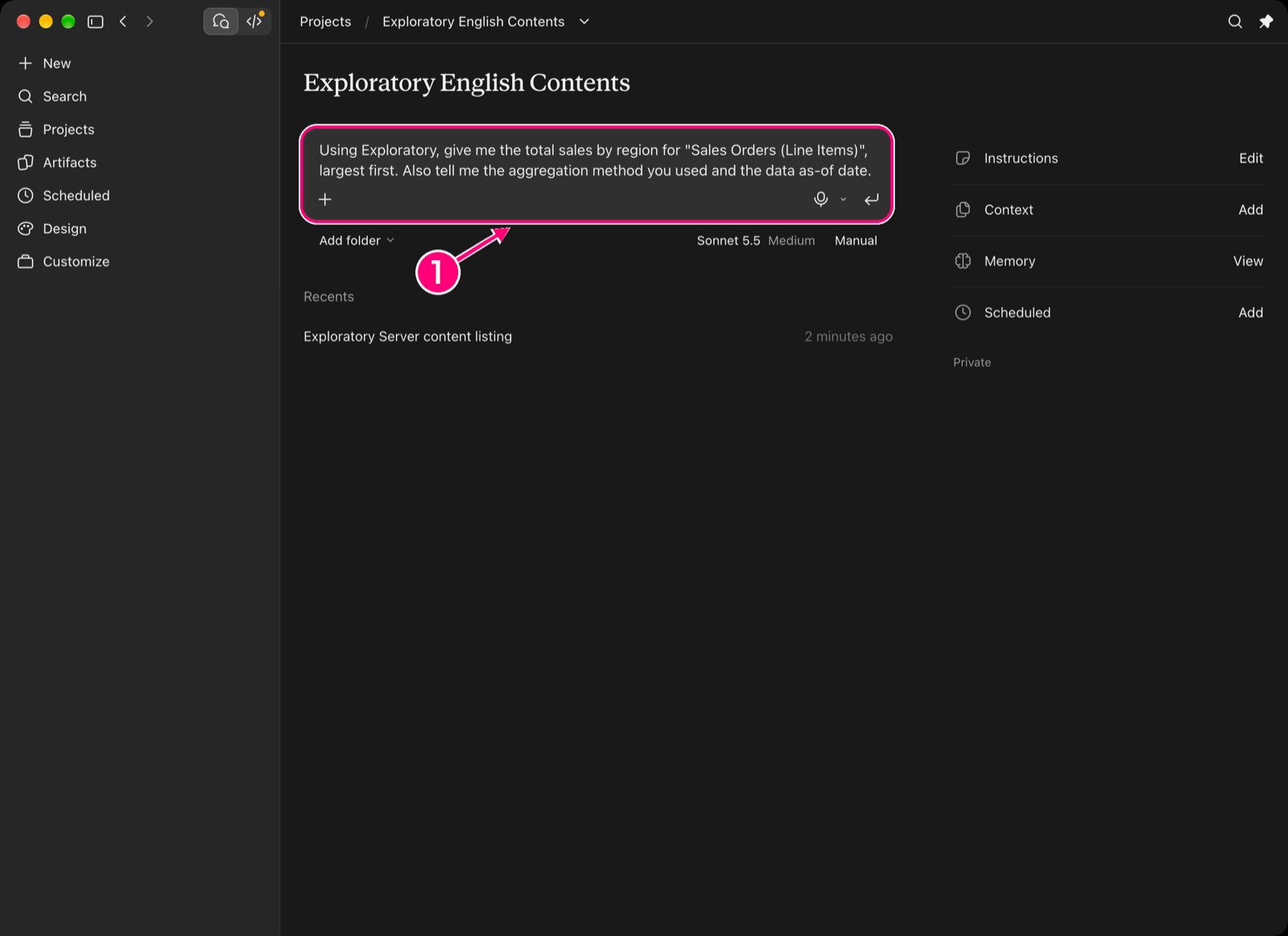
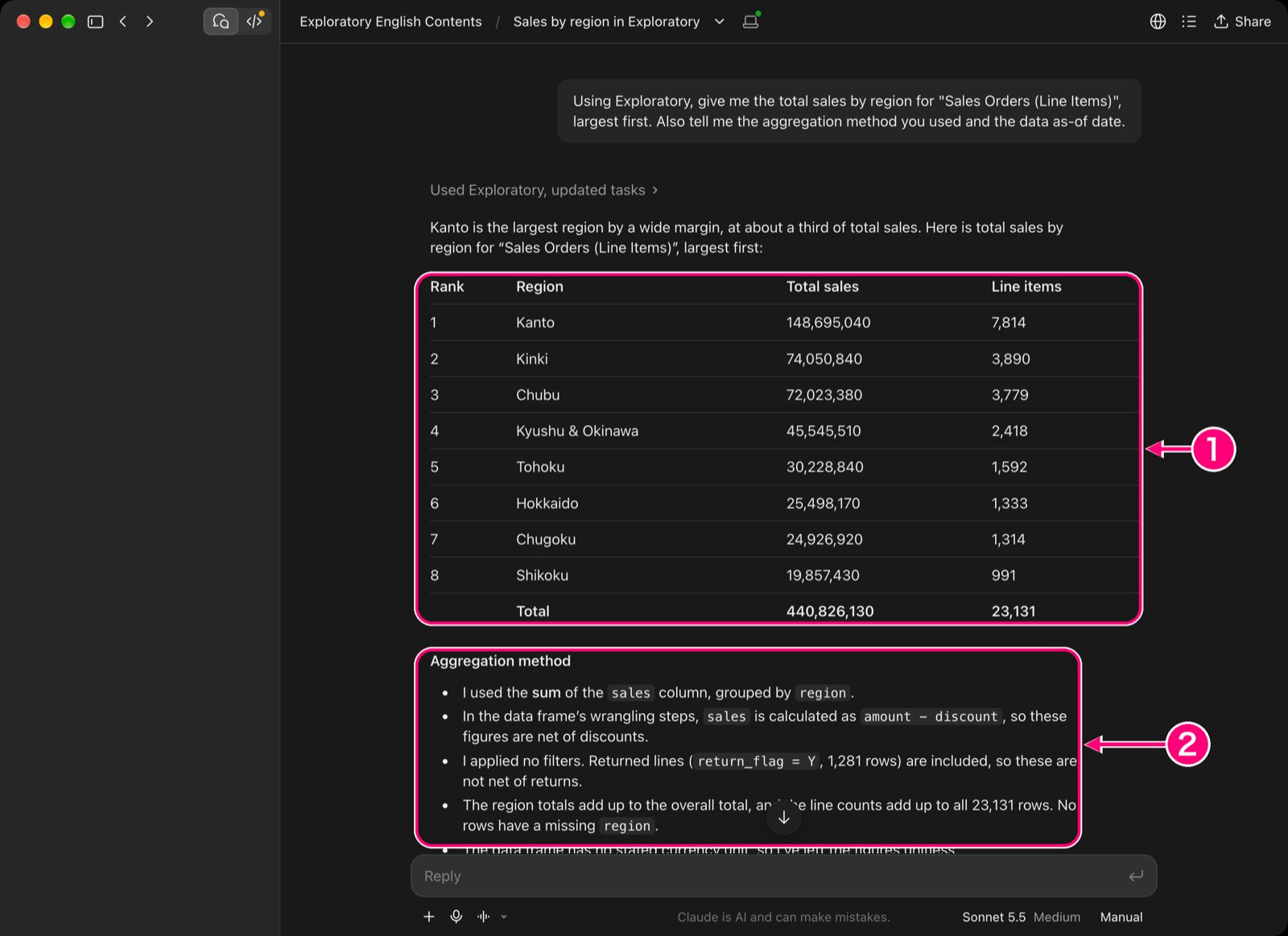
- In the answer, check the sales total for each region. In the image, ❶ is the table of the answer and ❷ is the explanation of the aggregation method. The image does not show the rest of the answer. AI reads the definitions you approved, and then aggregates
dataframe_get_schemareturns the approved definitions when you get the full detail (full). A definition that became “Needs Review”, for example after the data changed, comes with a warning. AI reads these definitions before it aggregatesquery_datasetfilters and aggregates the data on the server. On an on-premises server, it is available only when the administrator has enabled it
Give AI only the results it needs
When you ask for an aggregation withquery_dataset, the server calculates the filtering, grouping, aggregation, and joining with DuckDB (the engine that aggregates the data inside the server). An AI agent can receive the aggregated result without reading pages of rows. When it asks for the original rows, or uses another read tool, the returned rows become part of the conversation. See Server MCP data and permissions for details.
As for speed, in tests during development, data of several million to tens of millions of rows came back within one second. The actual speed depends on the network between the AI agent and the server.
Import server data into Desktop with the Desktop MCP
You can ask an AI (such as Claude Code) that is connected to the Desktop MCP to import data from the server Data Catalog into a Desktop project. This works with Exploratory Desktop 17.0 or later.- Sign in to the Exploratory Desktop that you import into
- Connect the Desktop MCP to the AI tool you use. See Get started with the Desktop MCP
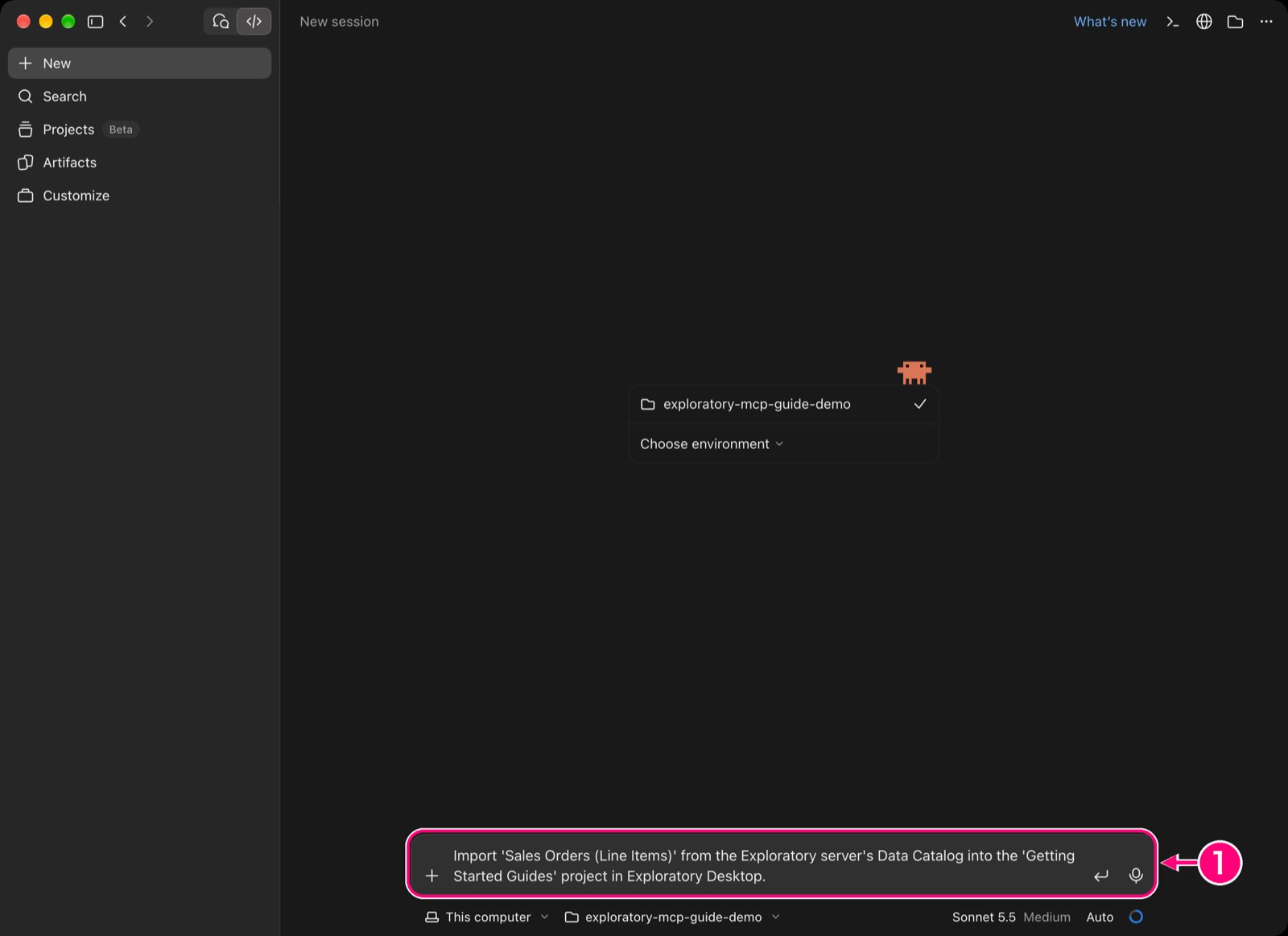
- Ask with the title of the data and the name of the project to import into. Replace “Sales Orders (Line Items)” and the project name in the example below with your own. You can also ask by giving the URL of the data page
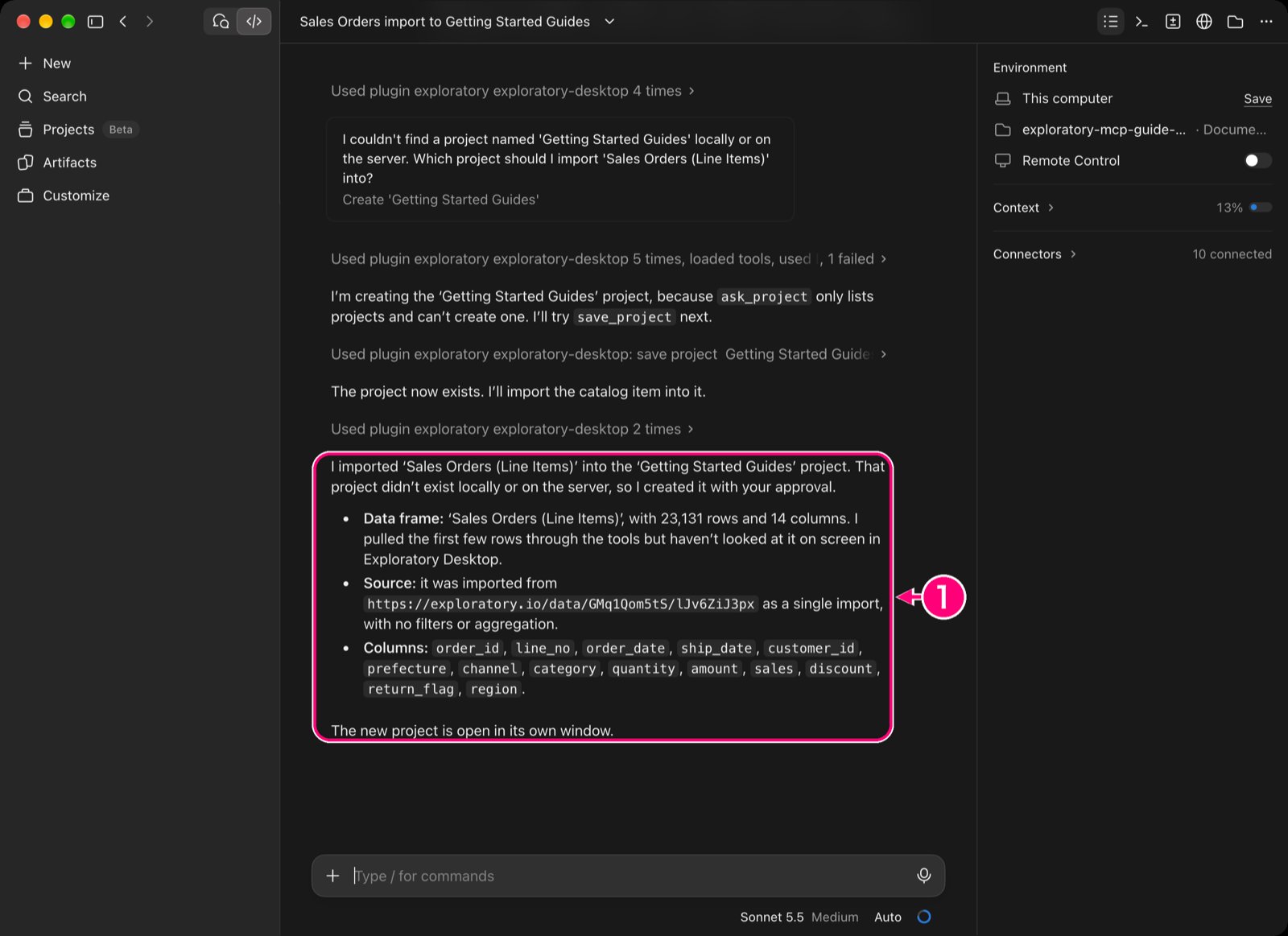
- The AI may ask which project to import into. If it does, answer like “Import it into the [project name] project”. If the project you named does not exist, the AI asks whether to create it first; the image shows that case, where the AI created the project after approval and then imported. To follow these steps with an existing project, name a project that already exists. In the image, ❶ is the AI’s explanation of the result: the data frame name, the numbers of rows and columns, and the columns
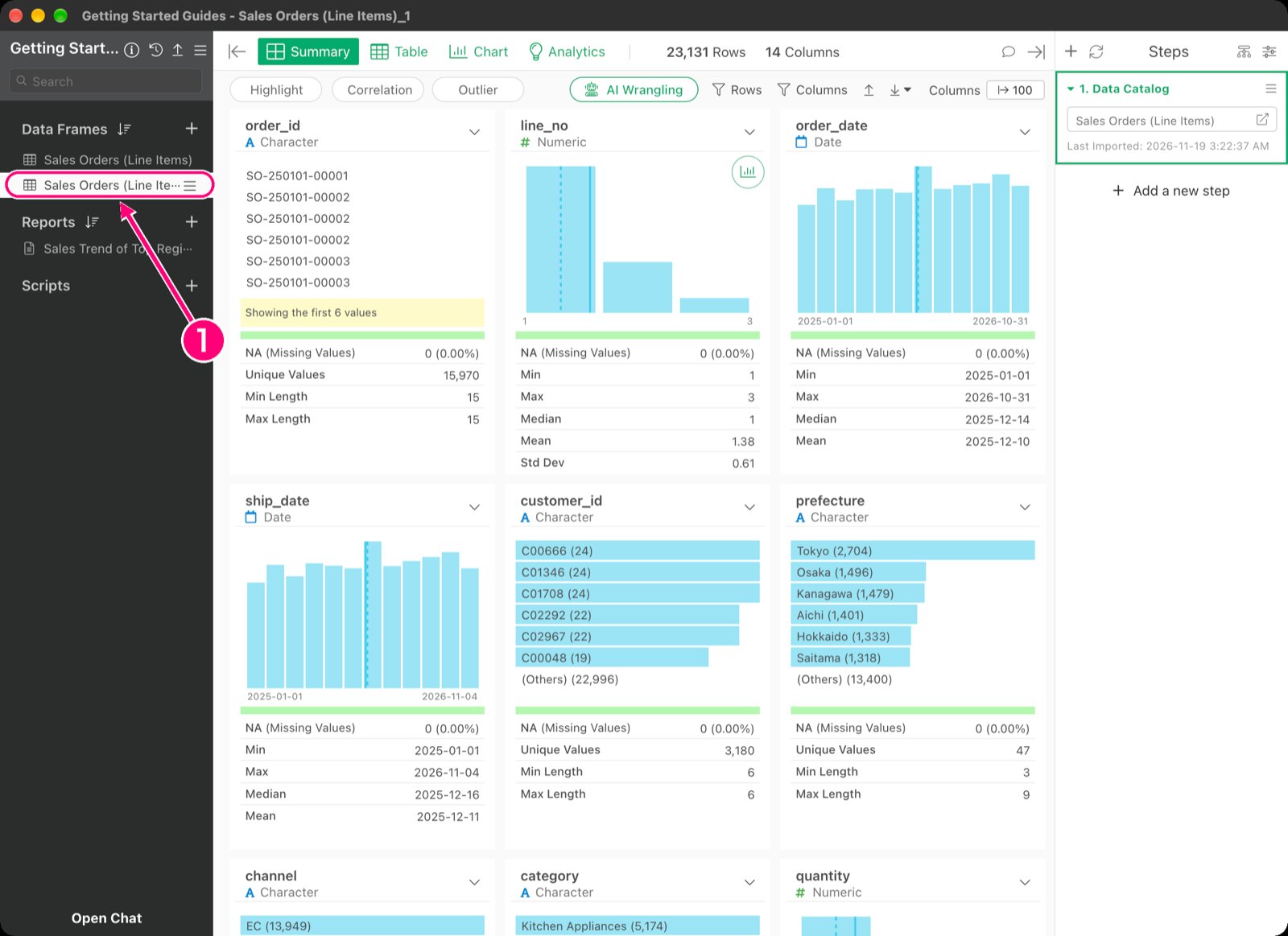
- Go back to Exploratory Desktop, open the project you specified, and check that the data frame has been created. In the image, ❶ points to the new data frame in the list on the left. Check the “Data Catalog” step in the Steps panel on the right too; the image does not mark it
Use the local Data Catalog from AI
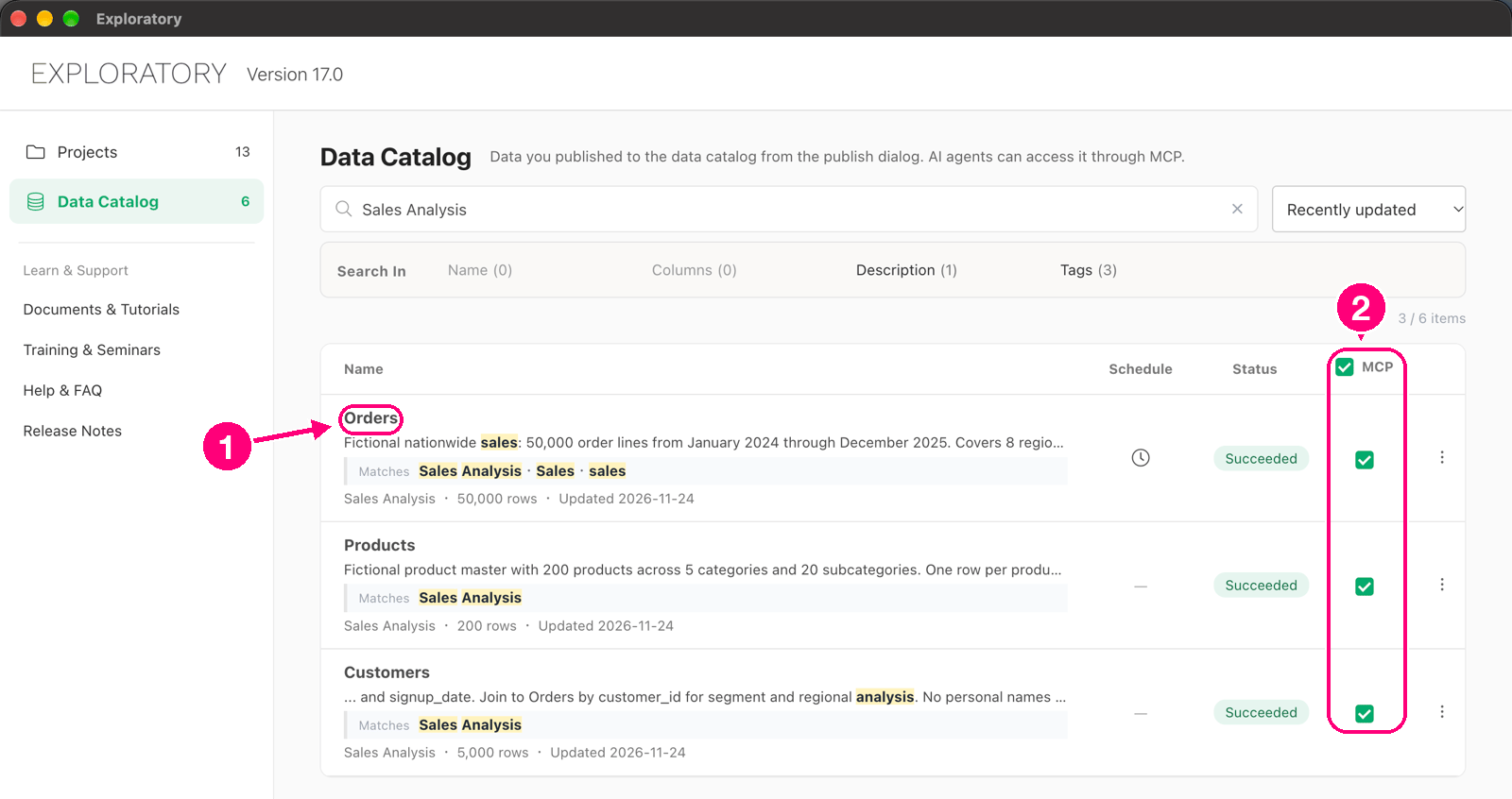
From an AI (such as Claude) connected to the Desktop MCP, you can search the local Data Catalog, read the data, and filter, group, aggregate, or join it. The local Data Catalog works without putting data on the server.- Only data whose “MCP” checkbox is checked in the list is visible to AI agents. Unchecking it hides the data. The next image shows a list where all 3 items are checked (in the image, ❶ is the data name and ❷ is the “MCP” column)
- You can also add semantic information to local data. AI aggregates using the definitions you approved. See Semantic information
- You can check access to the data on the “Access Log” tab of the details screen