
What the definitions contain
The definitions fall into five groups. Aggregation rules are generated only when your server settings enable them.Create it in the server Data Catalog
1. Have AI write a draft
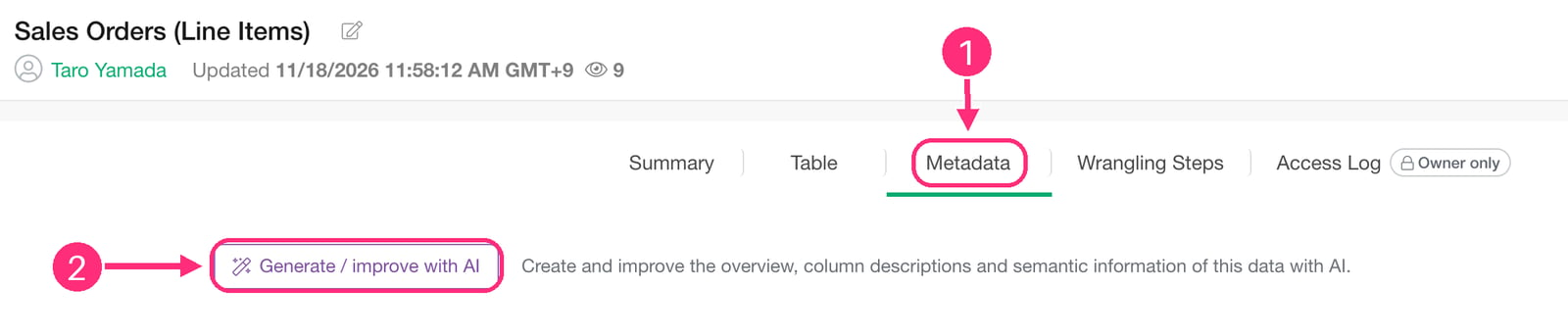
- Open the “Metadata” tab of the data page
- Click “Generate / improve with AI”
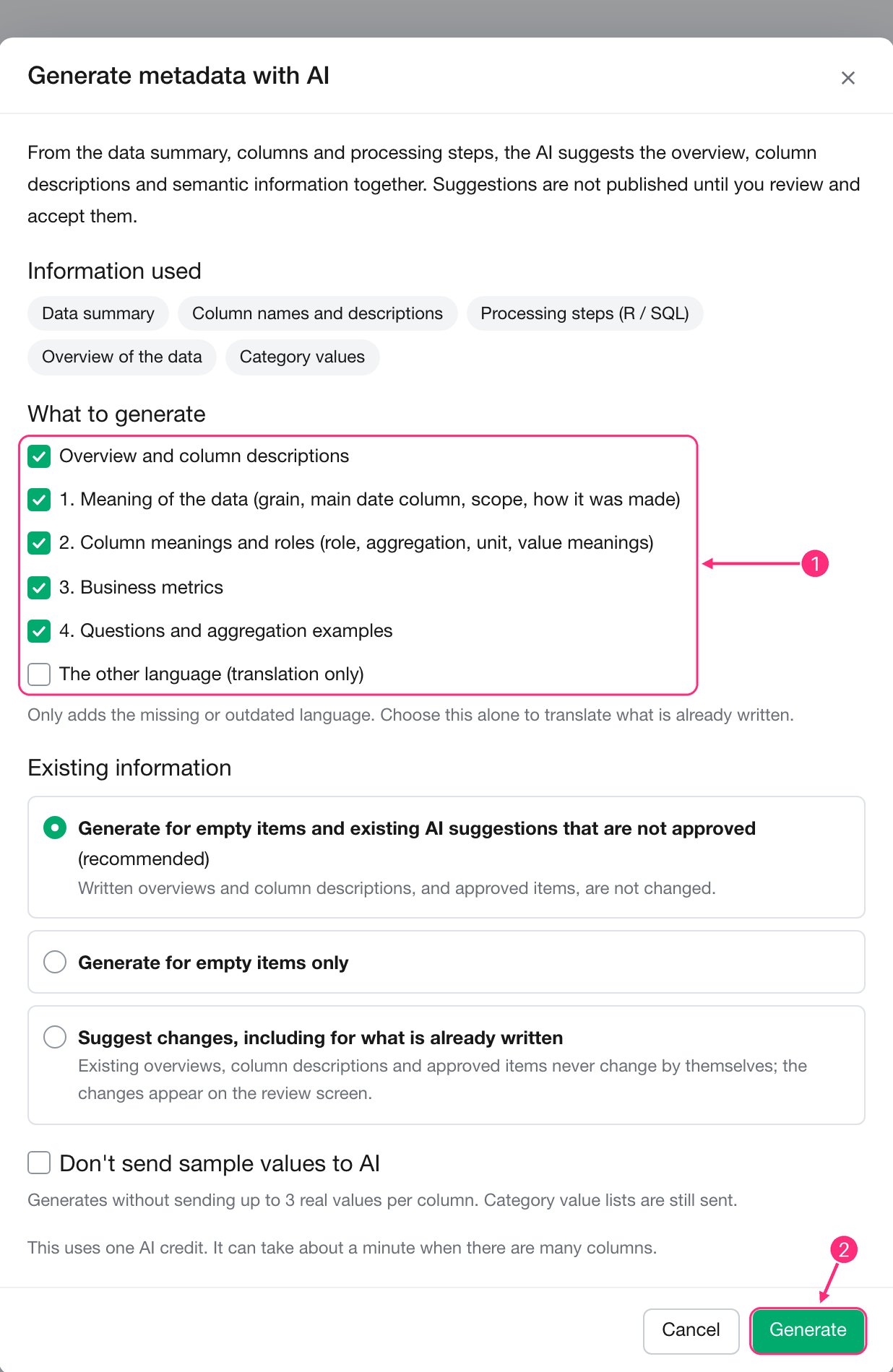
- In the “Generate metadata with AI” dialog, check “What to generate” and click “Generate”. AI drafts the semantic information from the overview, the column information, statistics, the wrangling steps, and so on
2. Read the proposals and fix them
Read the items marked “AI suggested” and fix anything that is wrong with “Edit”. In the image, ❶ is “Edit”.
3. Approve the correct items
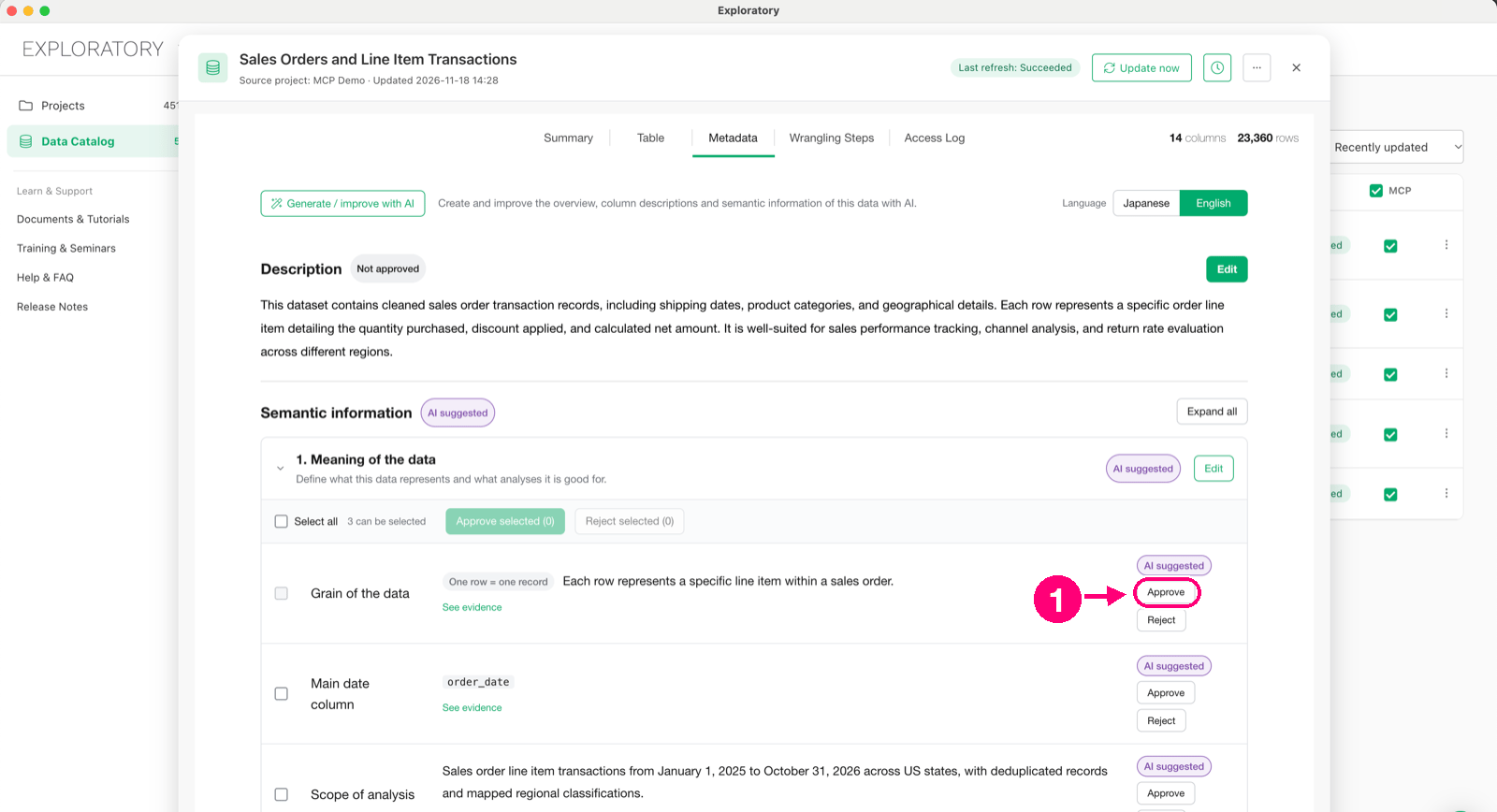
For each item that is correct, click “Approve”. To reject one, click “Reject”. In the image, ❶ is “Approve” and ❷ is “Select all” in each section.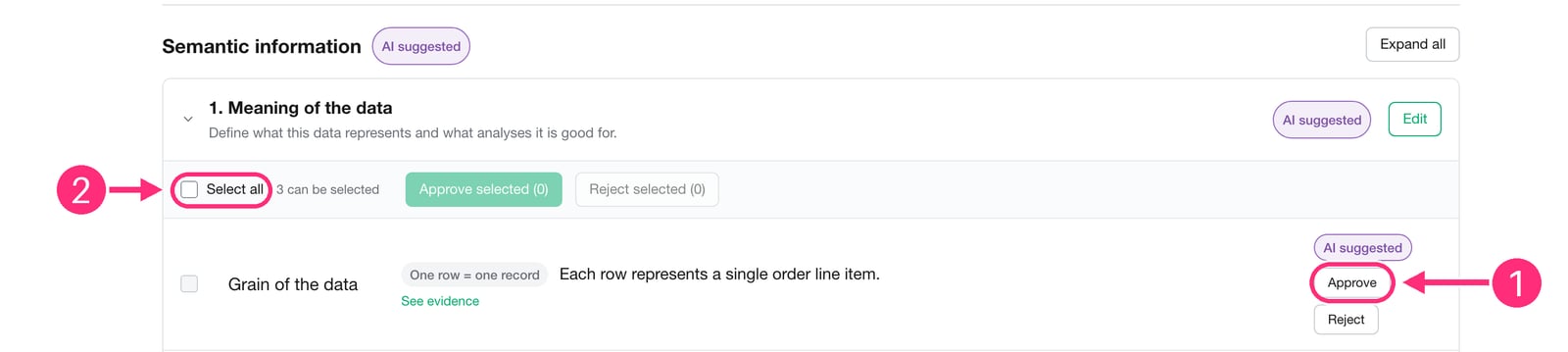
4. Approve many at once
Check “Select all” in each section and click “Approve selected (N)”. N is the number of items you selected. In the image, ❶ is that button. For “Grain of the data”, however, click “Approve” on its own. If other items cannot be approved at once, check their contents and approve each one.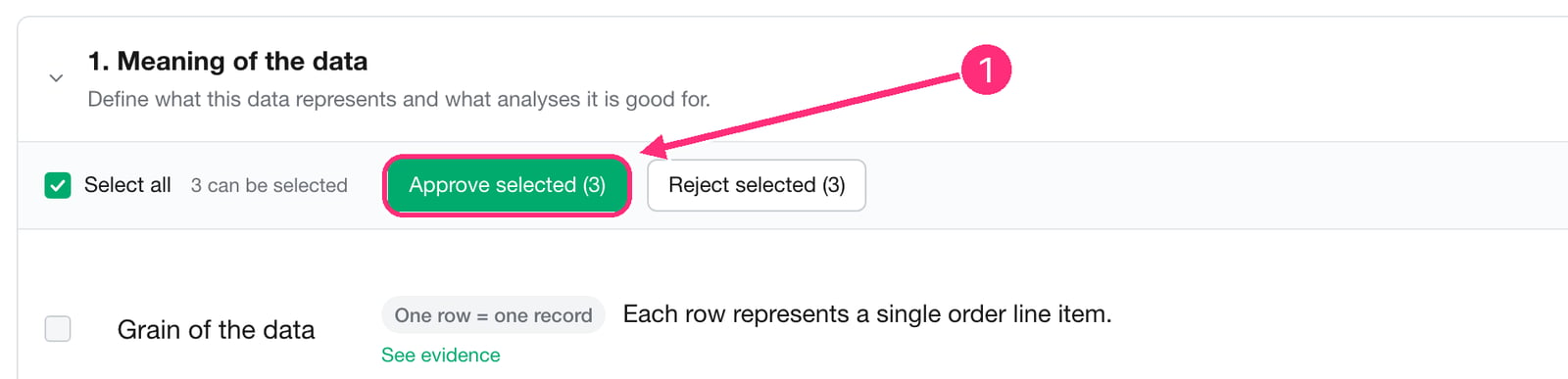
The standard for approving
Only the data owner can edit semantic information. The standard for approving is whether the item is correct as the meaning of this data. With the sales order data, for example, check that the grain of the data is “1 row = 1 record” (an order line item), the main date column is order_date, and the sales column is a “Numeric measure” with “Sum” as its aggregation. Things that column names alone cannot settle, such as whether net sales should use the gross sales column or the net sales column, are settled in the definitions. Approved items are passed to AI agents as official definitions. Definitions you have not approved are not used. The values in the column can still be aggregated. If you edit an approved item and save, the approval is removed, so approve it again. The “AI Ready” column in the data list shows the preparation status: “Ready”, “Needs Review”, “Draft”, or “Not Set”.Create it in the local Data Catalog
Open the details screen of the local data, and click “Generate / improve with AI” on the “Metadata” tab. AI creates or improves the overview, the column descriptions, and the semantic information. You review the proposals and adopt them in the same way as on the server. In the image, ❶ is the “Metadata” tab and ❷ is “Generate / improve with AI”.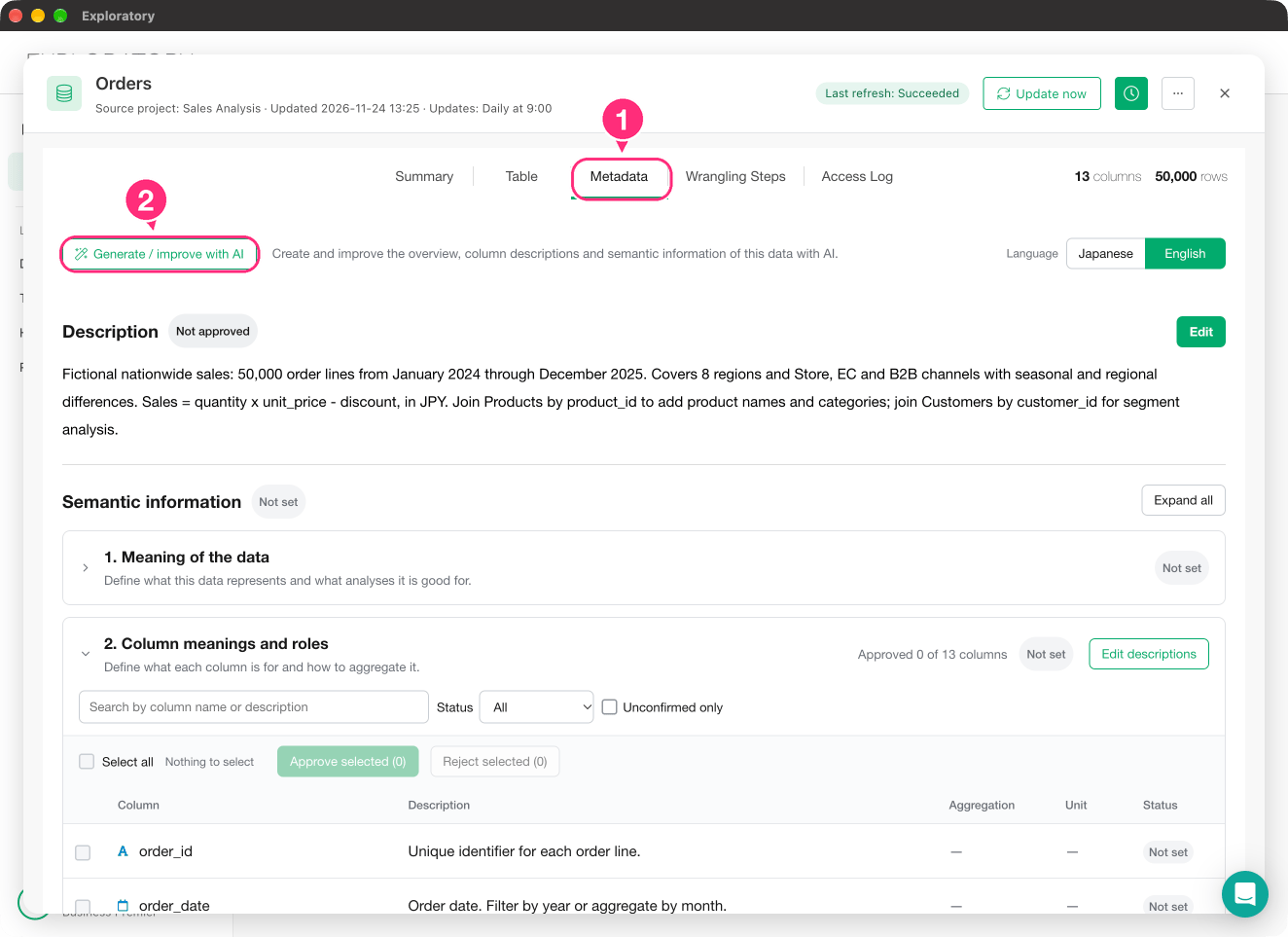
Use it after approving
Approved definitions take effect in these three ways. Go to the page that fits your goal.- Import from the Data Catalog (Desktop): Bring the data into a Desktop project. Data you published only to Local does not appear on the server screen, so use it in Desktop
- Use it on the server screen: Find data and manage access on exploratory.io. This applies to data published to the server
- Use it with AI: Ask questions from an AI agent. For local data, see “Use the local Data Catalog from AI”