
What You Can Do
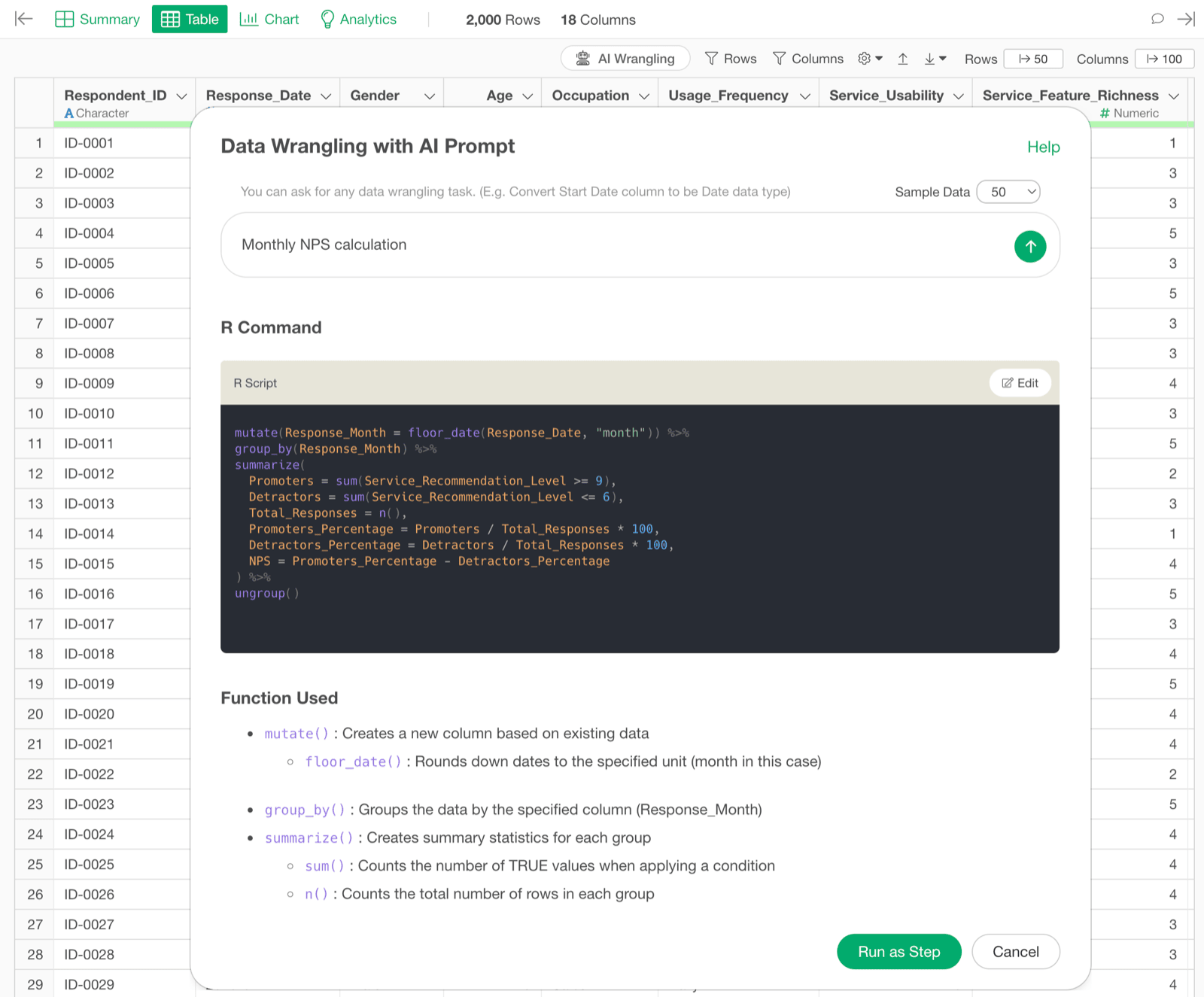
You no longer need to manipulate various UIs or master complex functions for data wrangling. You can freely and quickly process data by simply entering what you want to do, such as:- “Extract only the company names”
- “Convert date-related columns to the correct data type”
- “Join with the ‘prefecture information’ data”
- “Calculate the retention rate”
- “Filter the data to the last 7 days”
- “Calculate the customer lifetime value”

What AI Suggests
When you submit a prompt, three things are output: “R Command,” “Function Used,” and “Expected Results.”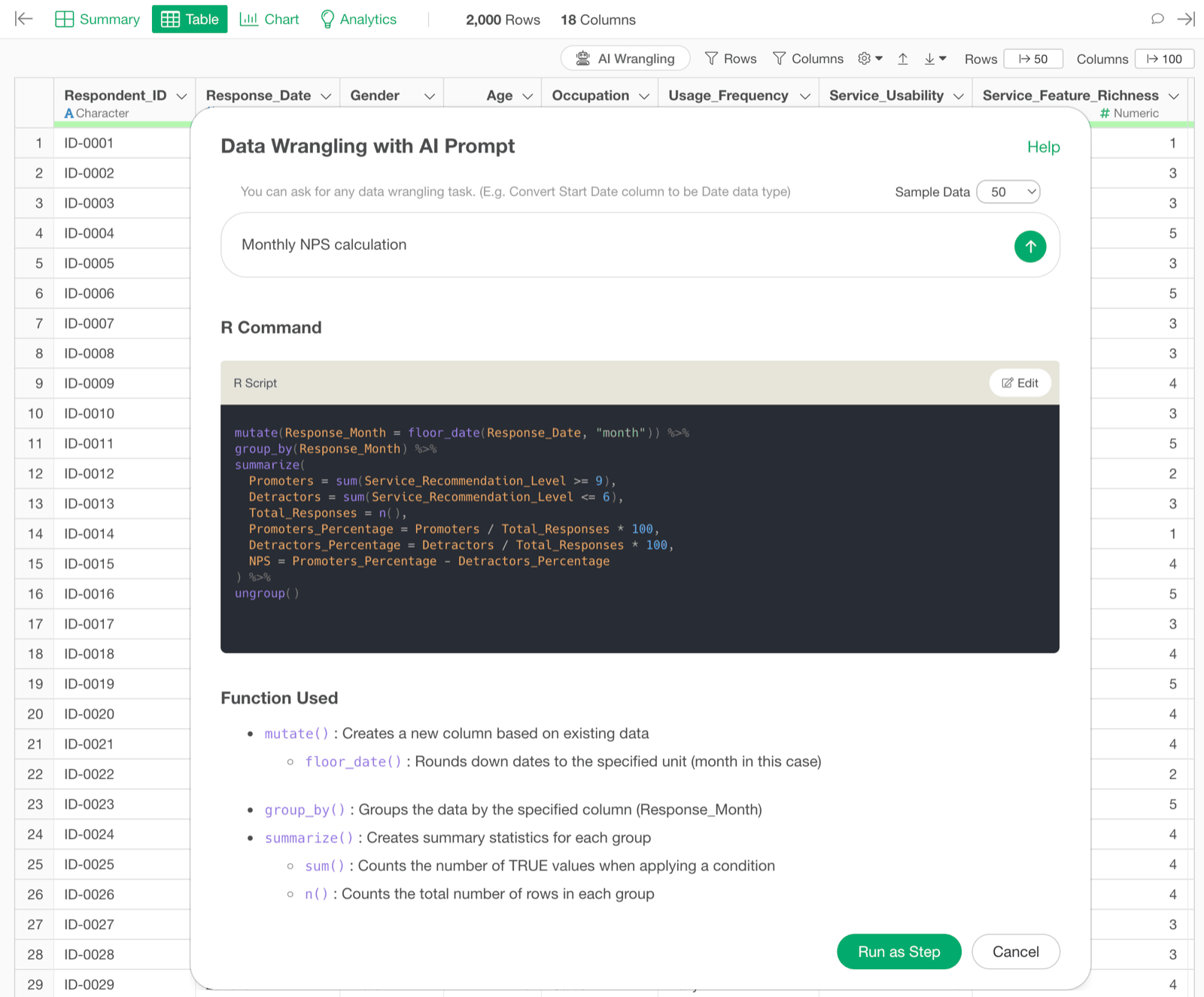
Run the R Command
In the R Command section, the data wrangling tasks necessary to process the queried content are output as R code, so you can apply that processing by pressing “Run as Step.”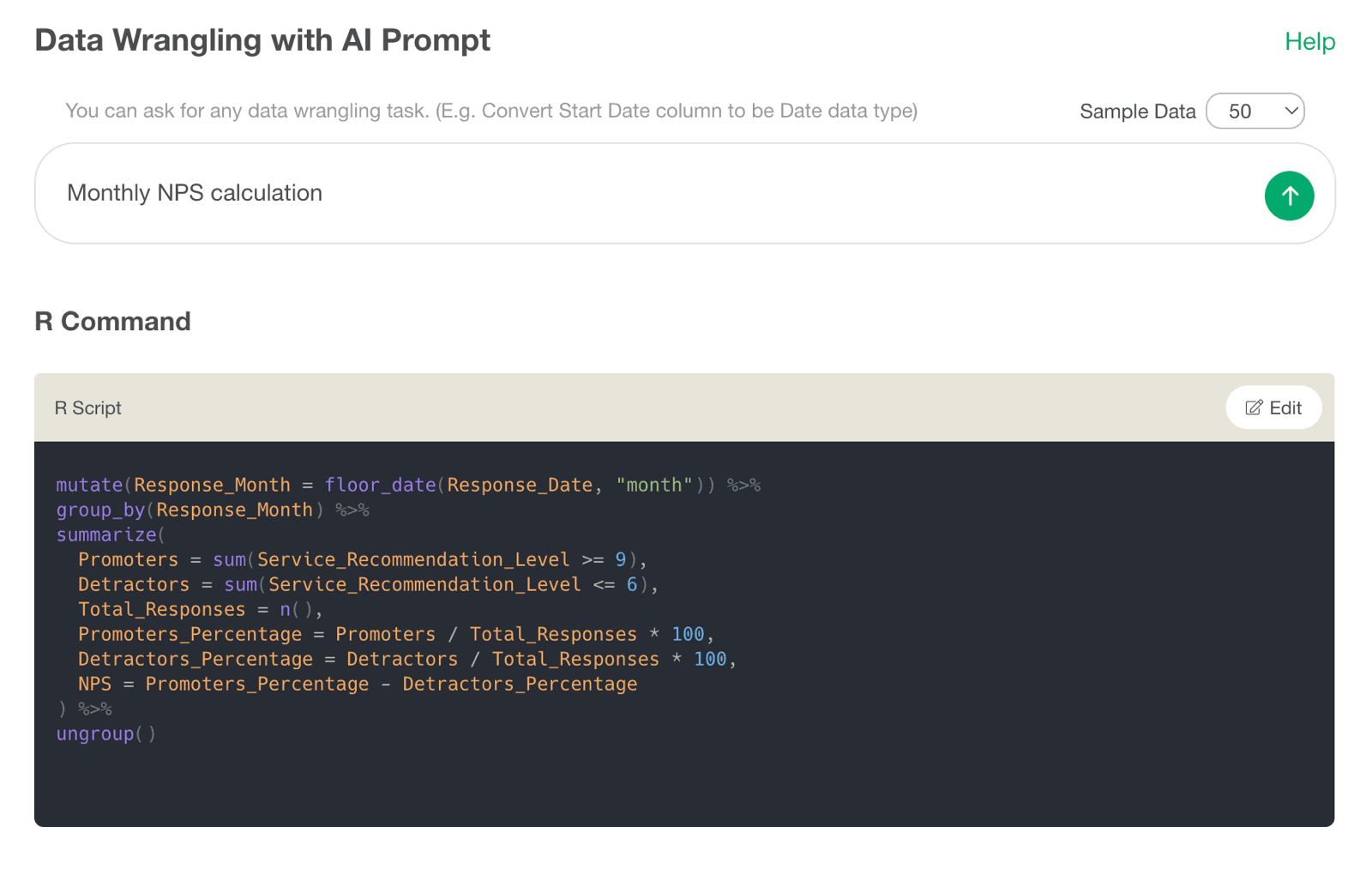
Edit the R Command
If you want to modify the R Command, click the edit button.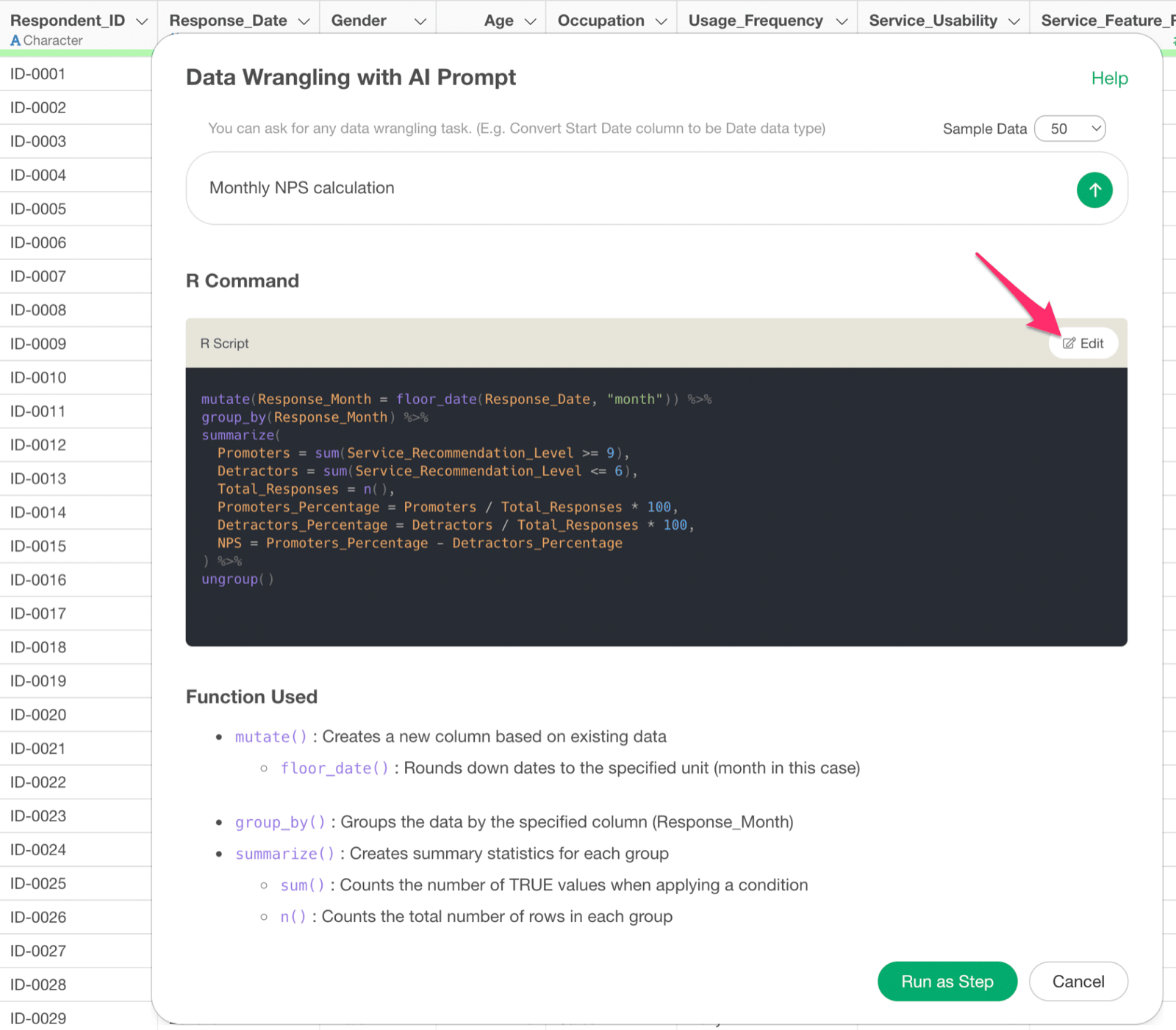
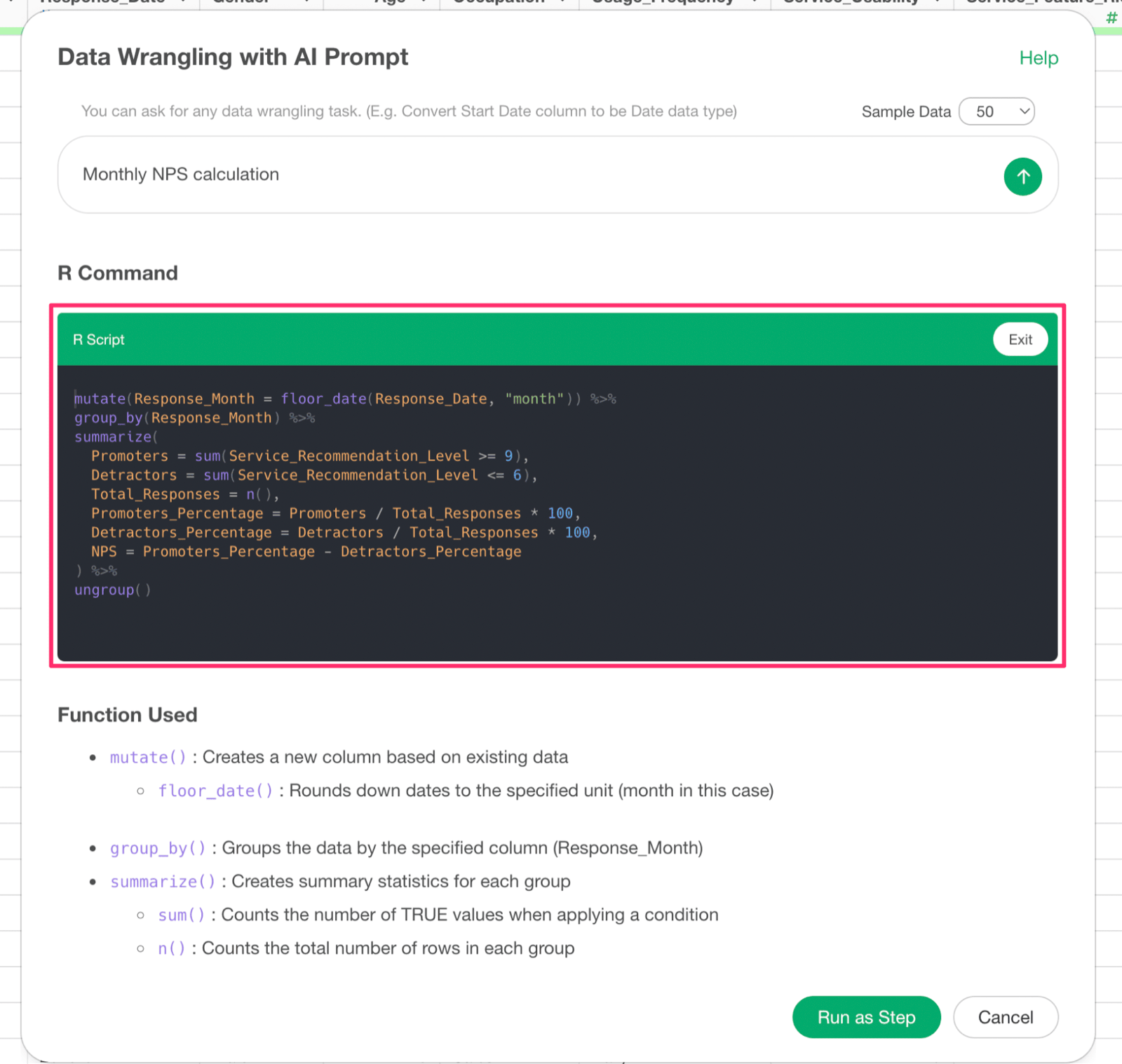
Check the Function Used
The Function Used section explains the functions and arguments in the R command.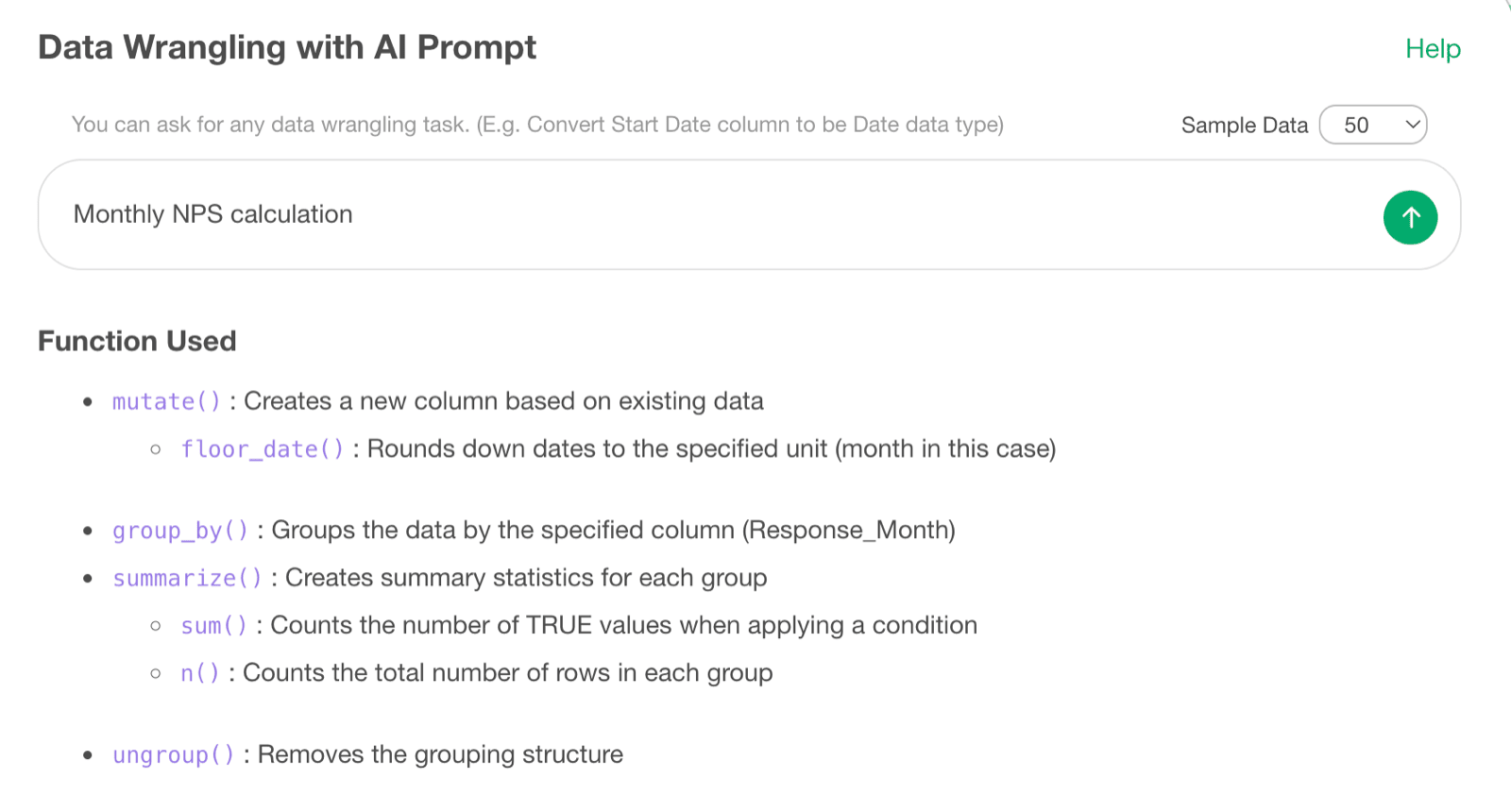
Check the Expected Results
The “Expected Results” section explains what results will be obtained by executing this code.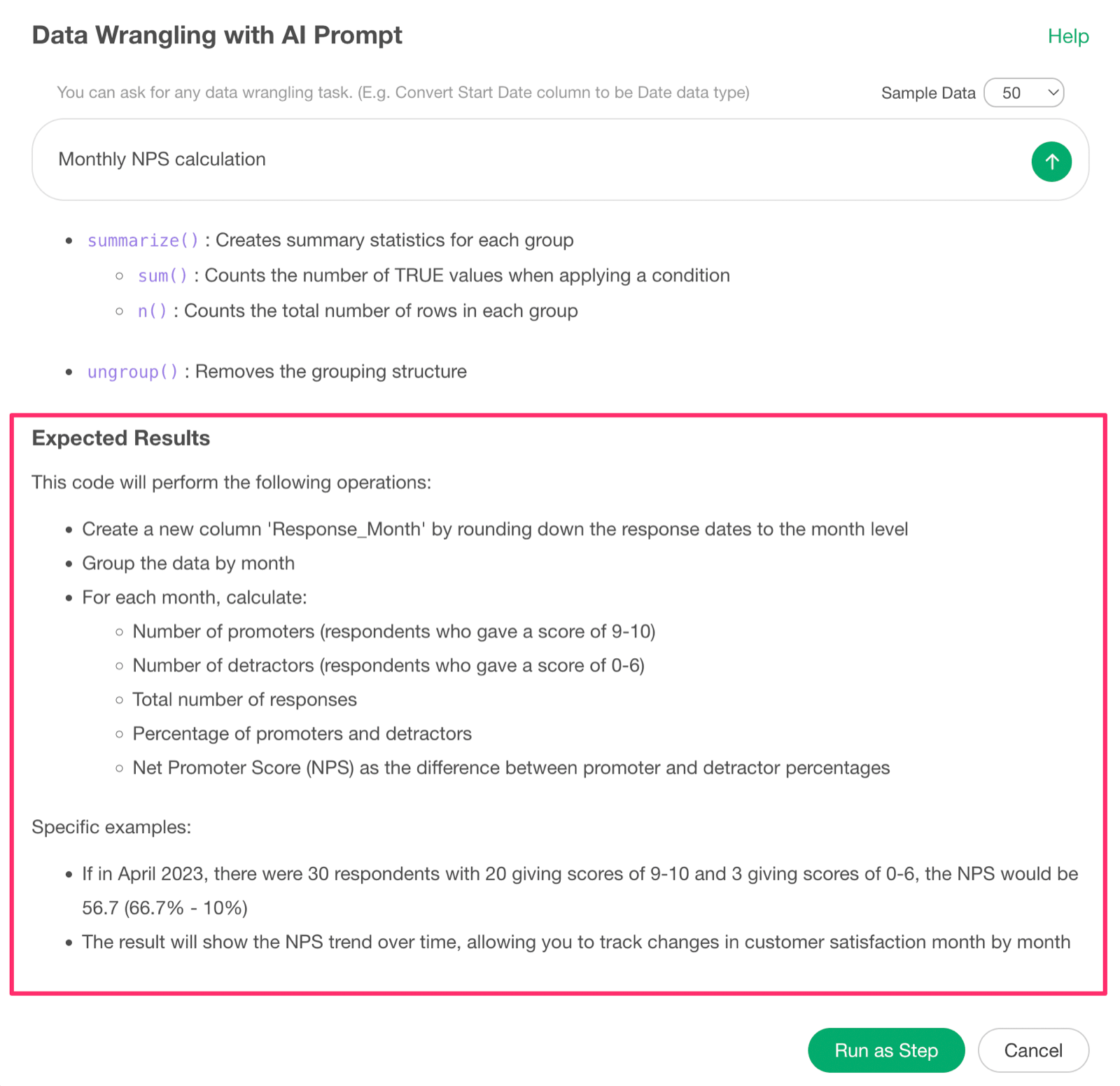
Writing Prompts
The basic structure for writing prompts in English is typically “verb + column name + processing content” using a command form. For example, let’s say we’re using sales data from an e-commerce site where each row represents one ordered product.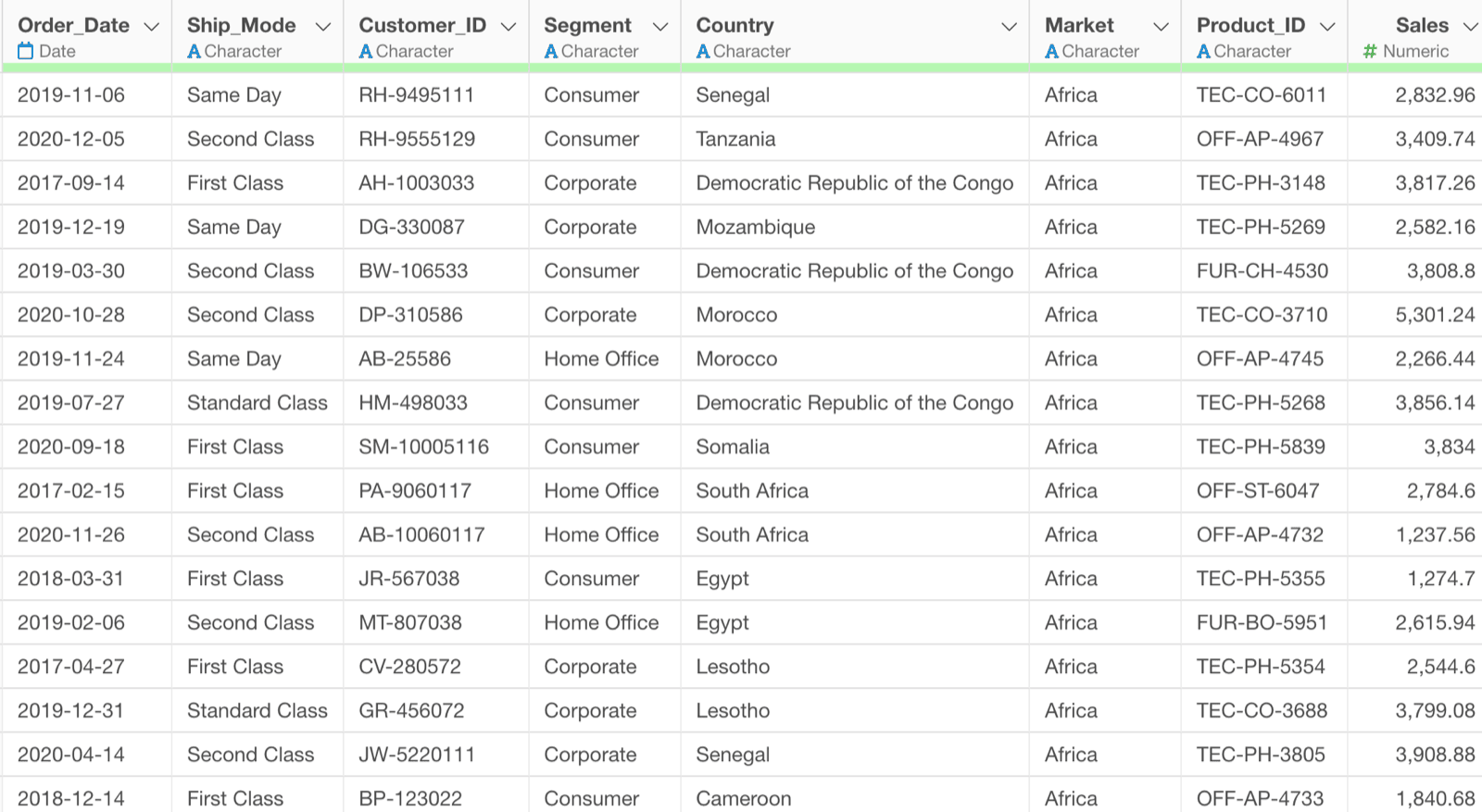
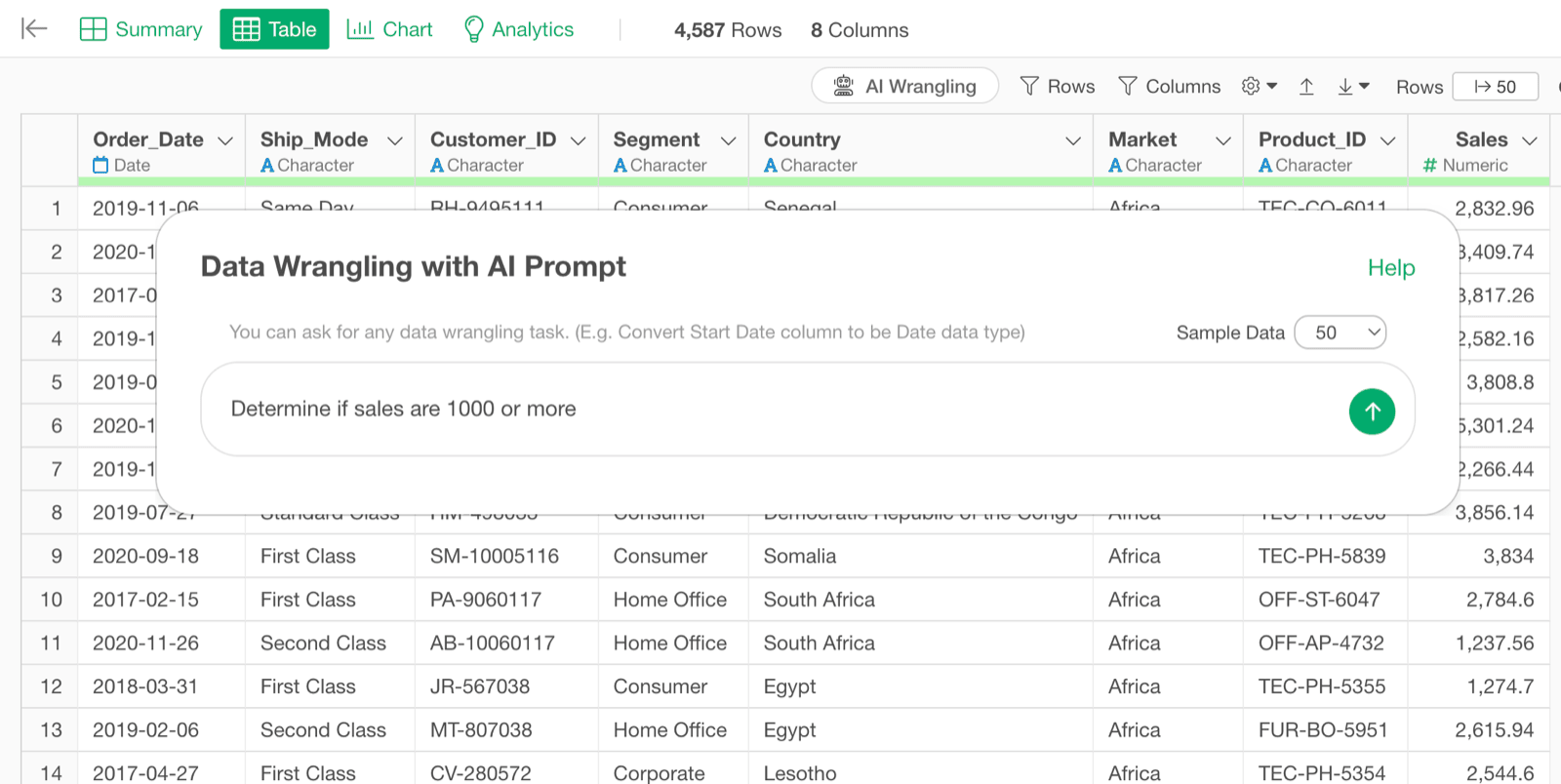
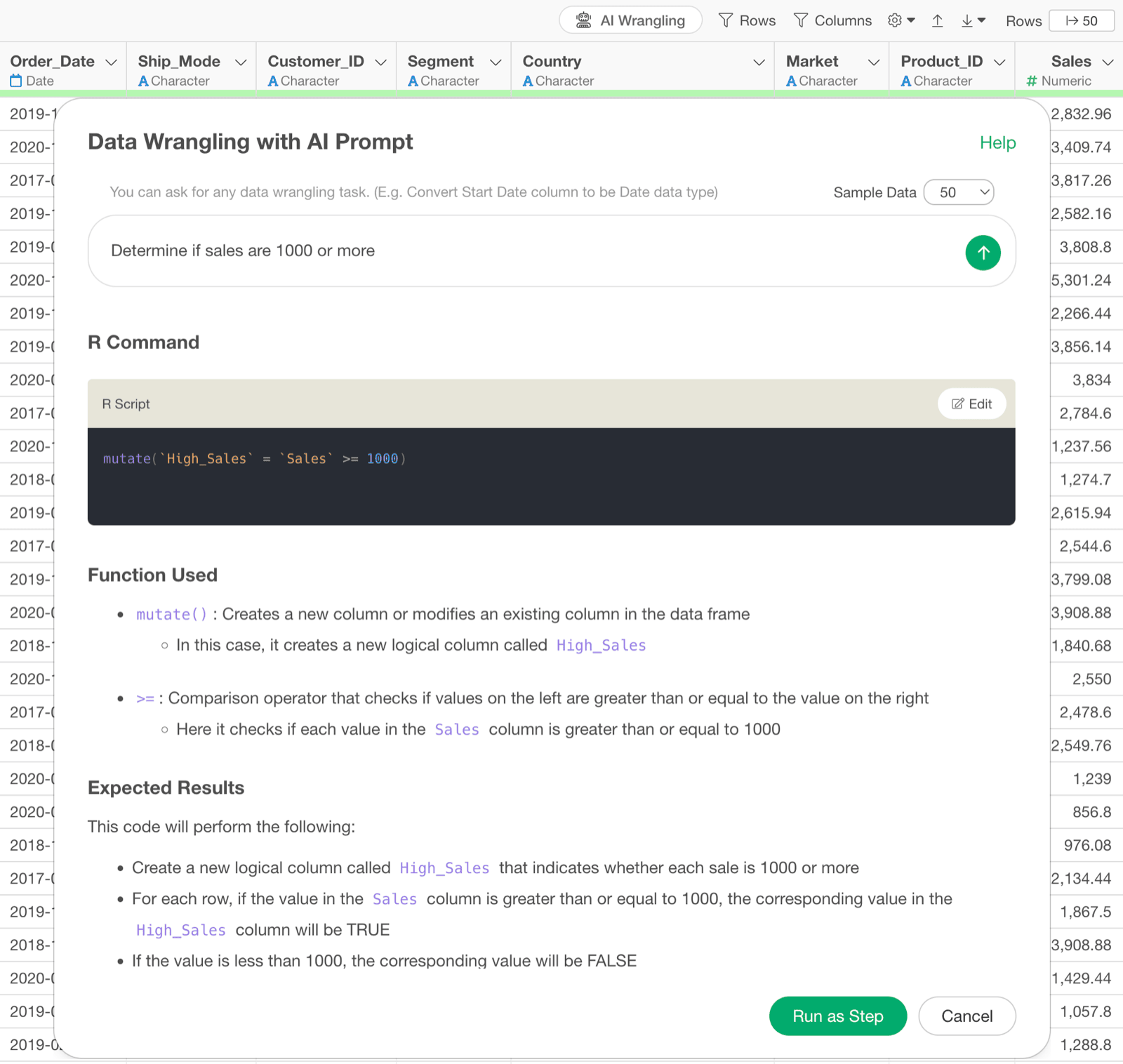
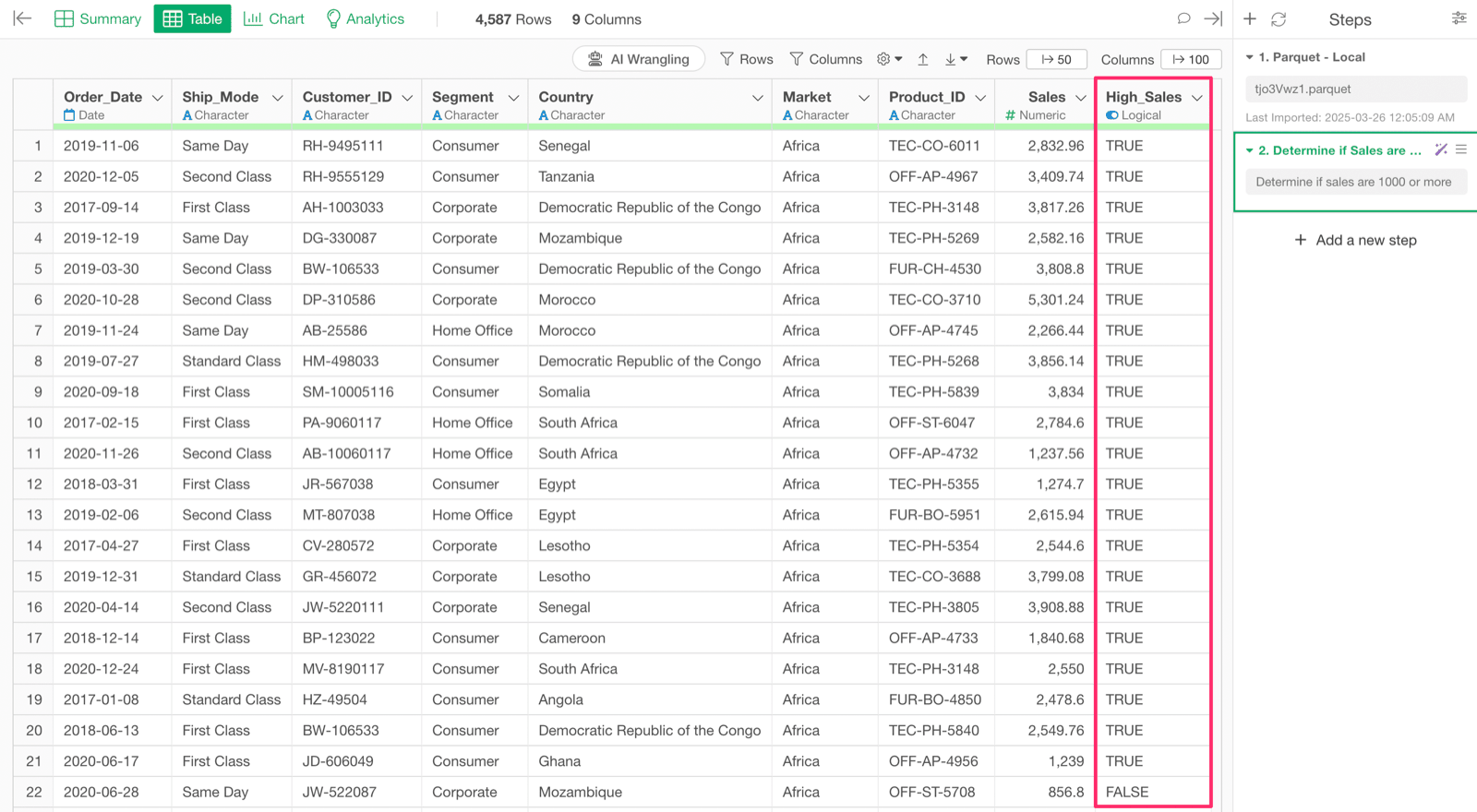
High_Sales. It contains TRUE when Sales is at least 1000 and FALSE otherwise.
Aggregate by Group
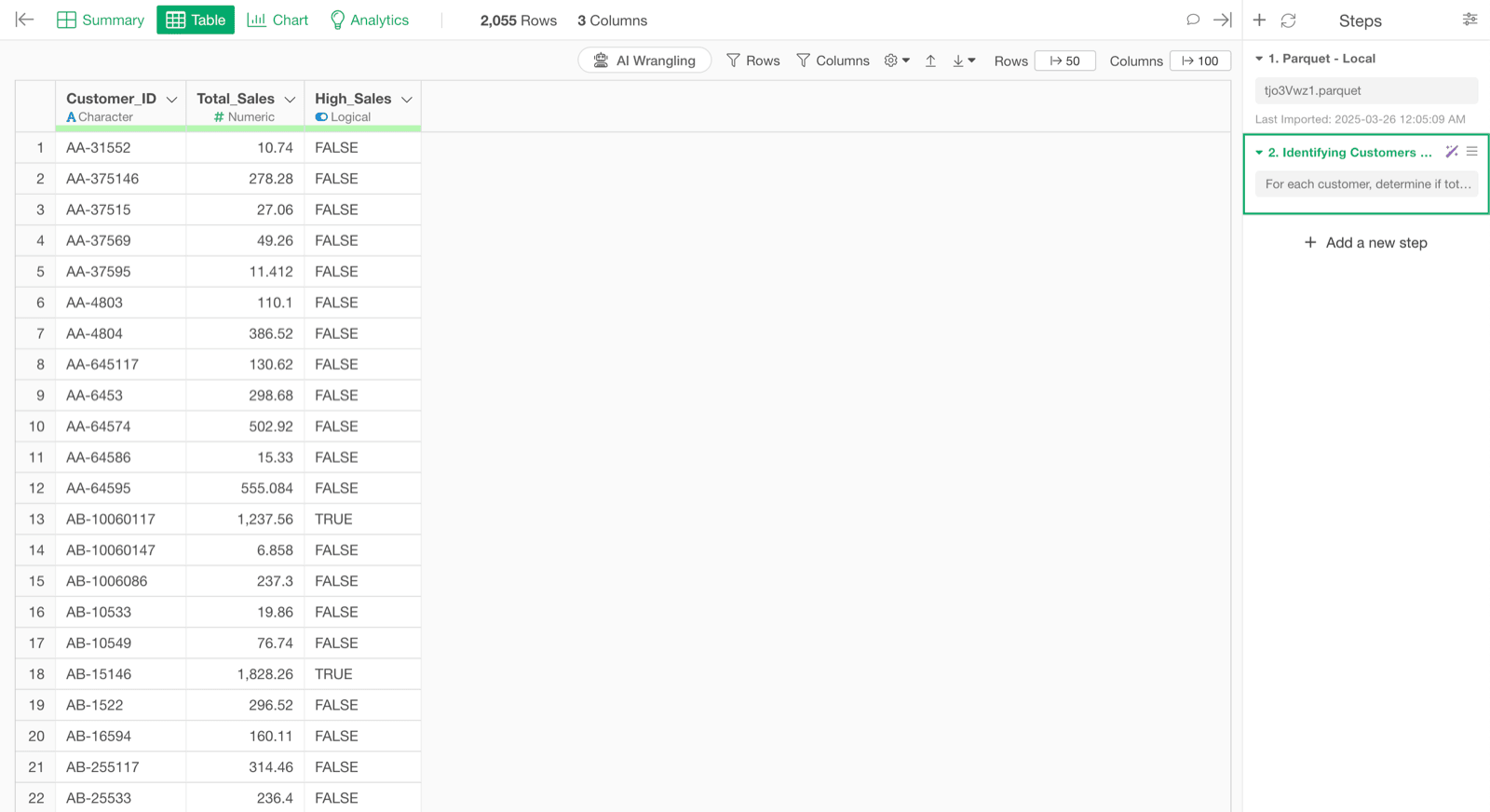
If you want to aggregate by customer and then determine if sales are 1000 or more, add the “group unit” to the beginning of the original question. For example, change the question to “For each customer, determine if total sales are 1000 or more”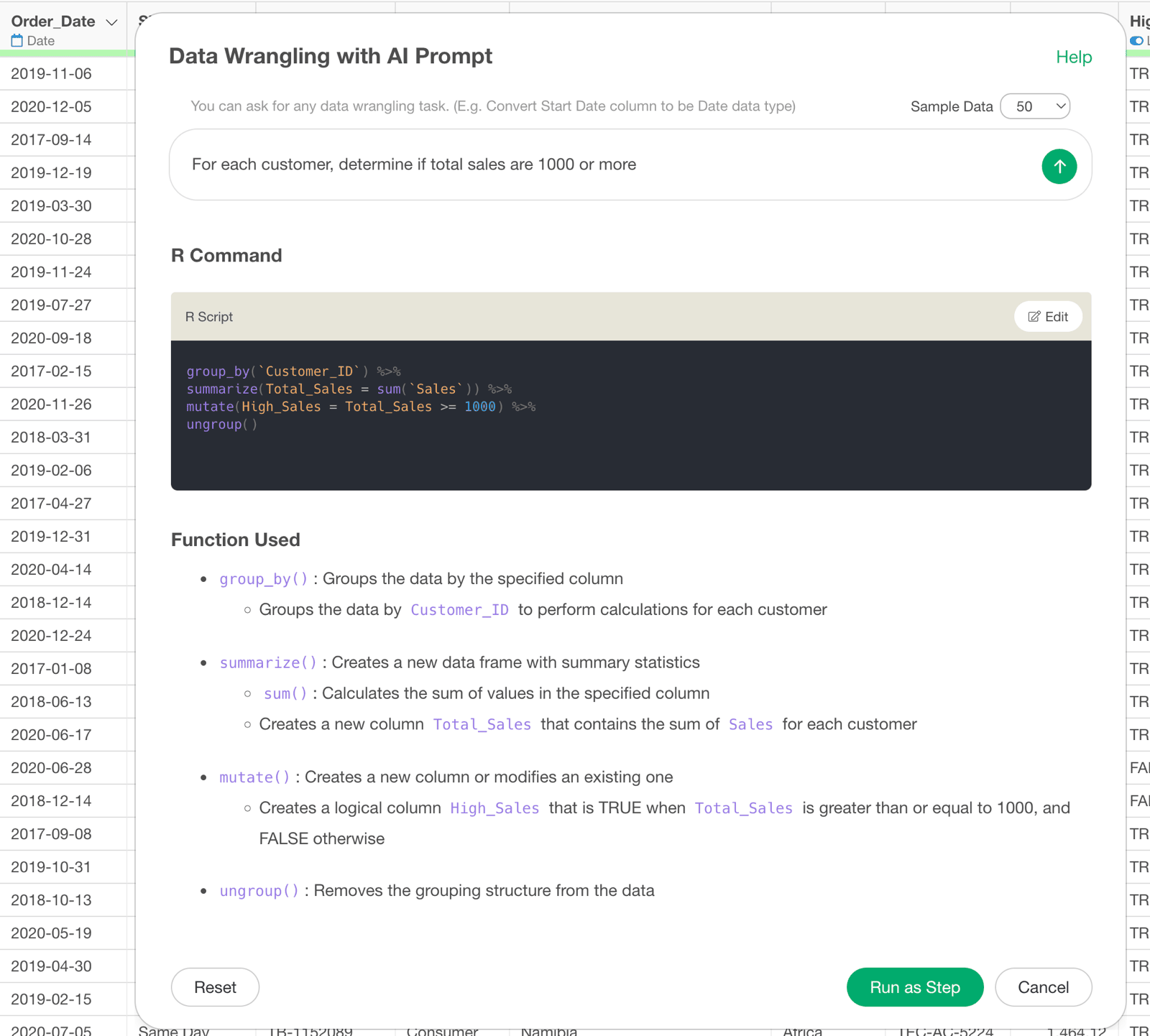
Tips for Writing Prompts
There are two points to keep in mind when writing prompts:- Keep it concise: Use short, clear expressions starting with a verb (like “Calculate…”, “Convert…”, “Extract…”)
- Use specific column names: Include the names of the columns you want to process in the prompt