
Turn on the CLI first
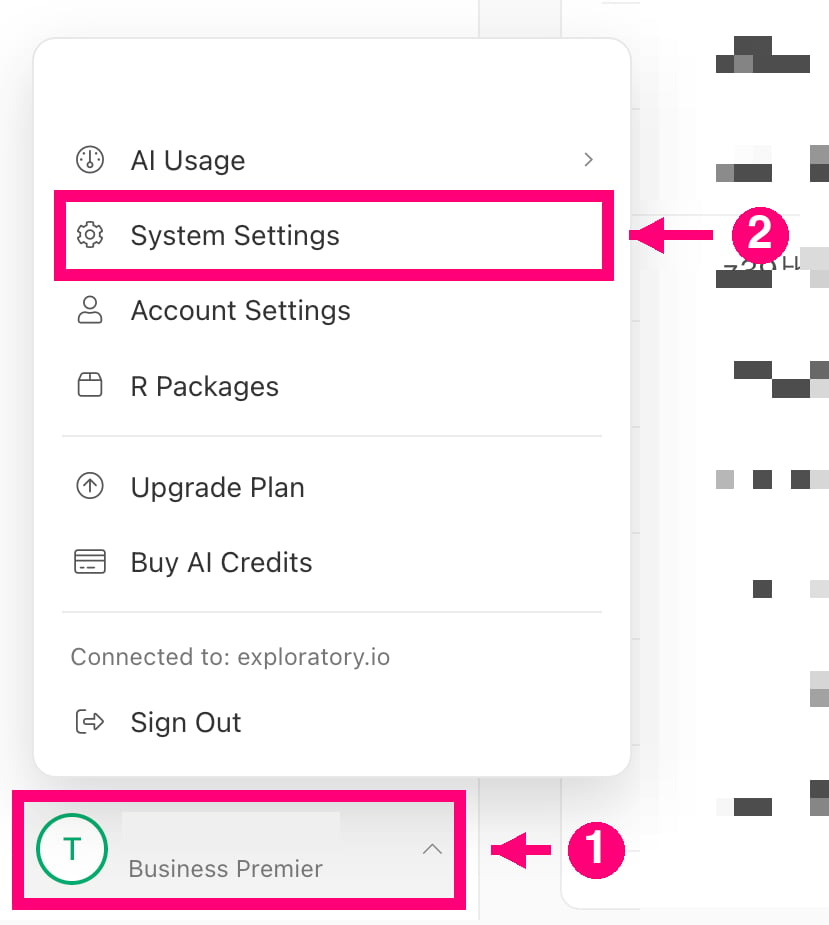
In Exploratory Desktop, the CLI is off by default. Even when expl is on your PATH, Desktop refuses its commands until you turn it on.- In Exploratory Desktop, choose your name at the bottom left of the screen, then choose System Settings in the menu that opens (1 and 2 in picture 1).
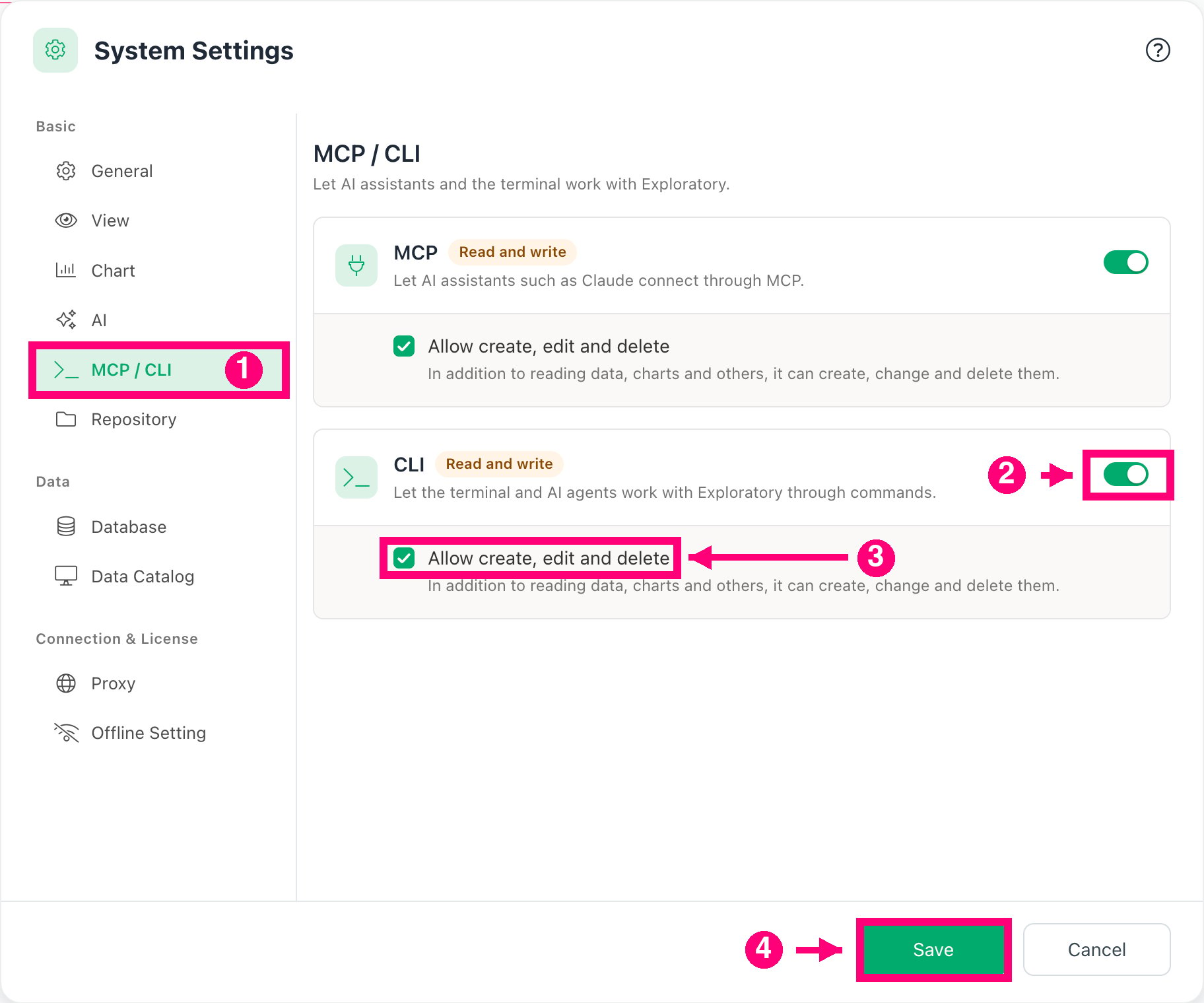
- In the menu on the left of System Settings, choose MCP / CLI (1 in picture 2).
- On the CLI card, turn on the switch (2 in picture 2).
- Only when you want to create, change or delete content with expl, also check Allow create, edit and delete (3 in picture 2).
- Choose Save at the bottom of the screen (4 in picture 2).
Bundled with Desktop
When you start Exploratory Desktop, it puts expl on your PATH (the list of folders where commands are found) if it is not there yet. Use it from a newly opened terminal. You do not need to install Node.js. On macOS this happens only when the app is in /Applications or ~/Applications. Open a new terminal and run this.Where it goes
On macOS, installing in /usr/local/bin may ask for administrator permission. If you decline, expl goes to ~/.local/bin; add that folder to your PATH if needed, and run
which expl to see where it is.
The same program is also installed as exploratory, and as exploratory-mcp for MCP. If another command already uses one of those names, only that name is not installed.
When you also installed it with npm
If you have both an npm copy and the Desktop copy of expl, check which one runs.macOS and Linux
Windows
Update
The expl that comes with Desktop is updated when you update Exploratory Desktop. Runexpl --version to check the version. To update an npm copy, see Update.
For what changed in each version, see the release notes.
Remove
To connect to Desktop and run your first commands, see Get started.