
Steps
1. Start Desktop and sign in
Start Exploratory Desktop and sign in. expl reads the connection details and token that Desktop writes, so expl has no sign-in of its own.2. Turn on the CLI
expl comes with Exploratory Desktop. The CLI is off by default, and Desktop refuses its commands until you turn it on. In Exploratory Desktop, choose your name at the bottom left of the screen, then choose System Settings in the menu that opens. In the menu on the left, choose MCP / CLI, turn on the switch on the CLI card, and choose Save. To create, change or delete content with expl, also check Allow create, edit and delete. The pictures are on the Installation page.3. Check the version and the state
Open a new terminal and check that expl works.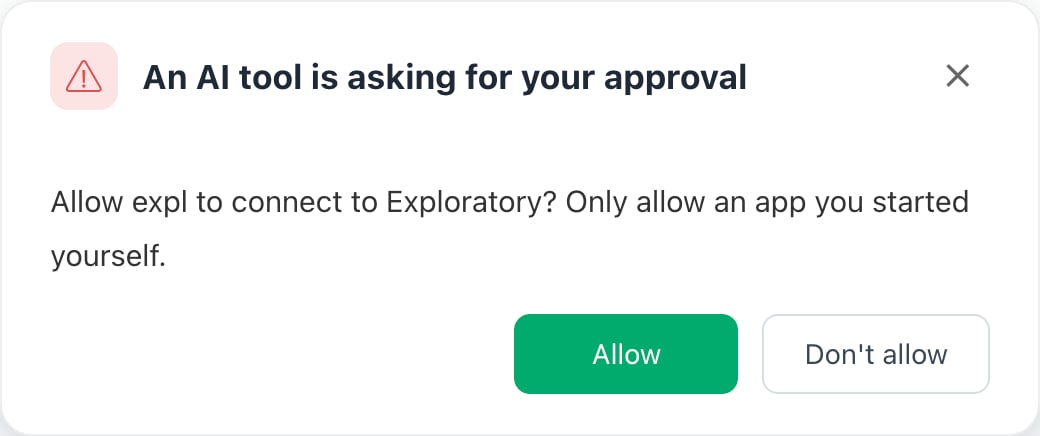
4. Choose a project
5. Look at the data
6. Get a dashboard (optional)
If something does not work
- A command is refused: check that the CLI switch is on and saved (step 2).
- The command stops with PAIRING_PENDING: you did not answer within 2 minutes. Answer the request in Desktop and run the command again (step 3).
- The command stops with PAIRING_REQUIRED: you chose Don’t allow. Run the command again after 5 minutes and allow it on the screen (step 3).
- The command stops with PROJECT_NOT_OPEN: open the project with expl project open <project_id> (step 4).
- expl tools list exits with code 0 but the other commands do not work: that does not mean Desktop is connected. Run expl status.
- The dashboard list is empty: the project has no dashboard yet.
Next
- Choose a project - The order in which the project is decided.
- Use - Find the command for what you want to do.
- All commands - Find a command by purpose.
- Troubleshooting - Find a fix by symptom.